- Website builder
- Building pages
- Advanced styling
Advanced styling and animation
Backgrounds with images, video, gradients and parallax; borders, shadows, transforms, filters, hover effects, entrance animations and scroll effects.
Every row, column and element has the controls a professional designer would use on the Design tab of its settings (select its ⚙) — no code needed. The screen bar at the top of the tab decides what you are editing: Desktop, Tablet, Phone, or the Hover state. Each group can be set separately for each.
Hover styling#
Select Hover in the screen bar, then switch on Enable Hover Styling in a group. Now that group can have different values while the mouse is over the item — a darker background, a lifted card, a bigger shadow. Off means the hover state simply reuses the default styling.
The Transitions group decides how smoothly it changes: Transition Duration, Transition Delay and Transition Speed Curve.
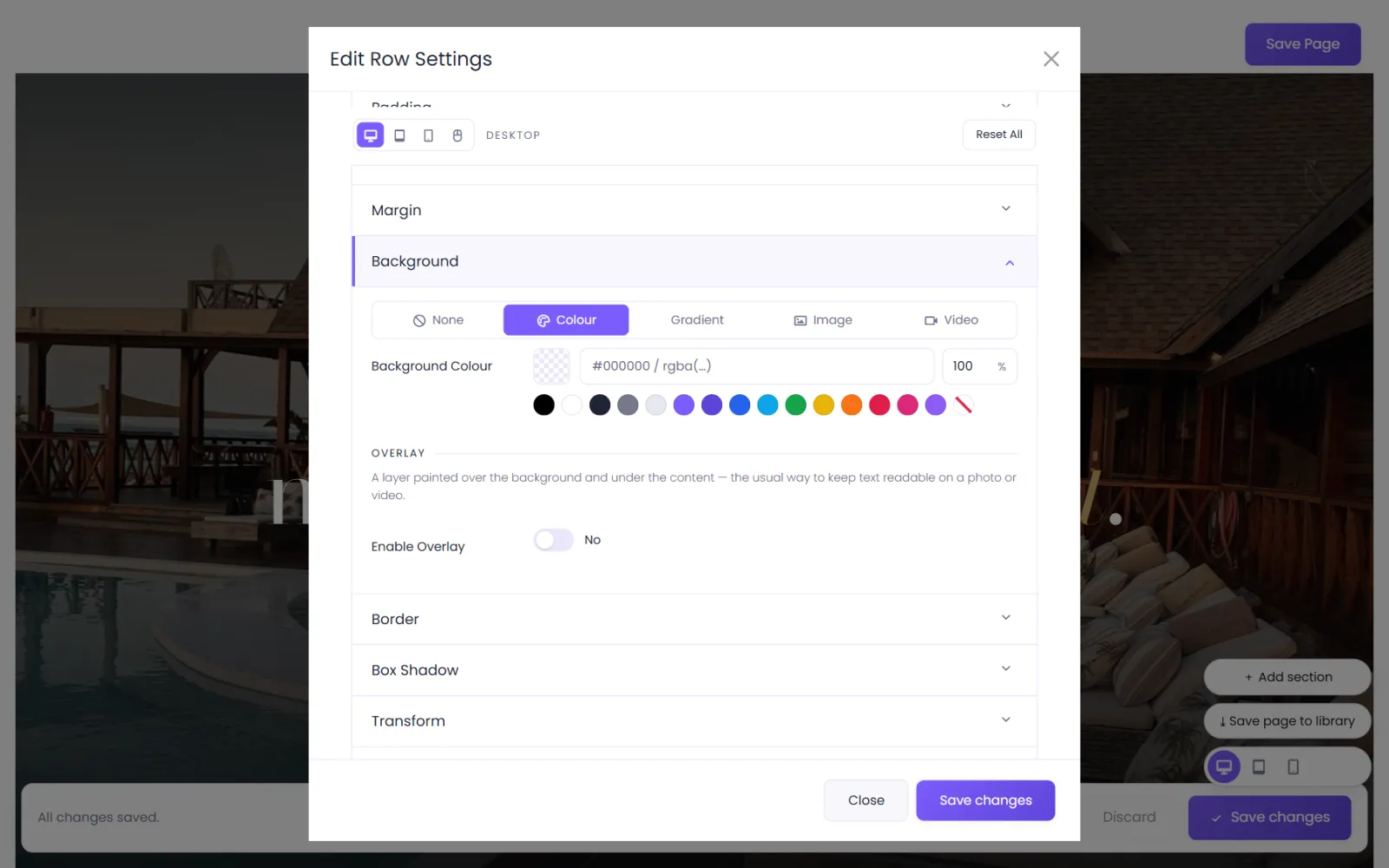
Background#
Choose the background type:
- Colour — any colour, including see-through.
- Gradient — Linear, Radial or Conic, with a direction or position and as many colour stops as you like.
- Image — with size (Cover, Fit, Actual, or a custom size), position, repeat, and attachment (Scroll, Fixed, Local). Switch on Parallax Effect for the picture to move more slowly than the page as visitors scroll.
- Video — an MP4 (and optionally WEBM) file playing behind the content, with a Poster Image, fit, position, playback speed, autoplay, loop, muted, Pause When Off-screen and a fallback colour.
Then, on top of any background:
- Tint — a colour wash over the picture, with a blend mode and strength.
- Overlay — a colour or gradient layer with its own opacity, to make white text readable on a busy photo.
Border#
Rounded Corners (each corner separately or all at once, with Clip Children To Corners to round the contents too), Border Width (each side, or Same Style On All Sides), Border Style and Border Colour.
Box Shadow#
Horizontal Position, Vertical Position, Blur Strength, Spread Strength, Shadow Colour and Shadow Position — Outer (a drop shadow) or Inner (pressed in).
Transform#
Move, turn and resize an item without changing the layout around it: Scale (X and Y, linked or not), Move horizontally and vertically, Rotate (tilt, turn, spin), Skew, the Origin point it turns around, and Perspective for 3D. Use it with Hover for effects like "lift up slightly when pointed at".
Filters#
Change how an item looks — great for photos: Hue, Saturation, Brightness, Contrast, Invert, Sepia, Greyscale, Opacity, Blur and Blend Mode. With Hover, a black-and-white photo can turn to colour when pointed at.
Animation#
An entrance animation that plays once as the element scrolls into view:
- Animation Style — None, Fade, Slide, Bounce, Zoom, Flip, Fold or Roll.
- Animation Direction, Duration, Delay, Intensity, Starting Opacity, Speed Curve.
- Animation Repeat — Once or Loop.
Position#
Default, Relative, Absolute or Fixed, with a 9-point Location, Vertical and Horizontal Offset, and a Z Index to decide what sits on top. Useful for a badge overlapping a picture, or a floating shape.
Sticky Position keeps an item in view while its row scrolls past: Stick To Top, Stick To Bottom or both, with an offset.
Scroll effects#
Effects that follow the visitor's scrolling, from when the item enters at the bottom of the screen to when it leaves at the top:
- Vertical Motion and Horizontal Motion — parallax-style movement.
- Fading In And Out, Scaling Up And Down, Rotating and Blur.
Each has a Starting, Mid and Ending value and a range (Range Start and Range End, in % of the screen). Motion Effect Trigger sets which part of the item counts — top, middle or bottom — and Enable On Mobile decides whether phones get the effect too.
CSS classes, IDs and custom CSS#
These live on the Advanced tab, next to Visibility (which screen sizes show the item at all — see Tablet & phone):
- Css Class and Css ID (rows, columns and elements) — names for your own CSS, or an ID to link to (
/about#team). - Custom CSS (rows only) — rules that apply to this row and what is inside it; they cannot leak to the rest of the page.
- Custom JS (rows only) — a script that runs once on the live site with
elset to the row. It does not run in the editor.
To style a single column or element with your own CSS, give it a Css Class and write the rule in the row's Custom CSS, or site-wide in Custom CSS & JavaScript.
Keep it fast and calm#
Animation is seasoning, not the meal:
- Animate a few important things, not everything.
- Prefer Fade and small Slide distances.
- Video backgrounds are heavy on phones — consider hiding the video row on phones and showing a photo instead.
- Visitors who have asked their device for reduced motion see your site without movement.
Was this page helpful?
Something is missing — tell us