- Website builder
- Design & themes
- Custom CSS & JavaScript
Custom CSS & JavaScript
Add your own site-wide CSS and JavaScript — and per-row or per-element CSS — for anything the visual controls don't cover.
The visual controls cover almost everything. When you need more — a special effect, a third-party widget, a tracking pixel — you can write code.
Site-wide CSS and JavaScript#
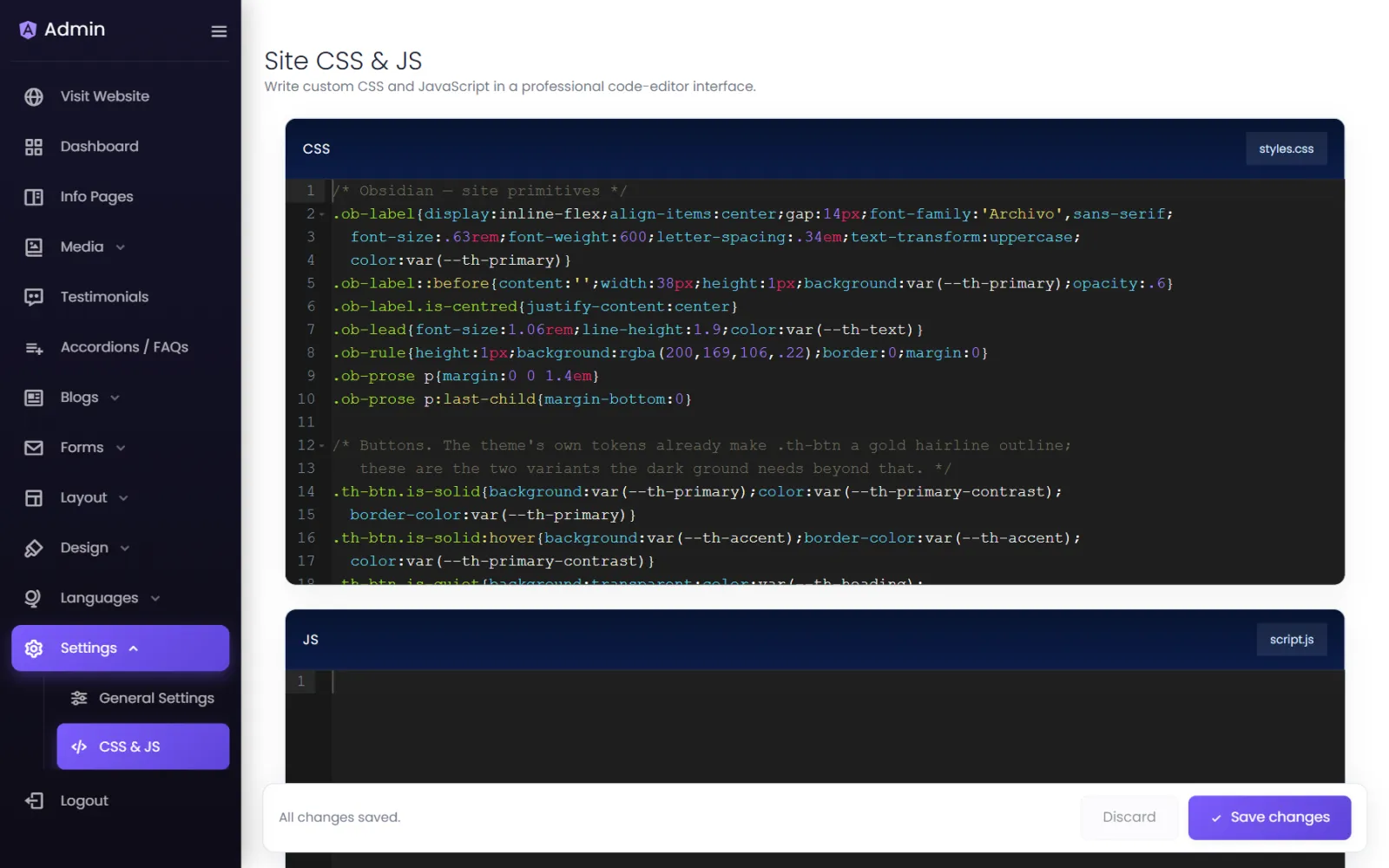
Settings › CSS & JS opens two code editors:
- CSS (
styles.css) — styles applied to every page. - JS (
script.js) — JavaScript that runs on every page.
Write your code and save. It is live on your site straight away.
Common uses#
- A tracking pixel (Meta, LinkedIn, Google Ads) — paste the script's JavaScript (without the
<script>tags) into JS. - A chat widget — the same: paste its JavaScript.
- A style the controls don't offer — for example
.my-class { text-wrap: balance; }, then addmy-classto an element under Advanced › Css Class.
CSS for one row or element (all plans)#
Every row has Custom CSS and Custom JS on its Advanced tab. The CSS is scoped: it can only affect that row and what is inside it, so it can't break the rest of the page. The JS runs once on the live site with el set to the row (not in the editor). Columns and elements have no CSS box of their own: give one a Css Class on its Advanced tab and target that class from the row's Custom CSS or from the site CSS here.
Be careful#
- Test on your phone after adding code.
- Paste code only from sources you trust. JavaScript runs on every visitor's browser.
- If the site looks broken after a change, remove the last thing you added and save — your content is never affected by custom code.
- An
@importat the very top of your CSS (for example to load a font) is fine; put it before any other rule.
Was this page helpful?
Something is missing — tell us