- Website builder
- Content
- Forms
Forms
Build contact and enquiry forms with eight field types, mark fields mandatory, and place the form on any page.
Forms let visitors send you enquiries, bookings and requests. Build them under Forms › Forms, show them with the Form element, and read what arrives in Forms › Form Enquiries.
Create a form#
- Go to Forms › Forms and select Add New.
- Give the form a Title — such as Contact form — for your reference.
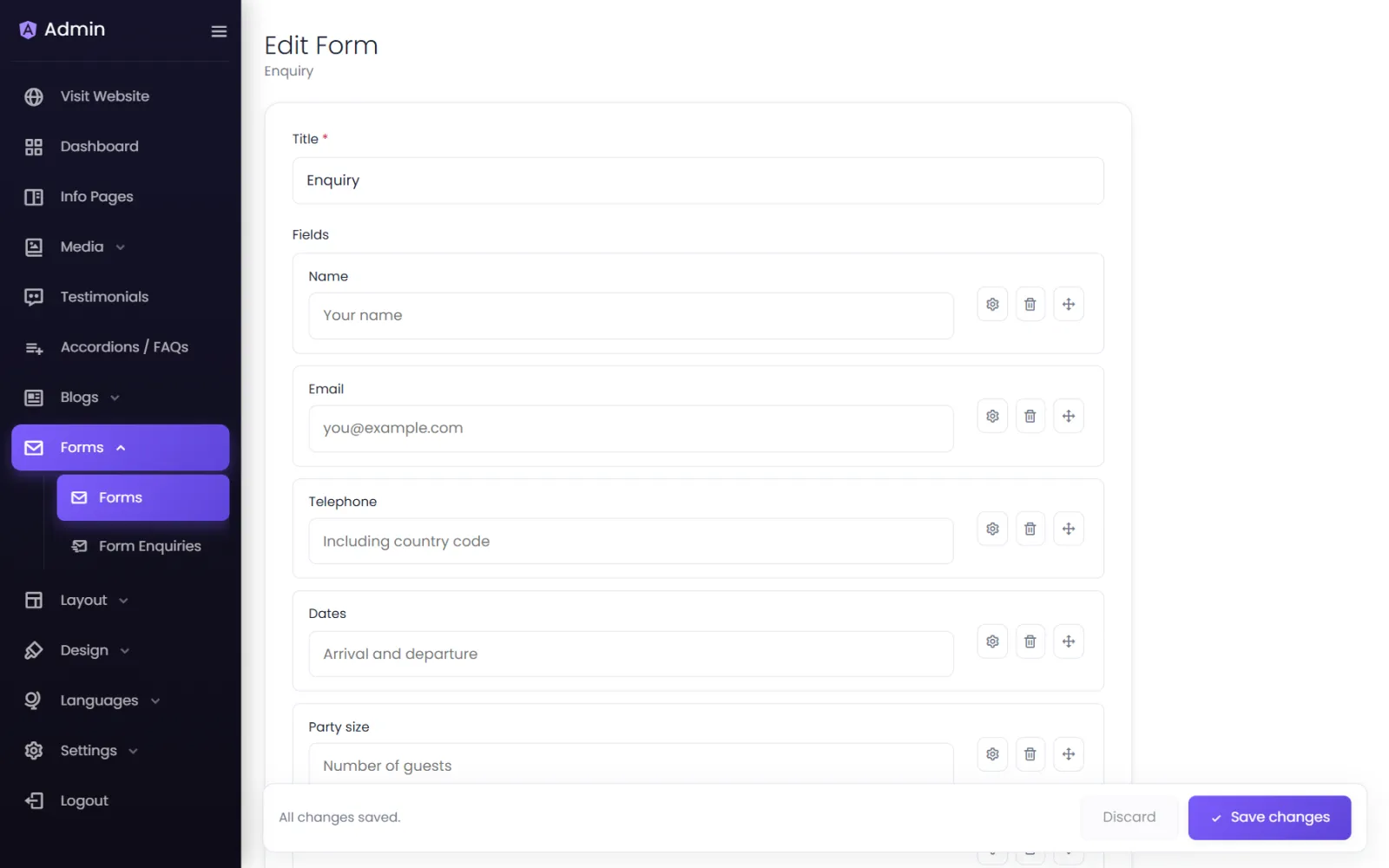
- Under Fields, select Add Field for each question, and set its Field Settings:
-
Type — one of eight:
Type Use it for Text A name, a city — one short line. Email An email address (checked for the right format). Large Text A message — several lines. Number Quantities, ages, guests. Checkbox Several choices, any number can be ticked. Select One choice from a dropdown list. Radio One choice from a visible list. Date A date picker — appointments, events. -
Title — the label visitors see (Your name).
-
Placeholder — optional grey hint text inside the field.
-
Mandatory Field — switch on if the field must be filled in.
-
Options — for Checkbox, Select and Radio: Add Option for each choice.
-
- Drag fields by the handle to reorder them. Use the ⚙ to edit a field and the 🗑 to delete it.
- Keep Status Active and save.
Put the form on a page#
In the page builder, add a Form element and choose your form in Select Form. Style it in the element's Design tab or with a saved form design.
What happens when someone submits#
The visitor sees a confirmation, and the submission is saved to Forms › Form Enquiries — see Form enquiries.
Protect forms from spam#
Turn on Google reCAPTCHA under Spam protection. It works invisibly for real visitors.
Good form habits#
- Ask for as little as possible. Name, phone or email, and a message is enough for most enquiries; every extra field loses people.
- Use the right types — Email for emails, Number for quantities — so phones show the right keyboard.
- Test it after every change: send yourself a message and check Form Enquiries.
- If you collect personal details, say how you use them on a privacy page.
Was this page helpful?
Something is missing — tell us