- Website builder
- Troubleshooting
- Saving & uploads
Saving and upload problems
Changes not showing, "File should be smaller than 2MB!", "File type is not allowed", Add New missing, and other editing problems.
My changes don't show on the website#
- Make sure you saved — the save bar should read All changes saved.
- Reload the live page (on a phone, close and reopen the tab).
- Still the old version? Your browser may be showing a stored copy: open the page in a private window.
- Check the screen size: a change made for Phone only shows on phones. See Tablet & phone.
- Check the item isn't hidden on that screen size under Visibility.
Upload size messages#
| Message | Limit | Fix |
|---|---|---|
| File should be smaller than 2MB! | An image uploaded inside the page builder | Resize or compress the image, or upload it in the Media Library first. |
| Images collectively should be smaller than 4MB! | Images uploaded together in the Media Library | Upload fewer at a time, or compress them. |
| Video should be smaller than 5MB! | A video in the Media Library | Shorten or compress it — or use YouTube for longer videos. |
| Pdf should be smaller than 2MB! | A PDF in the Media Library | Compress the PDF ("reduce file size" in most PDF tools). |
| That file is larger than this server accepts… | Any upload | Compress the file, or use a link (YouTube) instead. |
"File type ".…" is not allowed"#
- The file is a type that can't be uploaded for security (for example SVG, TIFF, ZIP).
- Or its name has extra dots. Each part after a dot is checked:
logo.final.pngfails on.final. Rename it tologo-final.png.
Allowed types are listed in Limits & file types.
"Uploaded files must have a file extension."#
Rename the file so it ends in its type, such as .jpg or .pdf.
A "limit reached" message, or Add New shows a lock#
Your website is using everything its plan allows of something — pages, image or video galleries, the images or videos one gallery can hold, or storage. Nothing has been deleted and the website keeps working; you just cannot add more of that thing yet. The message names the limit, and See add-ons and plans opens the page where you can get more for this website.
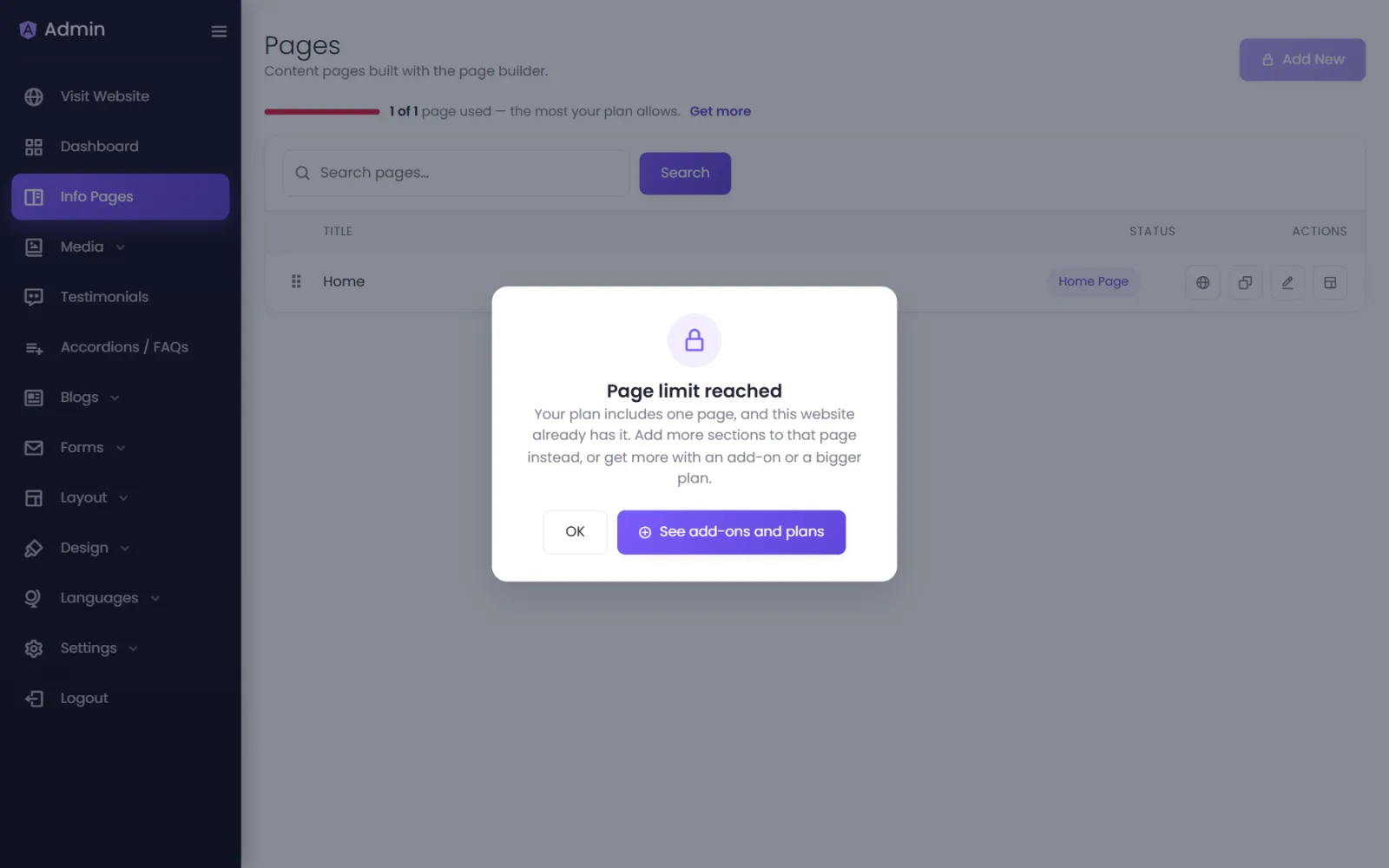
Each message, and what to do:
- "Your plan includes one page, and this website already has it." Your plan is a one-page plan. Add new content as sections of that page — sections are unlimited — or get more pages with an add-on.
- "Your plan allows … pages and this website has …." Delete a page you no longer need (inactive pages count too), or add pages with an add-on or a bigger plan.
- "A page can have … sections on your plan, and this one has …." Remove a section from this page first, or get more room with an add-on or a bigger plan. A section added by copying or from the library counts too.
- "Your plan allows … image galleries …" (or video galleries). Delete a gallery you no longer use, or add one with an add-on.
- "A gallery can hold … images on your plan …" (or videos). The limit is per gallery. Remove some from this gallery, choose fewer at once, or put the rest in another gallery.
- "This upload needs …, but only … of your … storage is left." Delete files you no longer use in Media, upload smaller files, or add storage with an add-on.
- "Mega menu is not included in this website's plan." Your website shows the general menu. The message names the plan or add-on that includes it.
Your website admin's Dashboard shows every limit and how much you use. See Limits and file types.
A page, gallery or image shows "Off — plan limit"#
Your website holds more of something than its plan allows — after a move to a smaller plan, or when an add-on ended — so the ones past the limit were switched off. Nothing was deleted. Visitors don't see them until there is room again; then they switch back on by themselves.
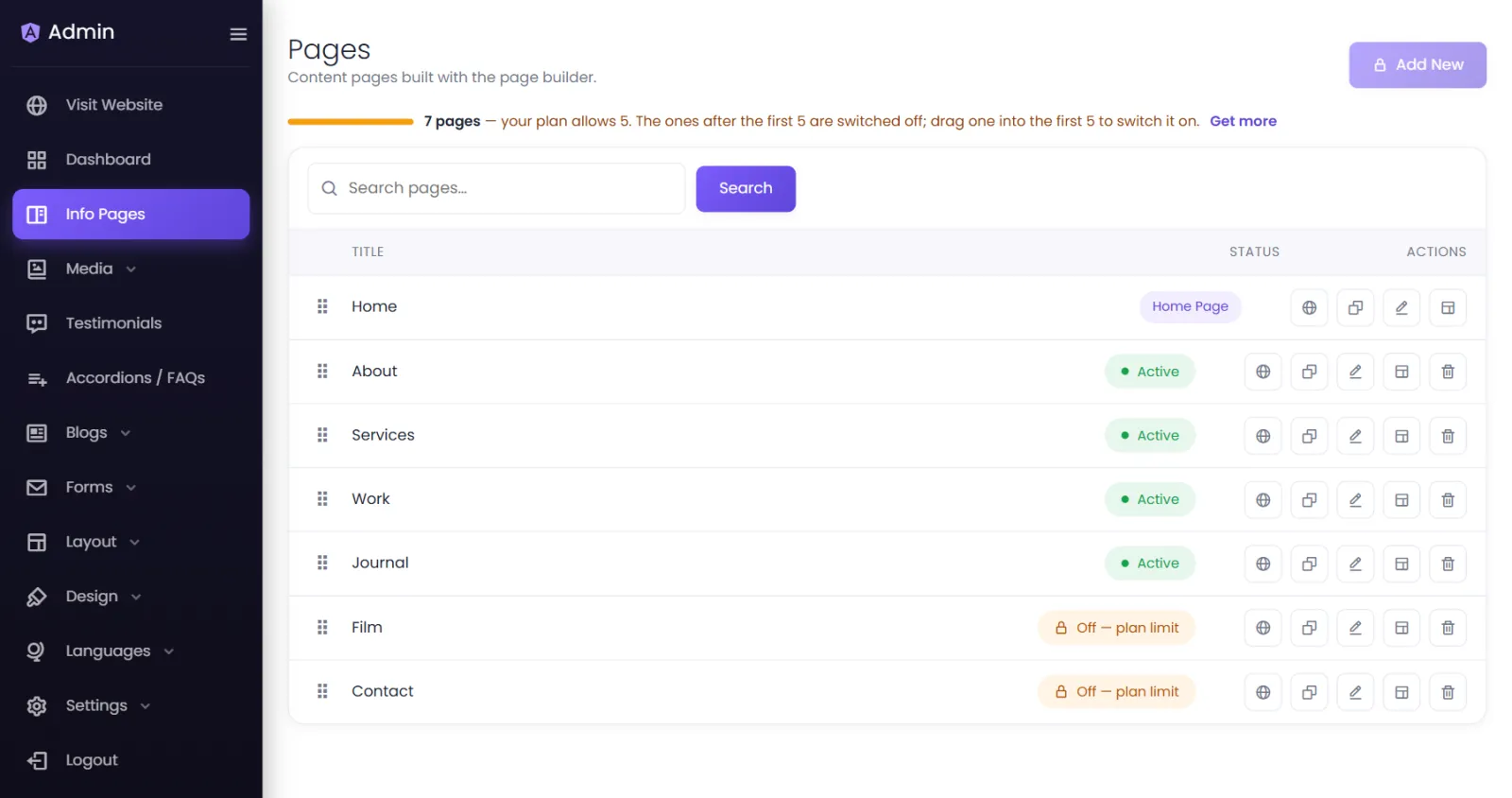
- To choose which ones stay on, drag the one you want higher in the list. It switches on, and the one it pushes past the limit switches off.
- To have them all on, delete ones you no longer need, or get more room with an add-on or a bigger plan.
Clicking the pill of one that is past the limit says, for example, "Your plan allows 5 pages to be on, and this page is number 7 in Pages." See When your website is over a limit.
A section says "Hidden on your site"#
In the page builder, a section with an amber dashed outline and Hidden on your site is past your plan's sections-per-page limit. It is kept and you can edit it, but your website doesn't show it. Move it higher (the section it passes is then the hidden one), remove a section above it, or get more room with an add-on.
"Page data is still loading — please wait a moment and try again."#
You pressed save before the builder finished loading the page. Wait a second and save again.
The page looks broken after adding custom CSS or code#
Remove the last thing you added in Settings › CSS & JS or the item's Custom CSS, and save. Custom code can't damage your content.
Saving fails with "419 — Page Expired"#
Your session timed out while the page was open. Copy anything you were writing, reload, sign in, and paste it back.
Was this page helpful?
Something is missing — tell us