- Website builder
- Building pages
- Save and reuse sections
Save and reuse sections
Save any row or page to My Library, add ready-made sections from the NijeesWeb library, and reuse your work across pages.
Designed a section you love — a hero, a pricing strip, a team row? Save it once and drop it into any page in seconds.
Save a section to My Library#
- In the page builder, hover over the row.
- Select 🔖 Save this section to my library in its orange toolbar.
- Give it a name you will recognise, and confirm.
Save a whole page#
At the bottom of the builder, select ⤓ Save page to library. The page is kept in My Library, and new pages can start from it with From my library.
Add a section to a page#
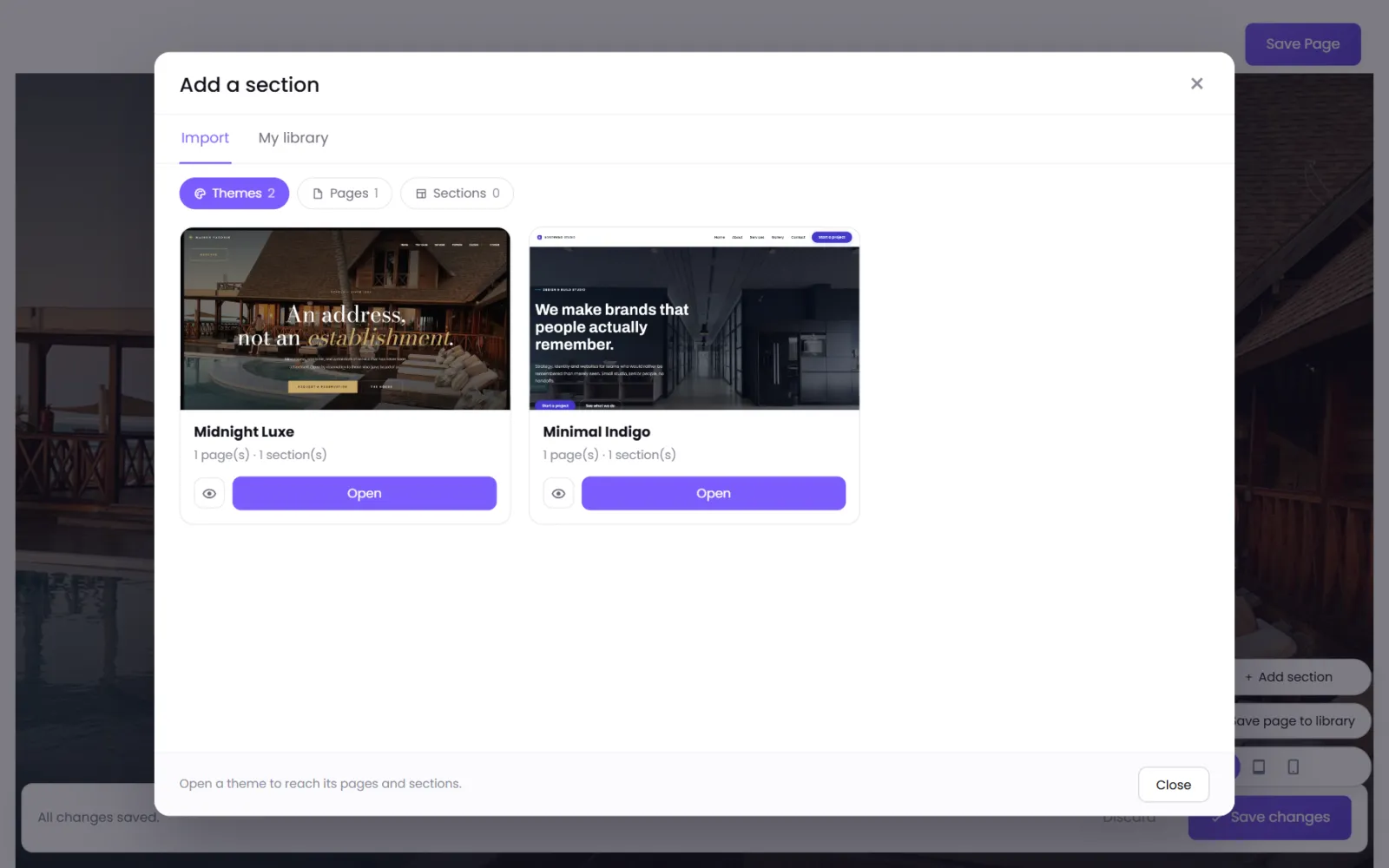
- At the bottom of the builder, select + Add section.
- Choose where to look:
- Import — the NijeesWeb library, organised in Themes, Pages and Sections. What you see depends on your plan.
- My library — everything you have saved or imported.
- Use the eye icon (Live preview) to look before you add.
- Select Add. The section is added to the bottom of the page — drag it to where you want it.
From a theme, you can take a whole page (Add the whole page), one section from it (Or take one section), or every section at once (Add all).
Manage My Library#
Open Design › My Library to see everything you have saved or imported: sections, pages, themes, designs and mega menus. From there:
- Add to page… — put an item onto any page.
- Remove — delete it from your library (pages already using it are not affected).
Good to know#
- Adding a section copies it into the page. Editing it on one page does not change it anywhere else.
- Sections bring their own styling and images with them, so they look right the moment they arrive. Your site's theme colours and fonts still apply.
Was this page helpful?
Something is missing — tell us