- Website builder
- Getting started
- Tour of the admin panel
A tour of the admin panel
Everything in your website's admin panel, menu by menu — so you always know where to find a setting.
Your admin panel has a menu on the left and the screen you are working on to the right. On a small screen, the menu folds into icons — hover over an icon to see its name.
Dashboard#
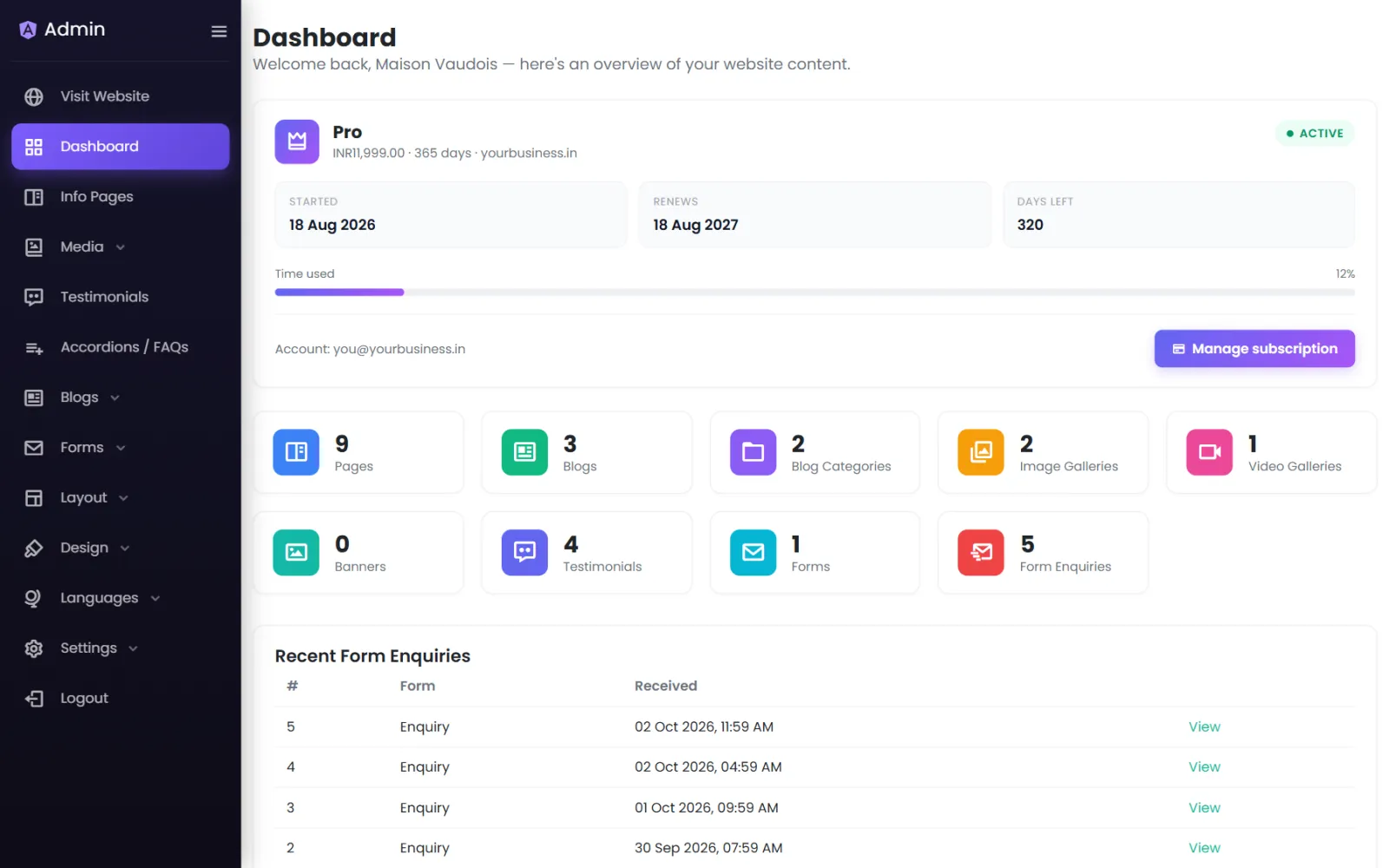
The first screen after you sign in shows:
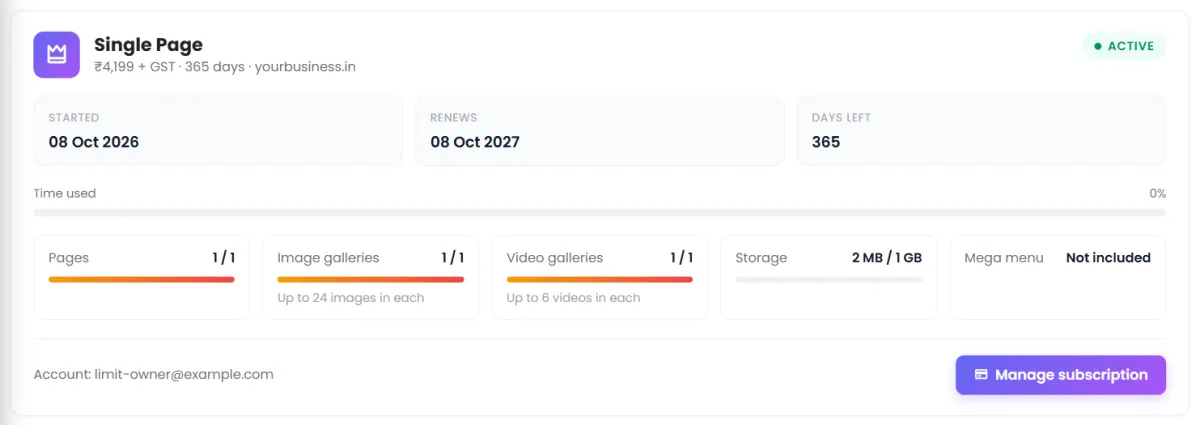
- Your plan — when it started, the days left and how much of the year is used, then what your plan allows and how much you use: pages, image galleries, video galleries and storage, and whether the mega menu is included, with any add-ons listed below. In the last 30 days a reminder appears; Manage subscription opens your NijeesWeb account in a new tab, where you renew, upgrade or buy add-ons.
- Counts of your pages, blog posts, blog categories, galleries, banners, testimonials, forms and form enquiries. Each card opens that section.
- Recent Form Enquiries — the latest messages from your website's forms.
- Shortcuts to Manage Pages, Manage Blogs, Media, Settings and Visit Website.
The menu#
| Menu | What it is for | Guide |
|---|---|---|
| Visit Website | Opens your live site in a new tab. | — |
| Dashboard | The overview above. | — |
| Info Pages | Every page of your site. Add, reorder, open the builder, set page SEO. | Pages |
| Media › Image Gallery, Video Gallery, Banners, Media Library | Your pictures and videos, organised into galleries and banner sets. | Media library |
| Testimonials | Customer quotes to show on any page. | Testimonials |
| Accordions / FAQs | Question-and-answer lists and expandable sections. | Accordions |
| Blogs › Blogs, Blog Categories | Articles, organised by category. | Blog |
| Forms › Forms, Form Enquiries | Build forms; read what visitors send. | Forms |
| Layout › Header Manager, Menu Links, Mega Menu, Footer Builder, Social Links | Everything around your pages. | Header |
| Design › Theme, My Library, Website Themes, Theme Library, design styles, Import Designs | Colours, fonts, themes and ready-made styles. | Theme |
| Languages › Languages & Detection, Translations | Publish in more than one language. | Languages |
| Settings › General Settings, CSS & JS | Company details, logo, SEO defaults, business tools, custom code. | General settings |
| Logout | Sign out. | — |
Saving, and never losing work#
Every edit screen has a save bar fixed to the bottom of the window. It reads All changes saved. until you change something, then Unsaved changes, with two buttons:
- Save changes — or press Ctrl + S (⌘ + S on a Mac).
- Discard — or press Esc; you are asked to confirm first.
If you click a link or menu item with unsaved changes, a dialog asks what to do: Save & leave (Ctrl + S), Yes, leave (Y) to throw the changes away, or No, stay here (N). Closing the tab shows your browser's own Leave site? box instead.
Next: work through the launch checklist.
Was this page helpful?
Something is missing — tell us