- Website builder
- Settings & business tools
- Custom header & footer code
Custom header & footer code
Replace the built-in header or footer with your own HTML, written in a code editor.
If you would rather hand-write your header or footer in HTML than build it with the Header Manager and Footer Builder, you can.
1. Write the code#
- Open Settings › General Settings and, under Header & footer, follow the Custom Header & Footer link — or go to
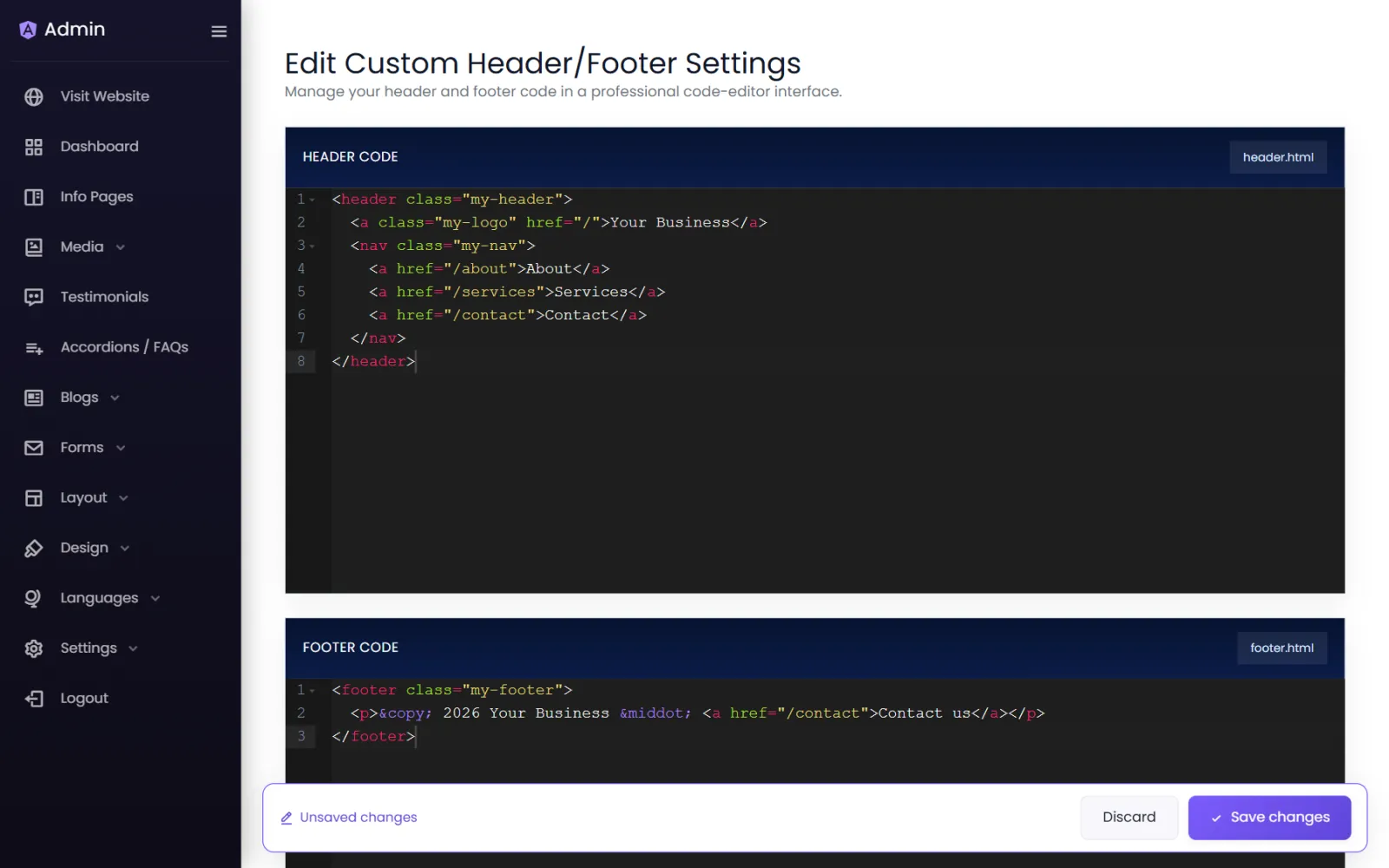
yourdomain/admin/custom-header-footer/edit. - Edit Custom Header/Footer Settings has two code editors:
- Header Code (
header.html) - Footer Code (
footer.html)
- Header Code (
- Write or paste your HTML and save.
2. Switch the site to it#
Back in Settings › General Settings › Header & footer, set Header Type to Custom Header (and/or Footer Type to the custom footer) and save. Your HTML now replaces the built-in header or footer on every page.
Things to know#
- Styles — put your CSS in Settings › CSS & JS, or in a
<style>block inside your code. - Phones — your code must handle small screens itself, including a mobile menu.
- Language switcher — a custom header has no built-in language switcher. On multilingual sites, turn on the floating language button in Languages, or add your own links.
- Going back — switch the type back to General. Your built header and footer are still there.
Was this page helpful?
Something is missing — tell us