- Website builder
- Content
- Media library
Media library
Upload images, videos and PDFs once and use them anywhere — supported formats, automatic WebP conversion and how to keep files fast.
Media › Media Library stores every picture, video and PDF your website uses. Anything uploaded here can be picked from any element, gallery or setting with Select from Media.
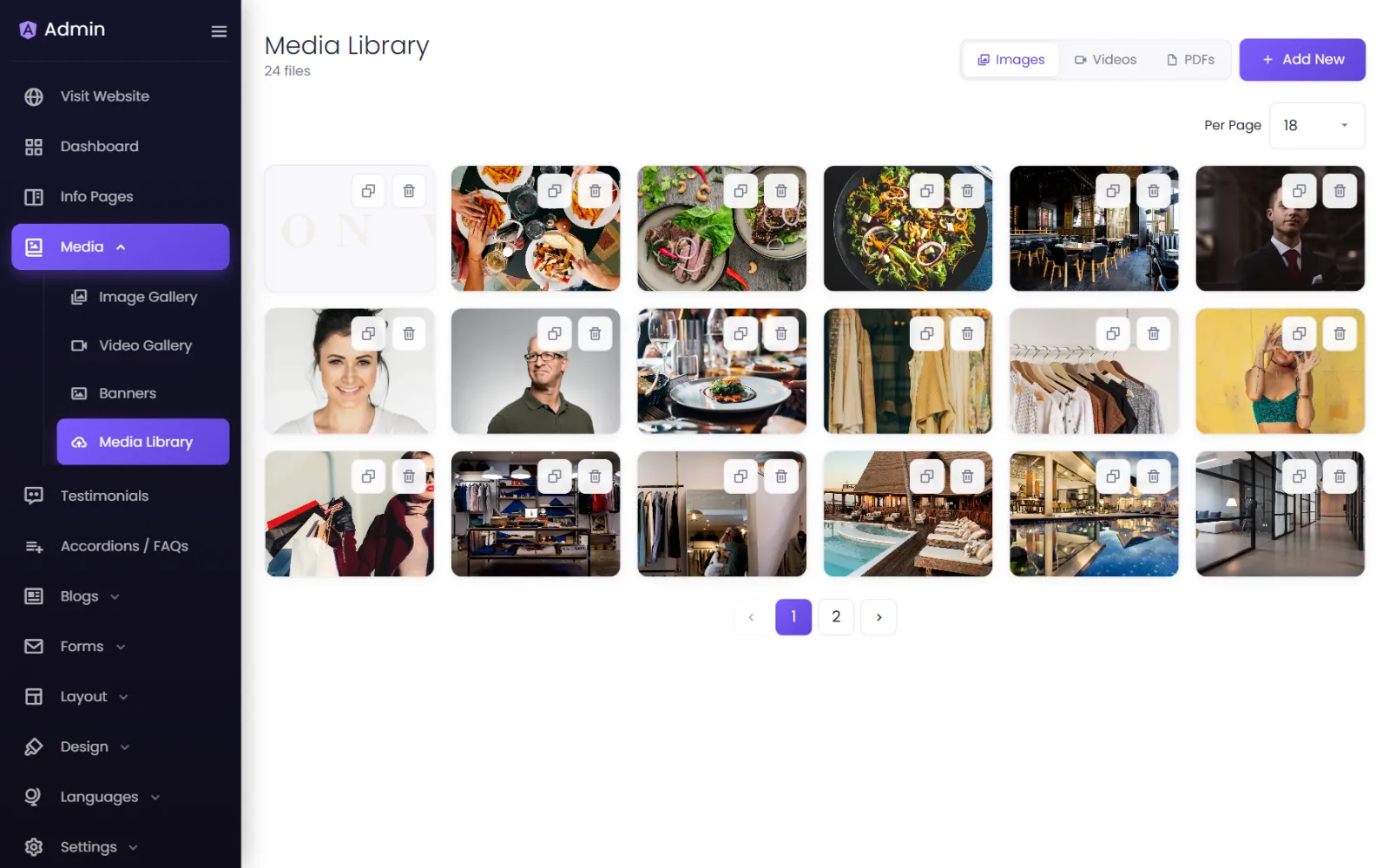
Upload files#
- Open Media › Media Library and select Add New.
- Choose what to upload:
- Images — multiple images allowed at a time.
- Video — single video allowed at a time.
- PDF — single PDF allowed at a time.
- Pick the files from your computer and upload.
You can also upload straight from most pickers — the image field in an element, a banner, a gallery — and the file is added to the library too.
Supported formats#
| Type | Formats |
|---|---|
| Images | PNG, JPG/JPEG, WebP, GIF |
| Video | MP4, WebM, MOV, AVI, MKV |
| Documents |
Pictures are converted to WebP automatically — a modern format that is much smaller than JPG or PNG at the same quality, so your pages load faster.
Find and use a file#
- Filter by Images, Videos or PDFs, and change Per Page to see more at once.
- Copy URL copies a file's web address — useful for linking to a PDF from a button or text ("Download our brochure").
- Delete removes a file. Check it is not used anywhere first — pages using it will show an empty space.
Keep your site fast#
Large files are the most common reason a website feels slow on phones:
- Resize photos before uploading. 1920 pixels wide is plenty for a full-width picture; 1000 pixels for a picture in a column. A photo straight from a phone is often 4000 pixels wide and several megabytes.
- Compress with a free tool such as Squoosh or TinyPNG before uploading.
- Videos: keep background videos short (10–20 seconds), silent and under about 10 MB. For longer videos, upload to YouTube and use the link instead.
- Name files sensibly —
dental-implant-procedure.jpgrather thanIMG_2034.jpg. The name becomes the file's address, and search engines read it.
If an upload is refused for being too large, see Saving & upload problems.
Was this page helpful?
Something is missing — tell us