- Website builder
- Header, menus & footer
- Mega menu
Mega menu
Wide, designed menu panels with columns of links, pictures, text and buttons — and how to switch between the mega menu and the general menu.
A mega menu replaces small dropdowns with wide panels — several columns of links, pictures, short descriptions and buttons. Perfect when you have many services or categories.
Turn the mega menu on#
Layout › Mega Menu has a switch at the top: General menu or Mega menu. The header shows one at a time. Switching deletes nothing — the general menu keeps its links in Menu Links, and mega menu items stay here.
Add a bar item#
- Select Add item.
- Text in the bar — the word in the menu bar, such as Shop or Services.
- What it does — open a panel, and optionally Clicking the bar item also opens a page.
- Optional extras: a Badge beside it (New, with a colour) and a Line under it — a short description shown under the item.
- Switch it Live when it is ready.
Design the panel#
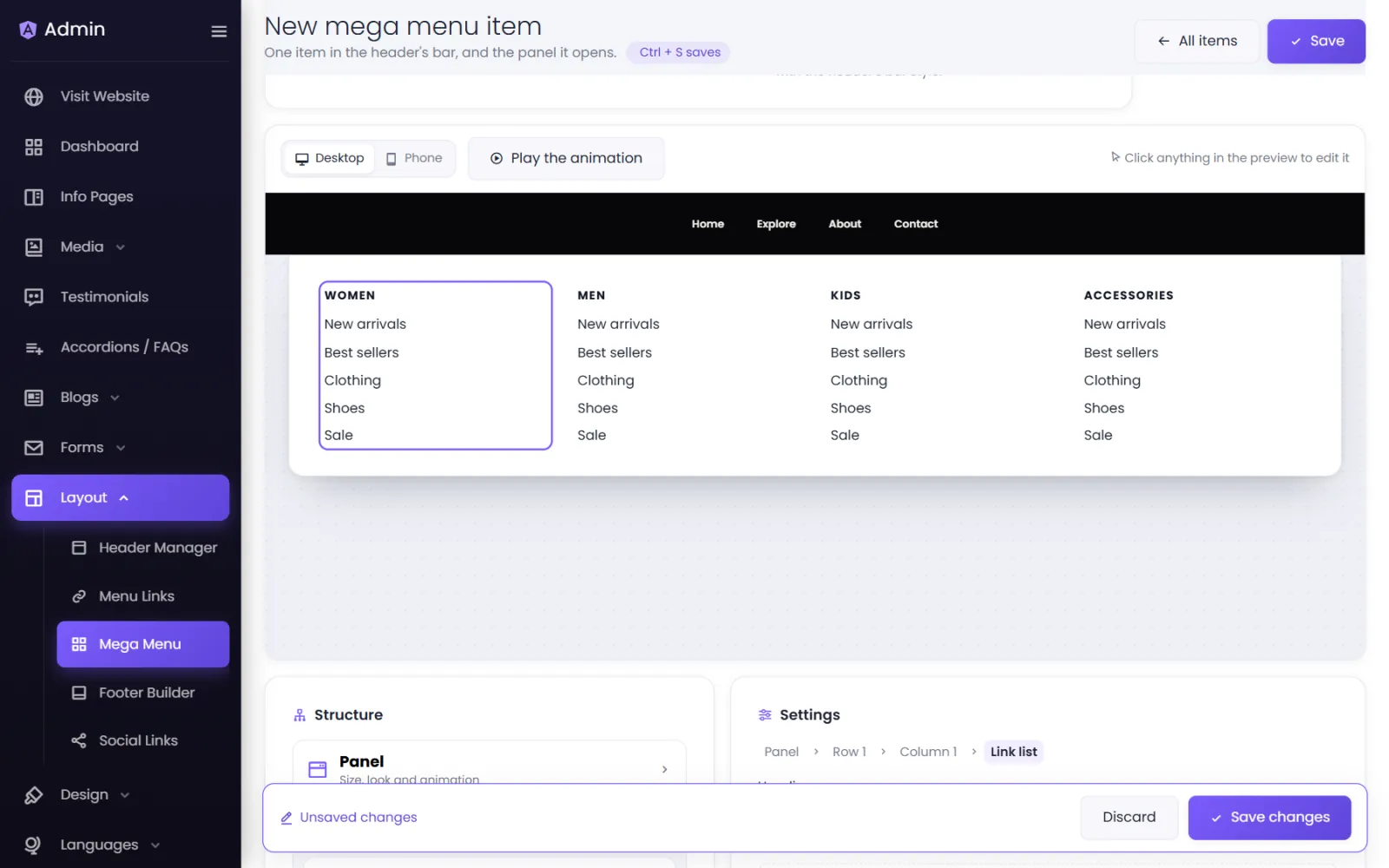
The editor shows the panel live. Click anything in the preview to edit it, or use the Structure list:
- Start from a layout — pick a ready-made arrangement of columns to begin with.
- Rows and columns — add rows (Add a row), add columns, duplicate and reorder them. Column widths are in twelfths.
- Blocks — select Add block to place headings, links (with an optional description and badge), pictures, text and buttons. Drag a block to move it, even into another column. A block can be shown on desktop only or on phones only.
In Settings, the panel's look: width, padding, maximum height, spacing between columns and rows, background (colour, gradient or picture), corners, shadow, border, text and link colours, font — plus the opening animation (duration, travel, easing, delays before opening and closing), whether the panel glides between items, how its contents arrive, and whether to dim or blur the page behind the panel.
Select Play the animation to watch it, and save with Ctrl + S.
Order and status#
On the Mega Menu list, drag bar items to reorder them, and use Edit and Delete on each.
On phones#
The mega menu turns into easy, full-screen menu pages on phones, using the same items.
Was this page helpful?
Something is missing — tell us