Manage your pages
Add, reorder, clone, hide and delete pages — and choose which page is your home page.
Every page of your website — Home, About, Services, Contact — is listed under Info Pages in the admin menu.
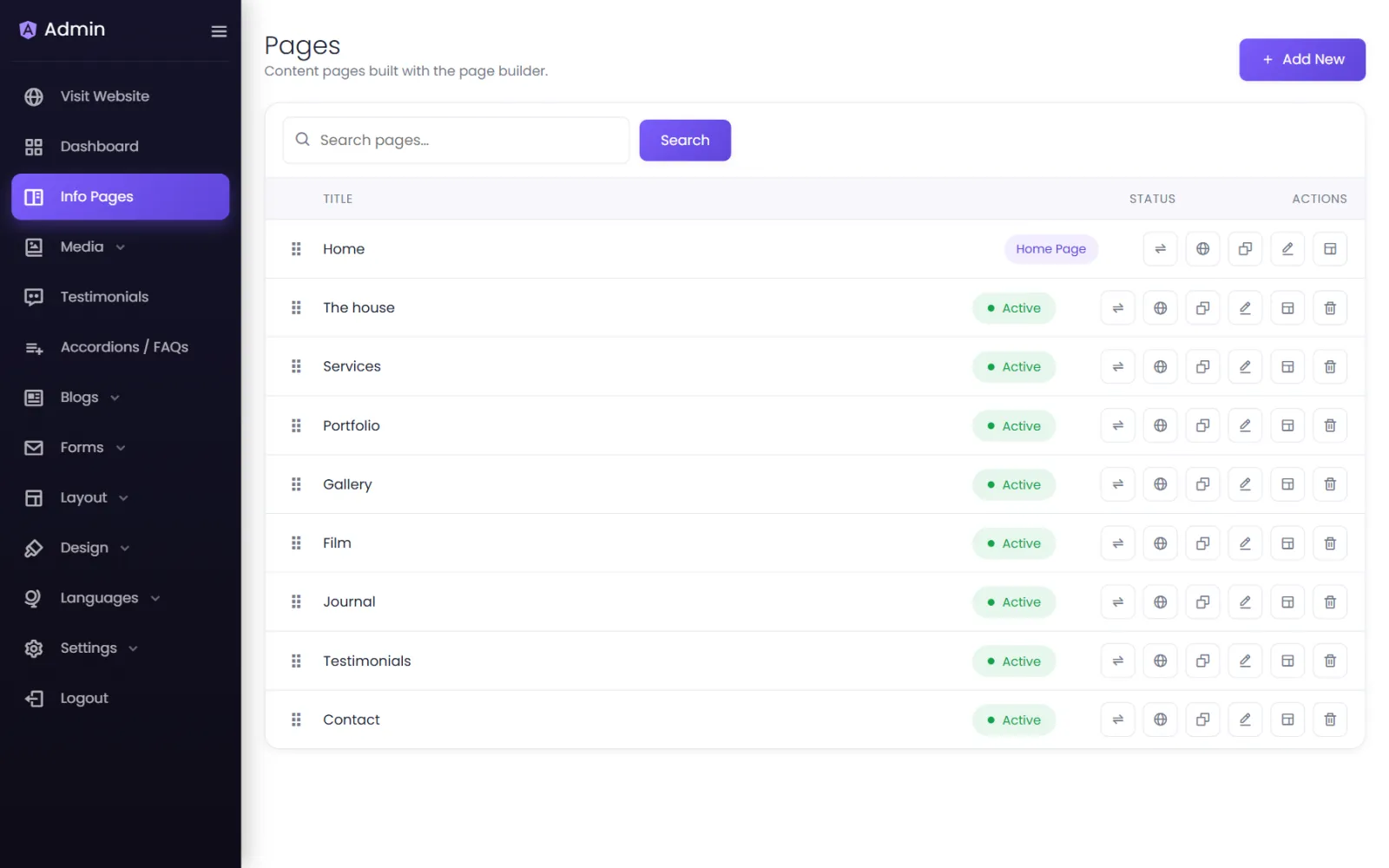
What each page row shows#
- ⋮⋮ (drag handle) — drag the row up or down to reorder pages.
- Title — the page's name.
- Status — Active (visible on your site) or Inactive (hidden). Click the pill to switch. Off — plan limit means your plan switched the page off because the website has more pages than it allows — see over a limit.
- Home Page — a badge instead of a status on the page visitors see first.
And the action icons, from left to right:
| Icon | Action |
|---|---|
| Translate | Translate this page. Only shown on multilingual sites — see Translate your content. |
| SEO | The page's search title, description and keywords — see Page SEO. |
| Clone | Make an exact copy of the page, to use as a starting point for a similar one. |
| Edit | The page's title, address (slug) and header placement. |
| Builder | Open the page in the page builder, in a new tab. |
| Delete | Delete the page, after you confirm. |
Your home page is the first page#
The page at the top of the list is your home page — the one at yourdomain/. To make a different page the home page, drag it to the top.
The home page can't be made inactive or deleted, because your website always needs one.
Add a page#
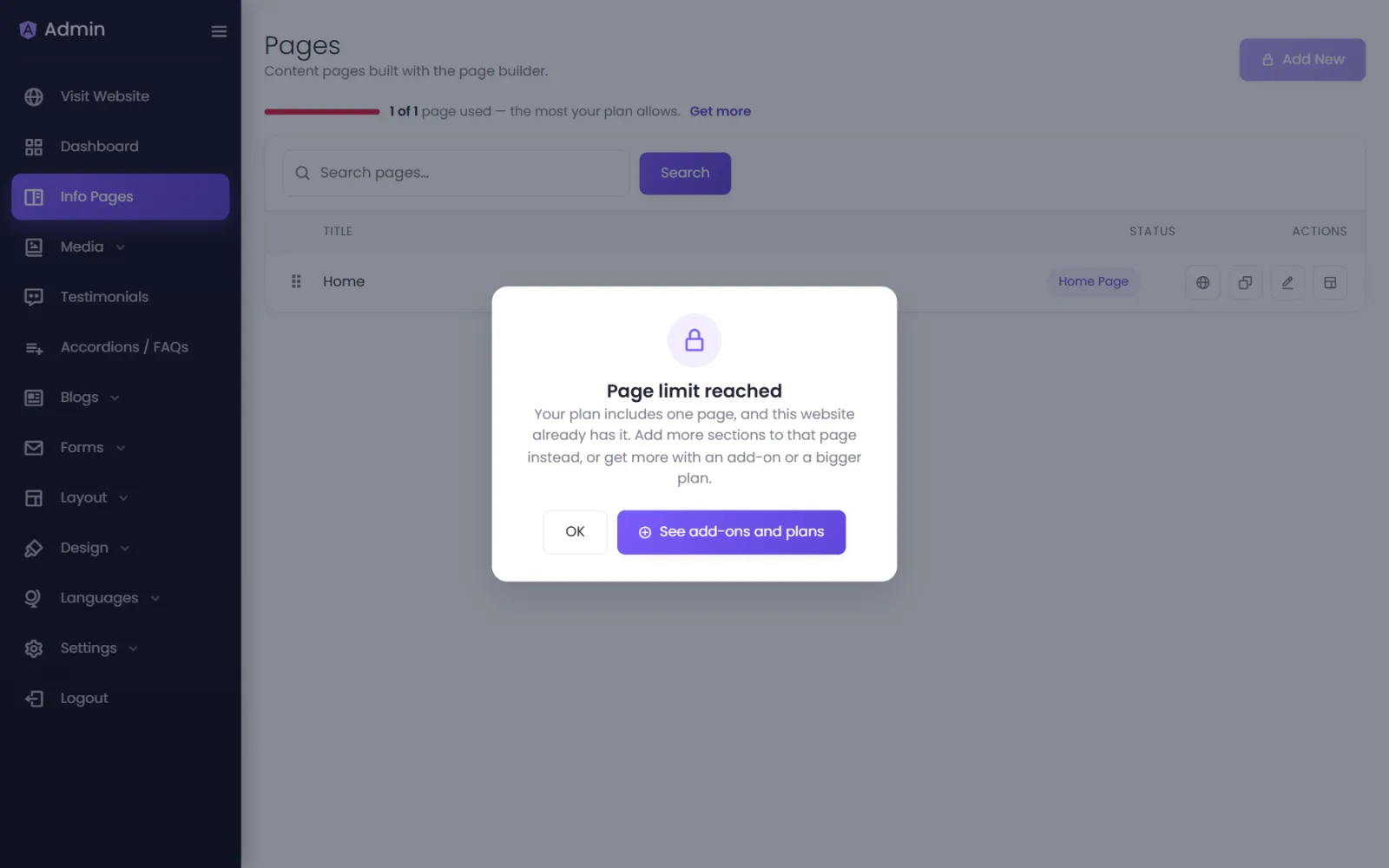
Select Add New at the top right, then follow Create a page.
Change a page's title or address#
Select Edit on the page. You can change:
- Title — the name shown in the admin and, by default, in menus.
- Slug — the page's address: a slug of
about-usmakes the pageyourdomain/about-us. Use lowercase words joined with hyphens. - Header — Start the content below the header (usual), or Let the header float over the content for a page that opens on a full-width picture.
Hide a page without deleting it#
Click the Active pill to make the page Inactive. Visitors can no longer open it; everything in it is kept, and you can switch it back on at any time.
Find a page#
Type in Search pages… at the top. While a search is active the drag handles are hidden, so you can't reorder a filtered list by accident.
Delete a page#
Select Delete and confirm. Deleting is permanent. Remove the page from your menu too, so visitors don't follow a link to a missing page.
Was this page helpful?
Something is missing — tell us