Theme — your colours, fonts and shapes
Set your brand colours, fonts, corner radius, shadows and button style once — and every page follows.
Design › Theme is where your website's look is defined: colours, fonts, corner shapes, shadows and the default button. Every page, element and design that "follows the site theme" uses these values — so changing your brand colour here changes it everywhere at once.
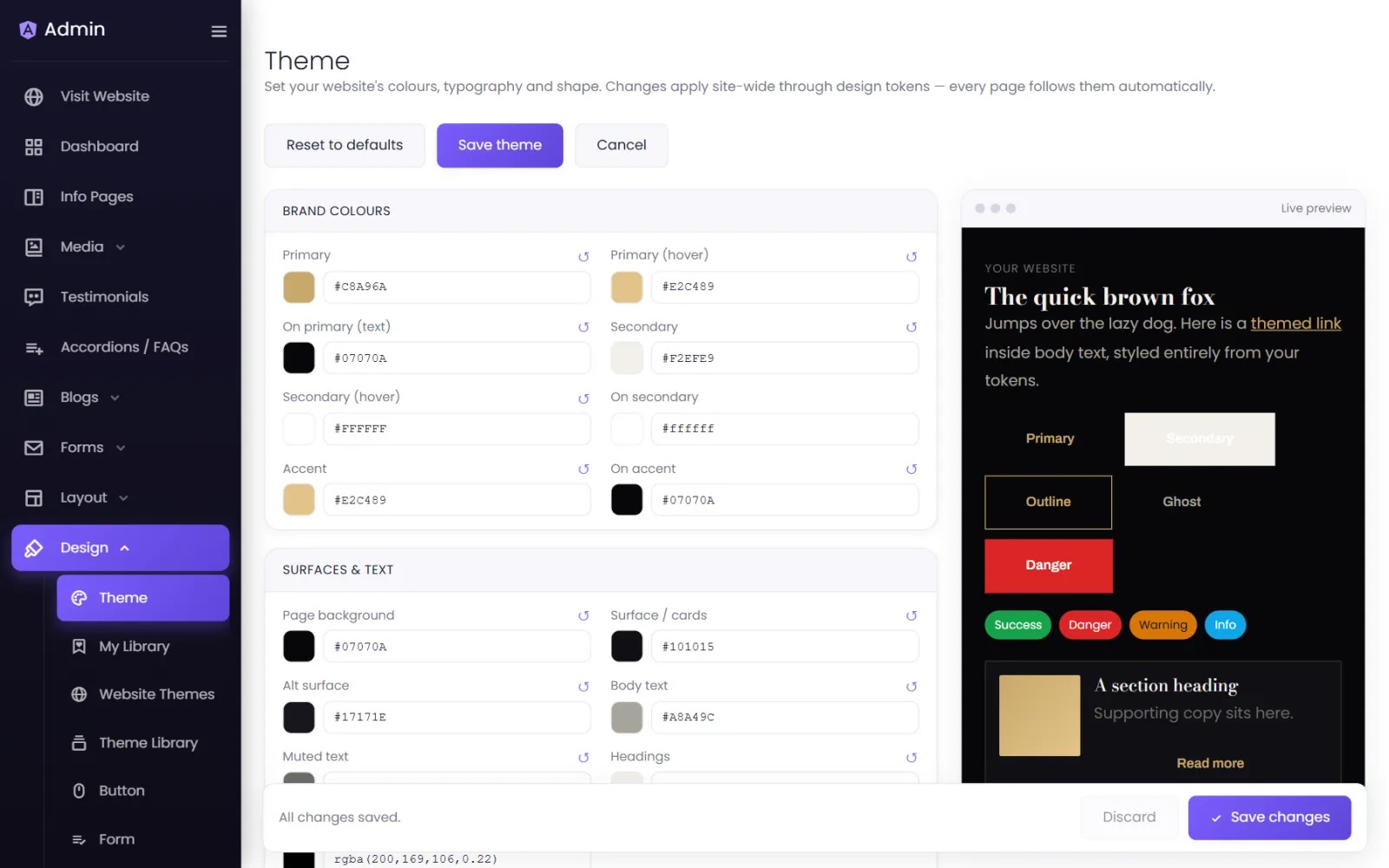
The groups#
| Group | What it controls |
|---|---|
| Brand colours | Primary (your main brand colour — buttons, links, highlights) and its hover colour; Secondary; Accent; and the text colour that sits on each (On primary, On secondary, On accent). |
| Surfaces & text | Page background, Surface / cards, Alt surface (for alternating sections), Body text, Muted text, Headings, Borders. |
| Status colours | Success, Danger, Warning, Info — used for messages, such as a form's thank-you note. |
| Typography | Body font, Heading font, Base size and Line height. |
| Shape & depth | Corner Radius (small, medium, large) and Shadow (small, medium). |
| Buttons | The site button: background and text (normal and hover), border, corner radius, font size and weight, letter spacing, text transform, padding, shadow and transition. |
The Live preview on the right updates as you type — headings, body text, a link, every button style and a card — so you see the result before saving.
Change your brand colour#
- Open Design › Theme.
- Under Brand colours, click the Primary swatch and pick your colour, or type its hex code (for example
#1F6FEB). - Set On primary (text) to a colour that reads well on it — usually white for dark brand colours, or near-black for light ones.
- Check the preview, then save.
Fonts#
Body font and Heading font accept a font name; the suggestions list offers well-tested choices such as Poppins, Inter, Roboto, Montserrat, Raleway and Lato. Two fonts are plenty — one for headings, one for everything else. More on fonts in Fonts.
Reset#
- The ↺ next to any value resets just that value.
- Reset to defaults resets every value, after you confirm.
What does not follow the theme#
Elements you styled by hand in the page builder keep their own values. In element settings, options such as Saved button design or the site design follow the theme; values typed in the element's own Design tab override it.
Was this page helpful?
Something is missing — tell us