- Website builder
- Languages
- Translate your content
Translate your content
Translate pages, menus, footer, blog and forms side by side — by hand, with machine translation, or through a translator with import and export.
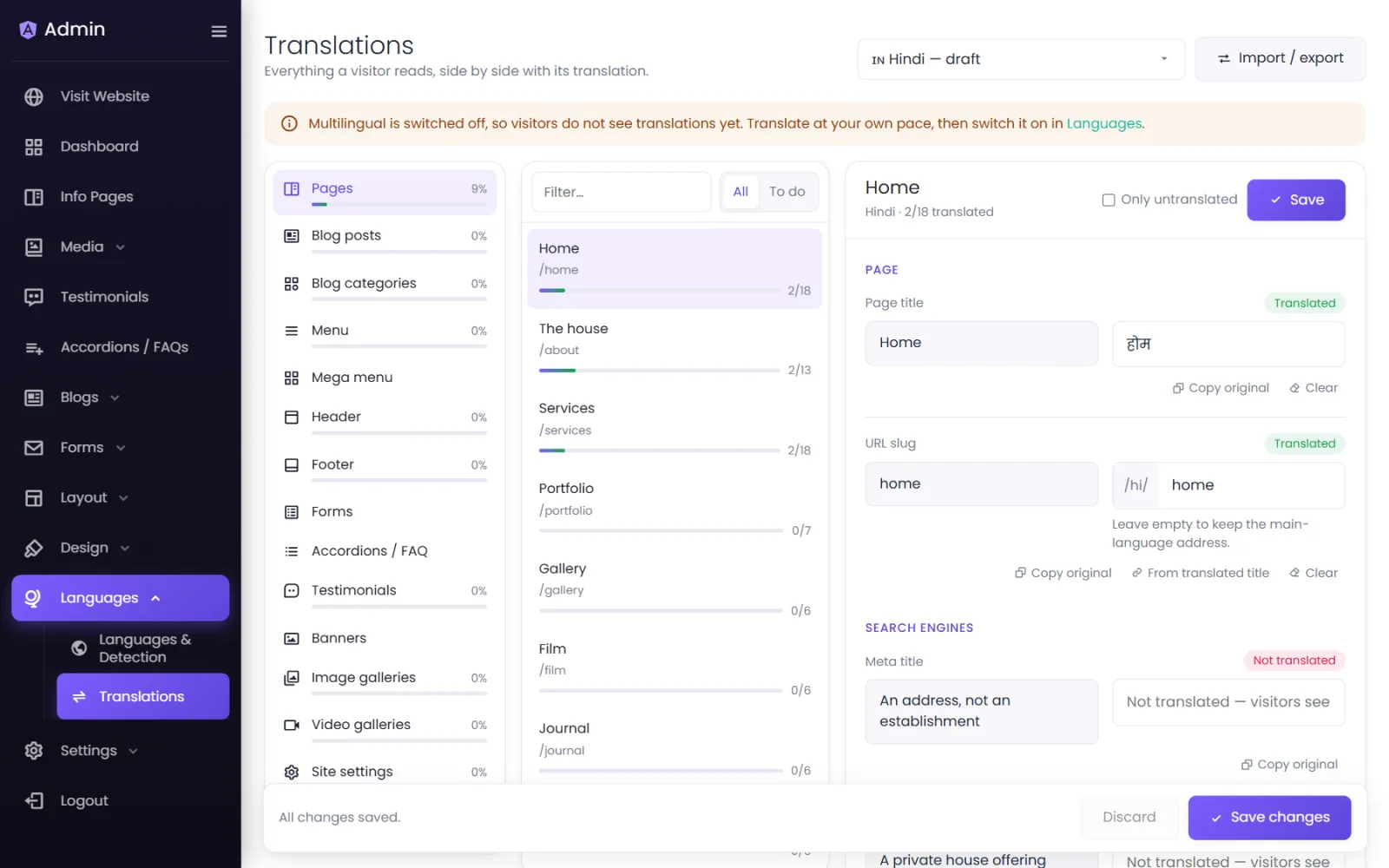
Languages › Translations shows everything a visitor reads, side by side with its translation — page content, menus, footer, blog posts, forms, SEO titles and the site's own interface text.
Translate by hand#
- Open Languages › Translations and pick the language at the top.
- Choose what to translate from the list — a page, the menu, the footer… Use Filter… to find it, and To do or Only untranslated to see what is left.
- Type each translation next to its original. Long formatted text opens in its own editor.
- Save.
You can also start from the Translate icon on any page in Info Pages or any post in Blogs.
Use View to see the page on your site in that language — draft languages are visible to you while signed in.
Translate everything missing in one go#
Connect a machine translation service first (see Machine translation), then select Translate missing:
- Everything without a translation is sent to the service. Results are saved marked "Machine — review"; your own translations are never replaced.
- Choose The whole site or a part of it, and whether to also redo translations whose original has changed.
- You can Stop at any time.
Then review: items marked for review are counted on each group, so a fluent speaker can check them.
Work with a translator#
Select Import / export:
- Export — choose the Format (XLIFF for translation tools, CSV for Excel or Google Sheets, or JSON) and What (Everything, or Untranslated and changed only), then Download. The translator fills in the translation column.
- Import — upload the returned file. Rows are matched by their key; empty translations are ignored, and anything that no longer exists on the site is skipped.
When you change the original#
If you edit a page in your main language after it was translated, its translation is flagged as changed since translated, so you know what to update.
Page addresses in other languages#
With Translated addresses switched on (in Languages & Detection), each page and post gets its own address in each language, built from the translated title — see Language addresses & SEO.
Was this page helpful?
Something is missing — tell us