- Website builder
- Header, menus & footer
- Menu links
Menu links
Build your header menu — direct links, dropdowns and sub-dropdowns up to five levels deep, linking to pages, sections or other websites.
Layout › Menu Links holds the links in your header's menu bar.
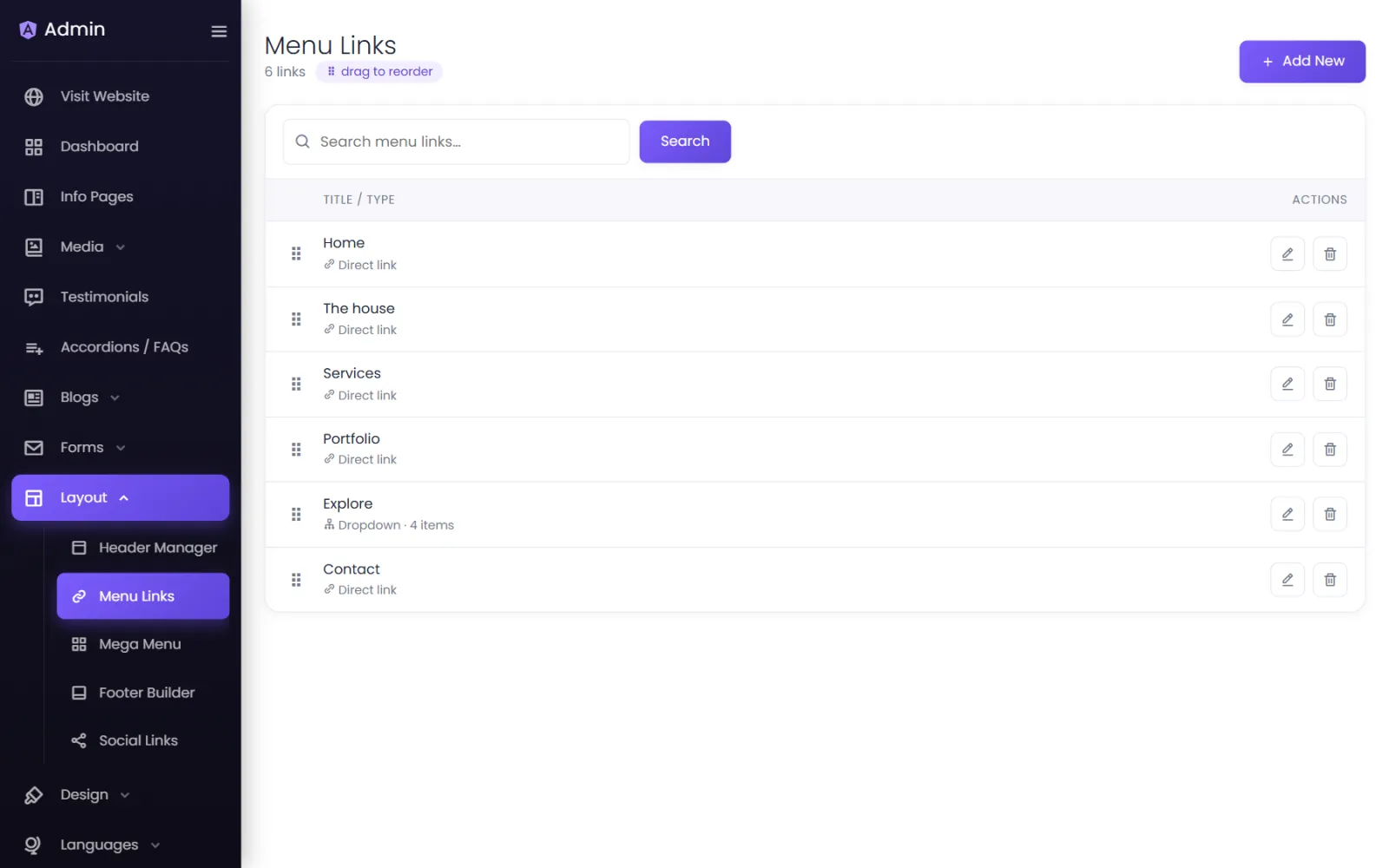
Add a link#
- Select Add New.
- Choose the Type:
- Direct Link — one item in the bar.
- Dropdown — an item that opens a list of links.
- For a direct link, choose where it goes:
- Another Page On Website — pick the page.
- Particular Section On A Page — pick the page, then the section (row) to scroll to.
- External Page — type the URL of any website.
- Type the Link Text visitors see, and switch on Open in a new window if you want (usually only for external sites).
- Save.
Build a dropdown#
- Choose Dropdown and type its title (such as Services).
- Under Dropdown items, select Add link for each page in the dropdown.
- Select Add sub-dropdown to nest a dropdown inside — it opens its own list beside the first. Dropdowns go up to five levels deep.
- Drag items by their handle to reorder them; Expand all / Collapse all help with long menus. Each item has Duplicate and Delete.
Reorder the menu#
On the Menu Links list, drag links by the handle to change their order in the bar.
Menus on phones#
Below 992 px wide, the menu collapses into a menu button. Dropdowns become pages that slide in, so even deep menus stay easy to use with a thumb.
Mega menu instead?#
The header shows one menu at a time — this general menu or a mega menu. Switching to the mega menu deletes nothing; your links here stay saved.
Was this page helpful?
Something is missing — tell us