- Website builder
- Content
- Image galleries
Image galleries
Create galleries, add many images at once with alt text, reorder them, and show a gallery on any page.
A gallery is a named collection of pictures — Our work, Clinic tour, Events 2026. Manage galleries under Media › Image Gallery and show them on pages with the Image Gallery element. Visitors can open any picture full screen and swipe through.
1. Create a gallery#
- Go to Media › Image Gallery and select Add New.
- Enter a Title, and choose a cover Image with Select from Media — it represents the gallery when galleries are listed.
- Leave Status on Active and save.
2. Add images#
- In the gallery list, select the Images icon on your gallery.
- Select Add New.
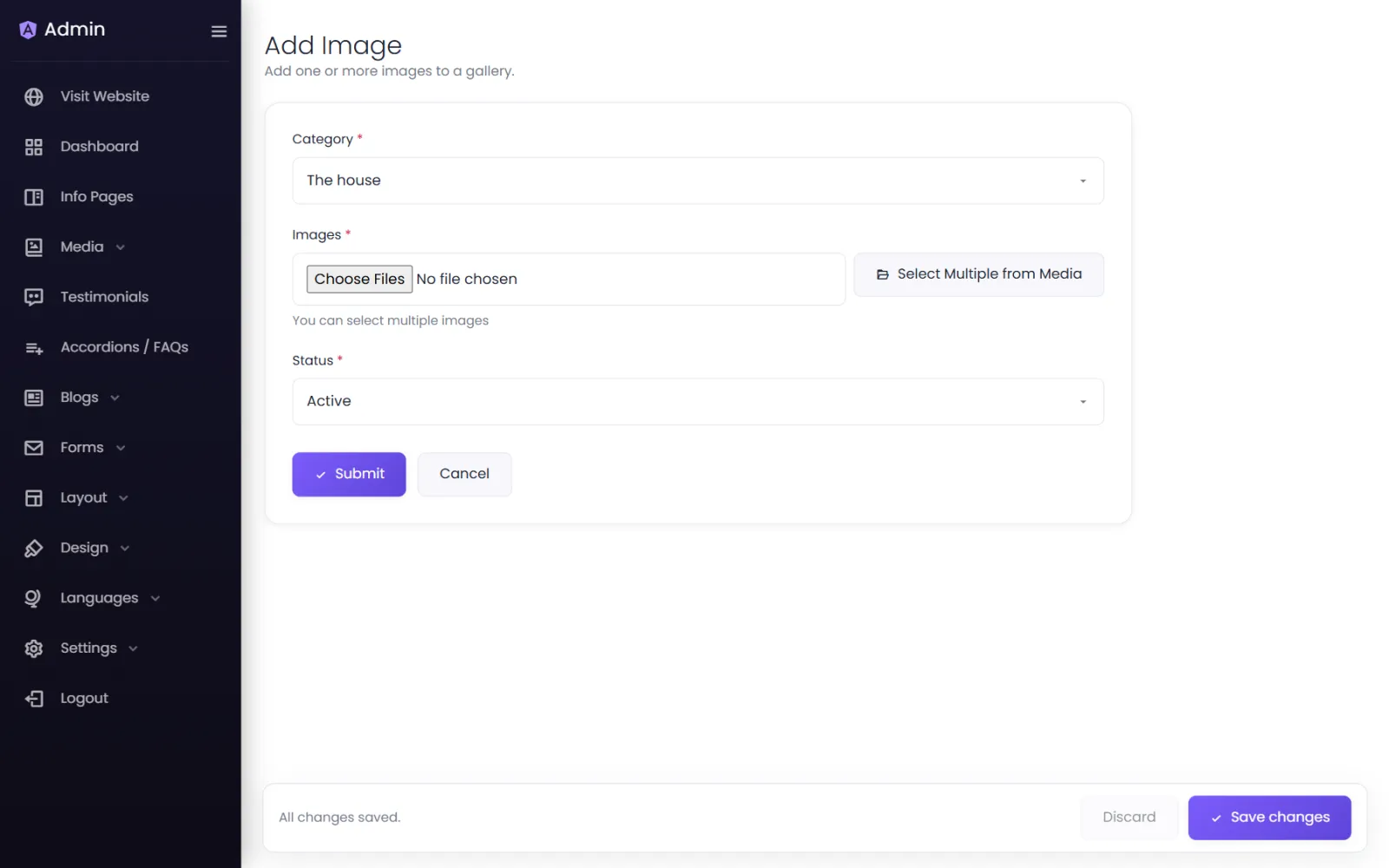
- Choose the gallery under Category, then Select Multiple from Media — you can select multiple images at once.
- Under Selected Images Preview, write the alt text for each picture: describe what each image shows. Screen readers read this out, and search engines index it.
- Select Add Selected Images.
3. Show it on a page#
In the page builder, add an Image Gallery element to a column and choose the gallery under Select Image Gallery — or All Galleries to show your galleries as a list that opens each one. Choose a saved gallery design in the Design tab for a grid or a carousel. See Elements.
Reorder, hide, delete#
- Drag galleries — or images inside a gallery — by the handle to reorder them.
- Switch Status to Inactive to hide a gallery or an image without deleting it. Off — plan limit means your plan switched it off because there are more than it allows — see over a limit.
- Delete removes a gallery, or a picture from its gallery, after you confirm.
Gallery pages#
Your site also has gallery pages at yourdomain/images (all galleries) and yourdomain/images/gallery-name (one gallery), which you can link to from your menu.
Was this page helpful?
Something is missing — tell us