- Website builder
- Content
- Banners
Banners and sliders
Create sets of full-width banners — pictures or videos, optionally clickable, with separate visibility on phone, tablet and desktop.
Banners are big, full-width pictures or videos — the slider at the top of a home page, an offer strip, a seasonal announcement. They are organised in banner categories (sets), and shown with the Banners element.
1. Create a banner set#
Media › Banners › Add New → Create Banner Category: give it a Title (such as Home slider), keep it Active, save.
2. Add banners to the set#
- Open the set and select Add New.
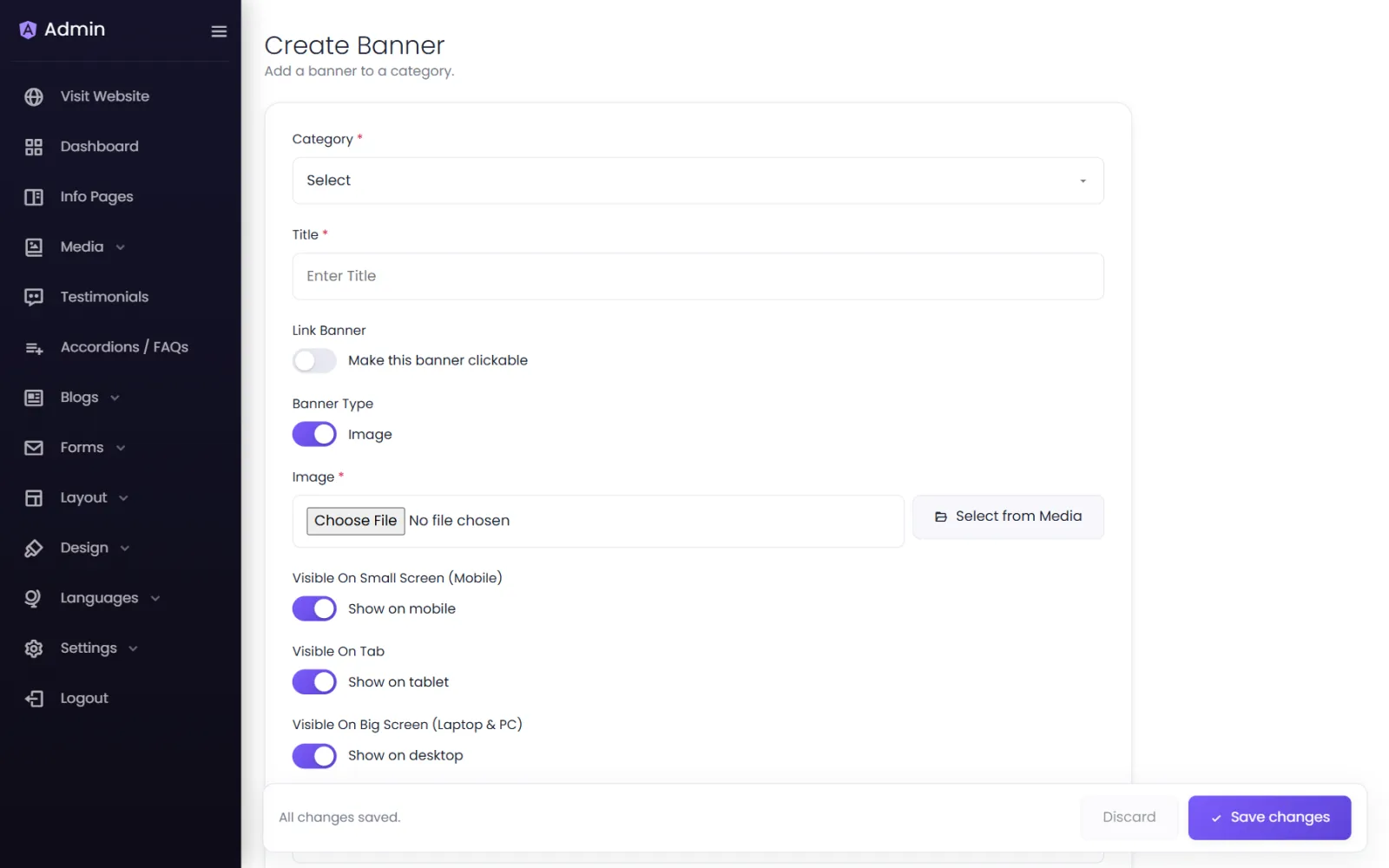
- Choose the set under Category and enter a Title (for your reference).
- Banner Type — an image or a video, with Select from Media.
- Optionally Link Banner — make this banner clickable — to an External Page, Another Page On Website or a Particular Section On A Page, opening in the same or a new window.
- Choose where it shows: Visible On Small Screen (Mobile), Visible On Tab, Visible On Big Screen (Laptop & PC).
- Save.
3. Show the set on a page#
Add a Banners element in the page builder and pick the set in Select Banner Gallery. Several banners in a set become a slider.
Sizes that work#
- Desktop: about 1920 × 800 px.
- Phone: about 1080 × 1350 px (portrait).
- Keep important words and faces away from the edges — screens crop differently.
Was this page helpful?
Something is missing — tell us