- Website builder
- Building pages
- Create a page
Create a page
Start a new page from scratch, from your own library, or from a premade page or section — and preview before you choose.
- Go to Info Pages and select Add New.
- Type a Page title, such as About us.
- Choose how the page starts (below).
- Select Create & open builder.
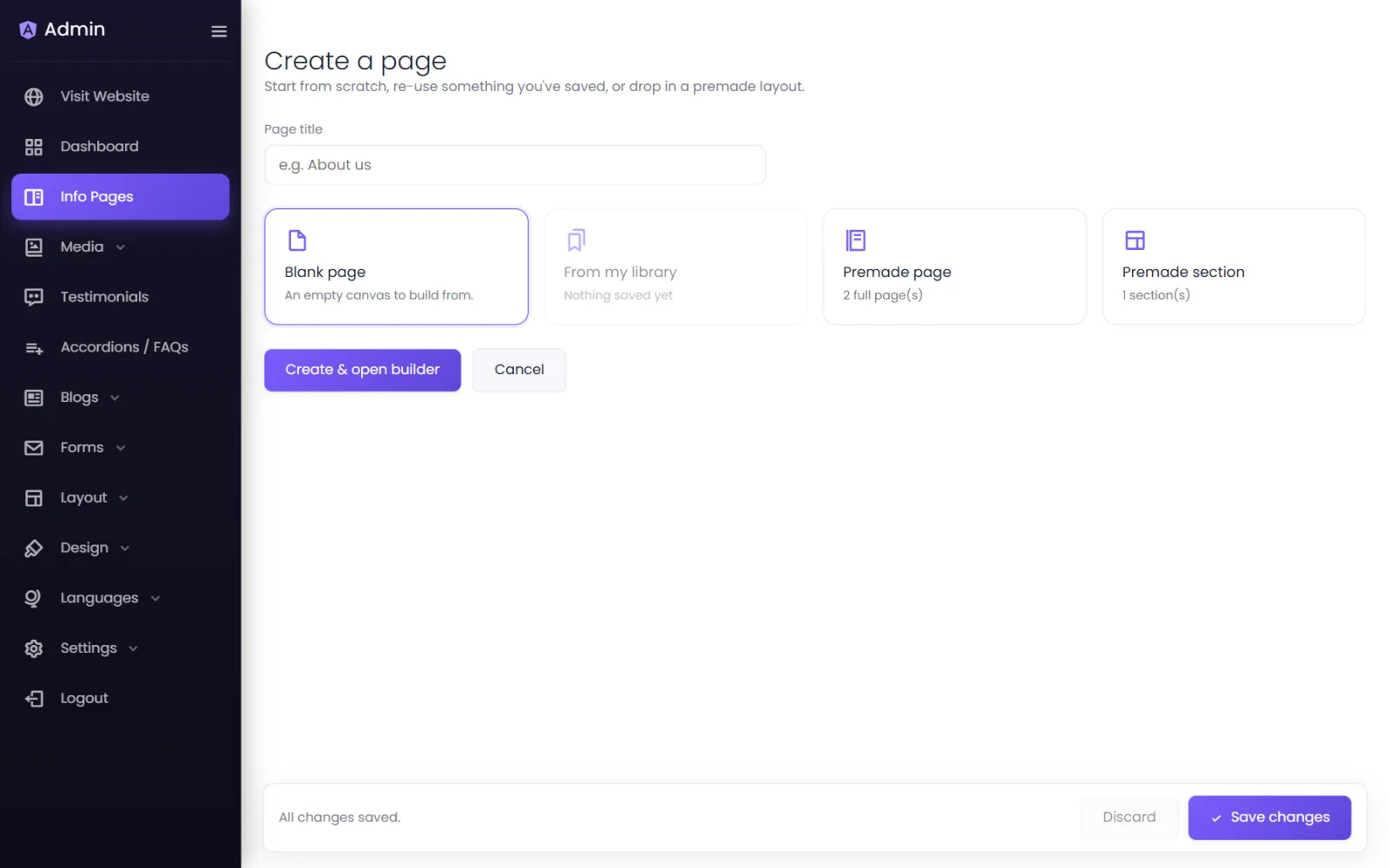
The page builder opens in a new tab with your new page, and this tab goes back to the pages list — so the new page is already in the list behind you.
Four ways to start#
| Option | What you get | Best for |
|---|---|---|
| Blank page | An empty canvas. | Building something unique. |
| From my library | A copy of a section or page you saved earlier. | Repeating your own layouts. |
| Premade page | A complete page designed by NijeesWeb — every row filled with placeholder content. | A new kind of page in minutes. |
| Premade section | One designed section — a hero, a feature row, an FAQ block — to build on. | Starting with a strong first section. |
The premade pages and sections you see depend on your plan.
Preview before you choose#
Each item in the lists has an eye icon (Live preview). It opens the design in a new tab, exactly as it would look on your site, without creating anything. Close the tab and pick another until you find the right one.
If the builder tab does not open#
Your browser may have blocked the new tab as a pop-up. In that case the builder opens in the same tab instead — nothing is lost. To get the new-tab behaviour back, allow pop-ups for your website's address in your browser.
After creating#
- The page is Active straight away, but it is not in your menu yet. Add it in Menu Links.
- Give it a search title and description with Page SEO.
Was this page helpful?
Something is missing — tell us