- Online store builder
- Storefront design
- Custom CSS and JavaScript
Custom CSS and JavaScript
Add your own CSS and JavaScript to the whole store, or to a single row — with care, and how to undo a mistake.
For changes the design settings cannot make, you can add your own code.
Site-wide: Site CSS & JS#
Design → Site CSS & JS has two code editors:
- CSS (
styles.css) — styles for every page of your store. - JS (
script.js) — JavaScript that runs on every page.
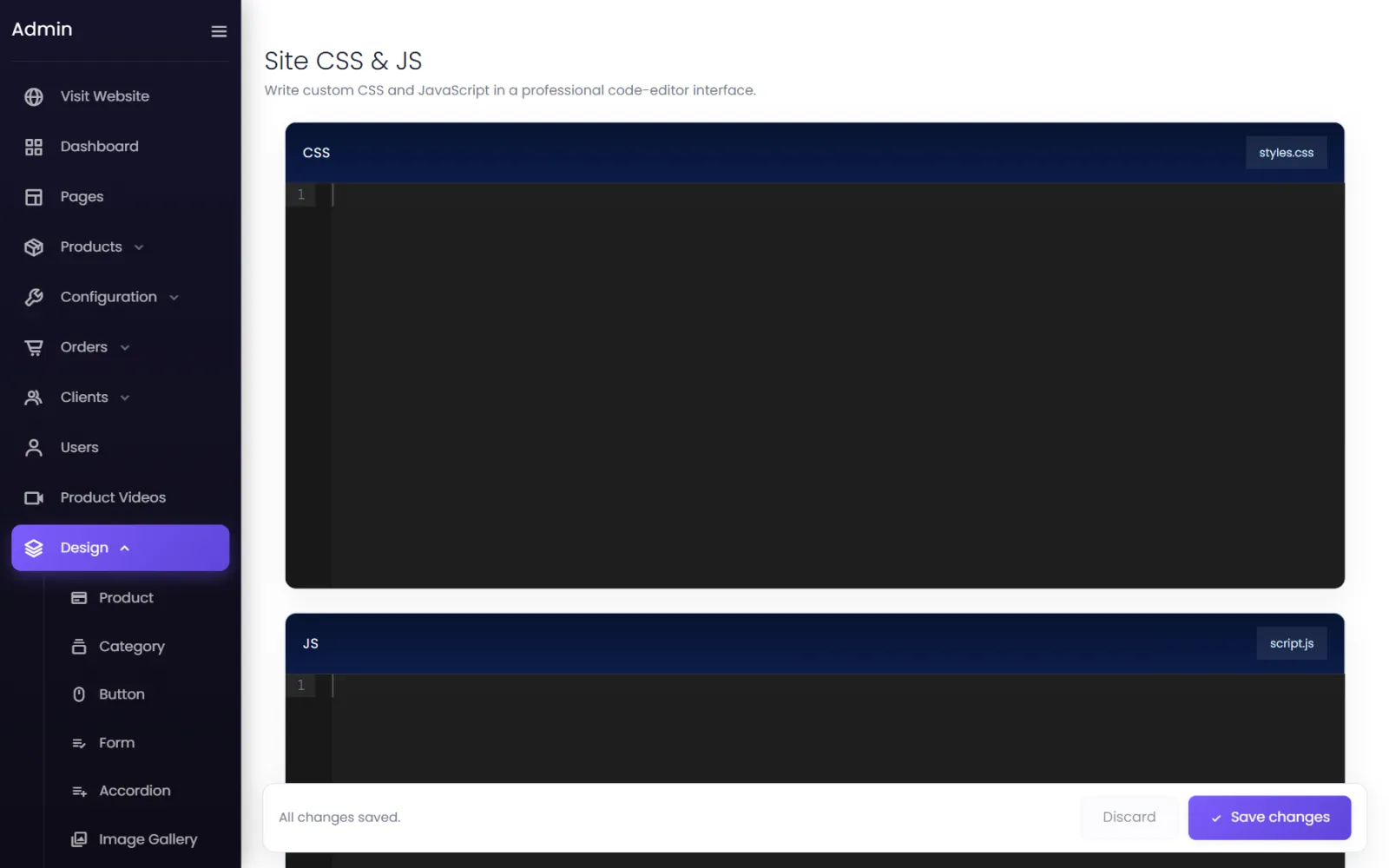
Select Save changes to apply.
One row only#
In the page builder, a row's settings (Advanced tab) have:
- Custom CSS — applies to the row and everything inside it, on your live site. Selectors are scoped to that row.
- Custom JS — runs when that row is on the page;
elis the row's element.
Use this for a one-off effect on a single section without touching the rest of the store.
Be careful#
If a change breaks something, open the same box, delete what you added, and save.
Tracking pixels and analytics#
For Google Analytics, use Settings → Maps & cookies → Google Analytics Link rather than pasting the tag here — it respects the cookie bar. Other pixels (such as Meta's) can go in Site JS, and verification tags in your home page's Custom Meta Tags — but they load whether or not the visitor accepted cookies.
Was this page helpful?
Something is missing — tell us