- Online store builder
- Products & catalogue
- Add a product
Add a product
Create a product step by step — title, description, category, GST, variants, price, stock, weight, photos — and what each section of the product form does.
A product is anything you sell. Each product has one or more variants — a size, a colour, or just one standard item — and each variant has its own price, stock and weight. Photos and videos are added to the product's gallery after you save it.
Step by step#
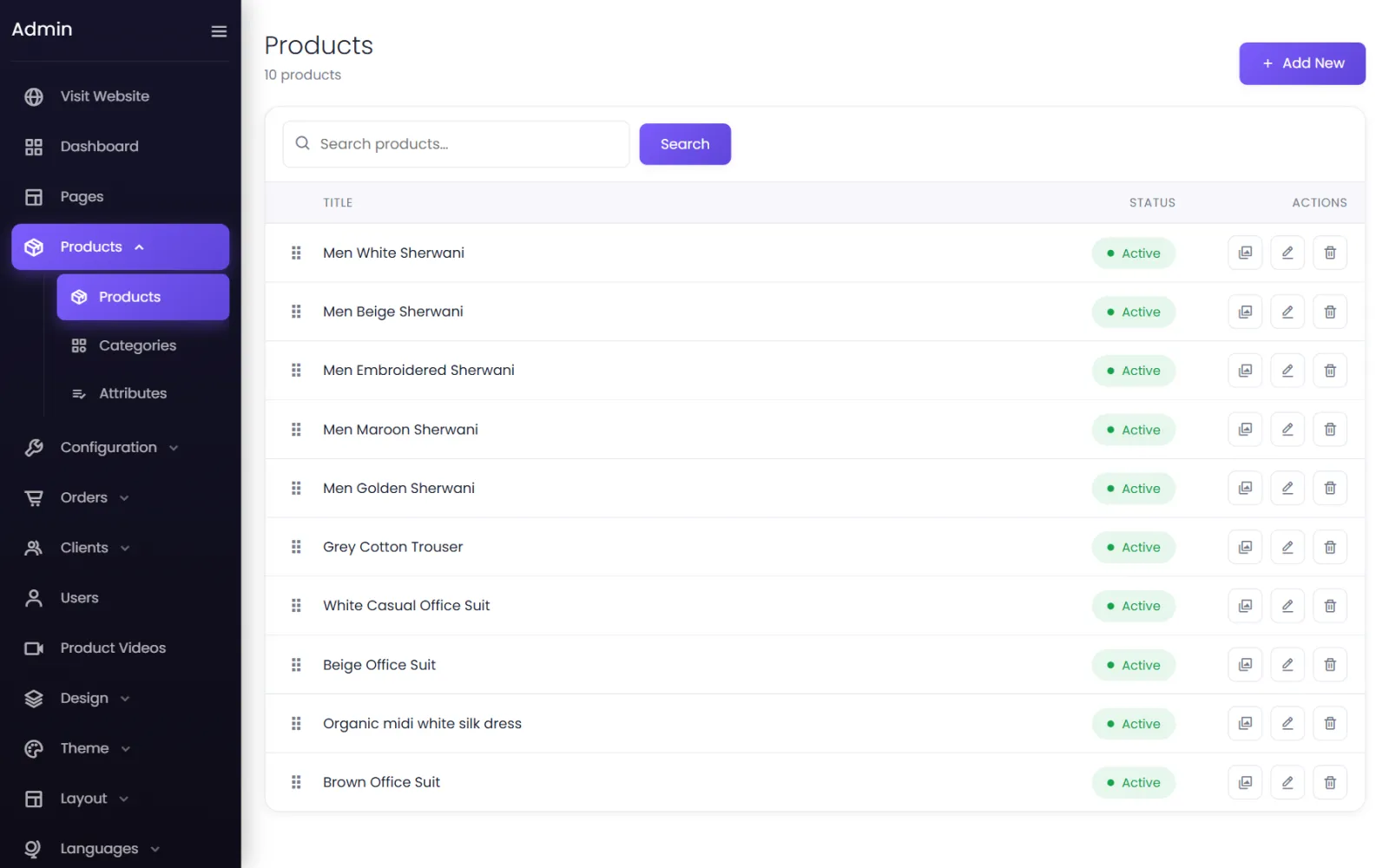
- Go to Products → Products and select Add New.
- Open each section of the form in turn (select its title to expand it) and fill it in — the sections are described below.
- Select Submit. The product is saved and appears in your product list.
- In the list, select the media button on the product's row and add its photos — see Images and videos.
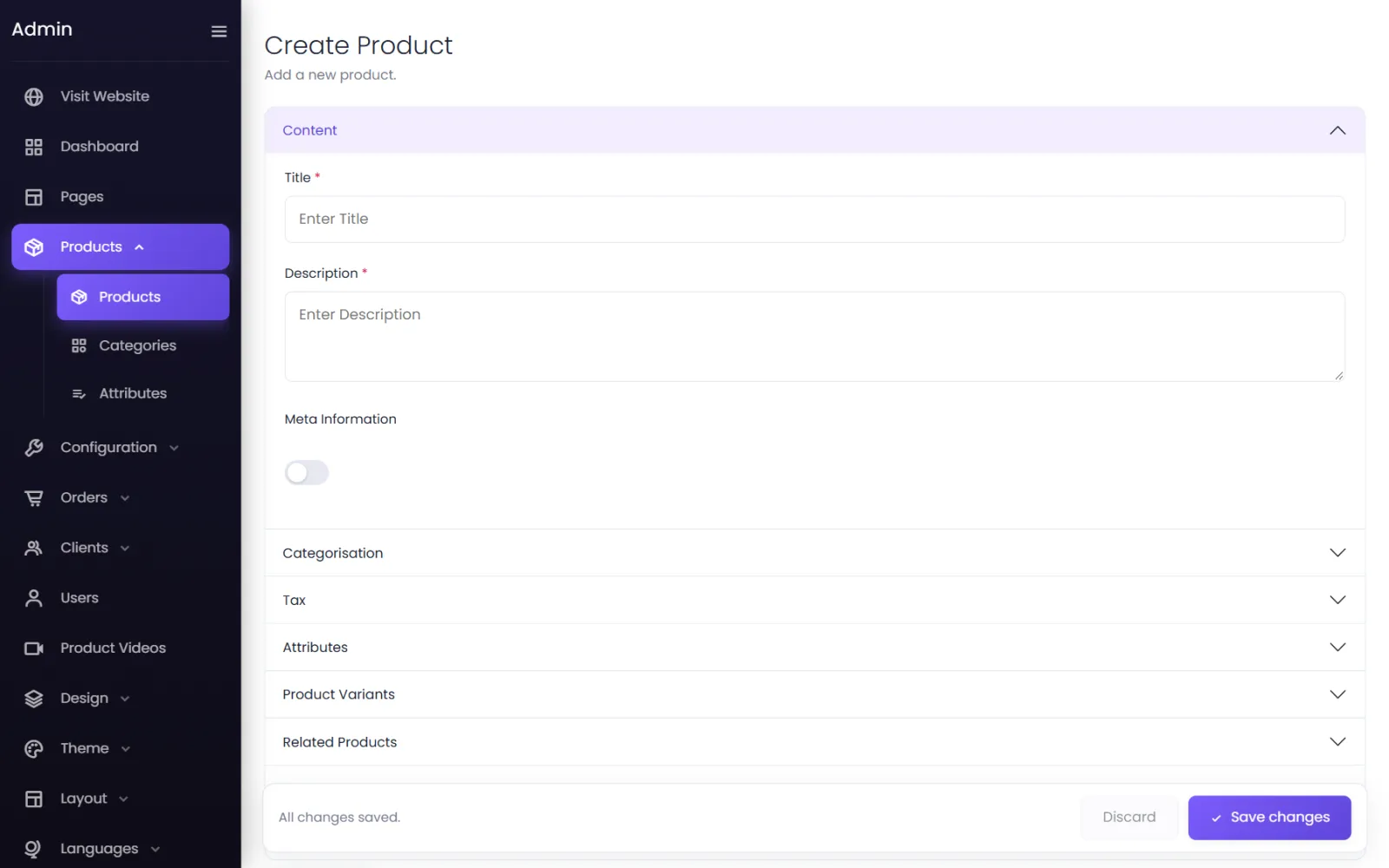
Content#
- Title (required) — the product's name, such as Handloom cotton saree. It also becomes the product's web address: Handloom cotton saree is shown at
yourdomain/products/handloom-cotton-saree. - Description (required) — what the product is, its material, fit and care. Use the editor's bold, lists and links.
- Meta Information — switch on to write the title and description Google shows. When it is on, Meta Title, Meta Description and Meta Keywords are all required. See Product SEO.
Categorisation#
- Category (required) — one or more categories the product appears in. Type to search; select to add. See Categories.
- Brands — shown only when Sell by brand is on in Settings, and then required. See Brands.
Tax#
- Tax — the GST rate for this product, chosen from the rates under Configuration → Taxes.
- HSN Code — printed on GST invoices. See GST and taxes.
Product Attributes#
Choose the Attribute Categories this product varies by — for example Size — and then which Attributes it comes in (S, M, L). These are the options you combine into variants. Skip this for products that come in only one version. See Attributes.
Product Variants#
Choose Multiple Variants (one per size, colour and so on) or Single Item, then for each variant enter:
- Stock Quantity — how many you have.
- Pricing — MRP, discount and the resulting selling price. See Pricing and discounts.
- Weight (grams) and Length / Width / Height (cm) — used to work out shipping.
Everything about variants is in Variants and stock.
Related Products#
Search for other products to show as related on this product's page. See Labels, related products and FAQs.
Extras#
Whether the product can be returned, exchanged or cancelled (and within how many days), the Featured, Hot Deal, Best Seller and New Arrival labels, and an Accordion/FAQ block for the product page. See Labels, related products and FAQs.
Status#
Active shows the product on your store; Inactive hides it.
Messages you may see#
| Message | Fix |
|---|---|
| Title is required. / Description is required. | Fill in the Content section. |
| Please select a category. | Pick at least one category under Categorisation. |
| Please select a brand. | Your store sells by brand — choose one. |
| Meta title is required. (and description, keywords) | Fill in all three meta fields, or switch Meta Information off. |
| Returnable days is required. | You set Returnable to Yes — enter the number of days. |
| enter an MRP. | Every variant needs an MRP above zero. |
| a percentage discount must be under 100%. | Lower the percentage. |
| the discount must be less than the MRP. | An amount off cannot be the whole price or more. |
| Product created successfully! | Saved. Now add photos. |
Edit, reorder or delete#
- Edit — the pencil button on the product's row. The same form opens with everything filled in.
- Reorder — drag rows by the handle on the left. The order is used wherever products are listed in your store's default order.
- Delete — the bin button. Deleting is permanent; to hide a product for a while, set it to Inactive instead. Past orders keep their copy of the product's name and price either way.
Was this page helpful?
Something is missing — tell us