Banners
Create banner sets for your home page hero and promotions — images or videos, links, and which screens each banner shows on.
Banners are the wide images — or videos — across the top of your home page and in promotional sections: Festive sale, up to 40% off. They are organised in banner categories (sets), and the Banners element of the page builder shows one set as a slider.
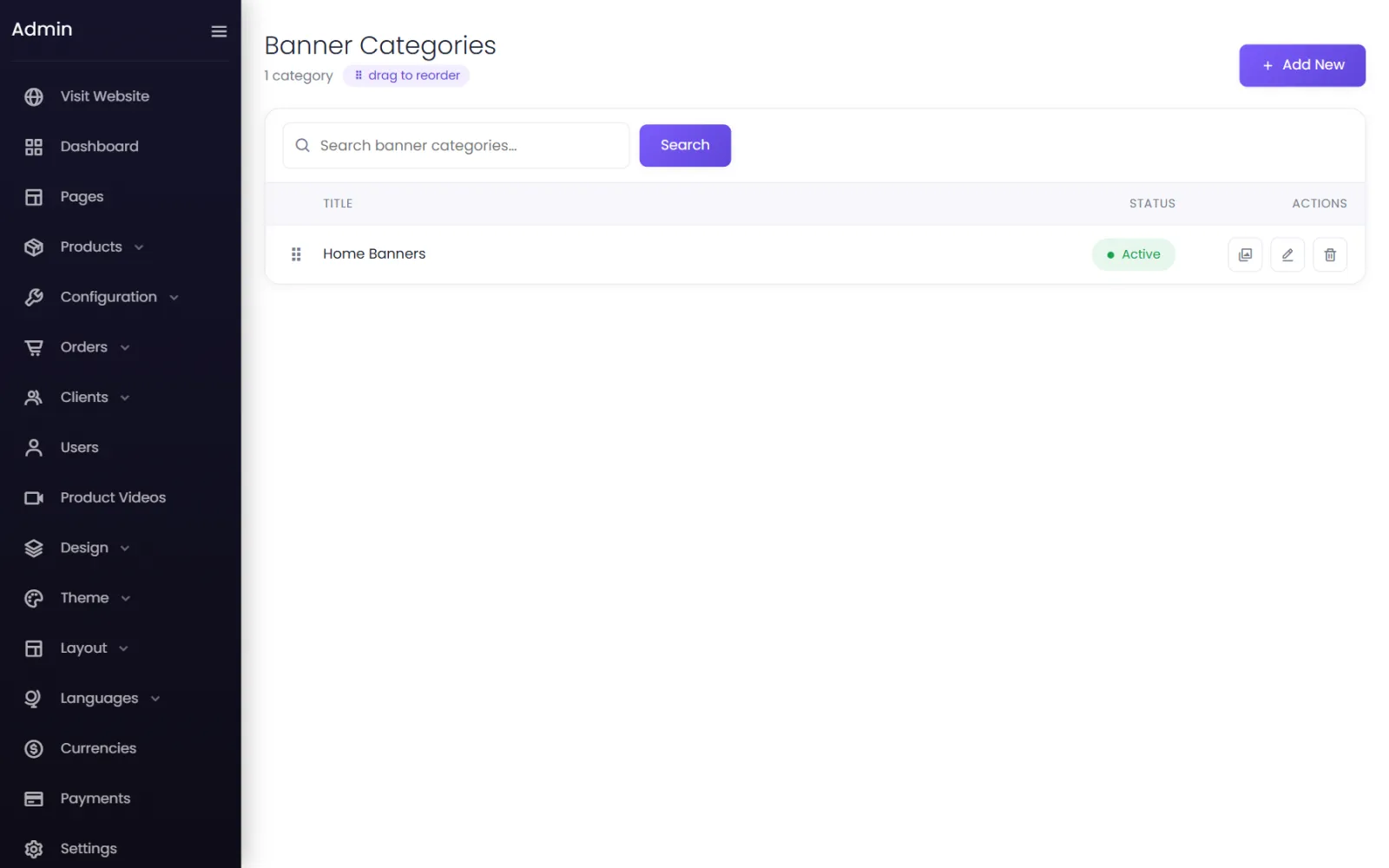
Create a banner set#
- Go to Media → Banners (the Banner Categories list) and select Add New.
- Give it a Title — Home Banners, Diwali Sale — and leave Status on Active. Select Submit.
The starter store has one set, Home Banners, used at the top of the home page.
Add banners to the set#
- On the set's row, select the list button to open its banners, then Add New.
- Fill in:
- Category — the set it belongs to.
- Title — for your reference.
- Link — where the banner goes when tapped: a category, a product or a sale page (
/categories/sarees). - Banner Type — Image or Video, then upload one or use Select from Media Folder.
- Visible On Small Screen (Mobile), Visible On Tab, Visible On Big Screen (Laptop & PC) — tick where it shows.
- Status — Active.
- Select Submit. Drag banners in the list to set the slide order.
Different banners for phones#
A wide desktop banner becomes tiny on a phone. Make two versions of each promotion:
- a wide one (for example 1920 × 700 pixels), ticked for Big Screen and Tab;
- a taller one (for example 1080 × 1350), ticked for Small Screen only.
Keep text large and near the middle, so it is never cut off.
Show a set on a page#
In the page builder, add the Banners element and choose the set. To change a live promotion, edit the banners — every page showing the set updates.
Was this page helpful?
Something is missing — tell us