- Online store builder
- Marketing & content
- Galleries and product videos
Galleries and product videos
Image galleries, video galleries (uploaded or embedded) and shoppable product videos that link straight to what is shown.
Three content types show pictures and videos on your pages: image galleries, video galleries and product videos.
Image galleries#
A lookbook, a store photo wall, a festival collection.
- Go to Media → Image Gallery and select Add New.
- Give it a Title and a cover Image, and select Submit.
- On its row, open the gallery's images and select Add New.
- Upload Images (several at once) or Select Multiple from Media Folder, then Submit.
- Drag images into the order you want.
Show it with the Image Gallery element in the page builder. Its layout — grid or carousel, gaps, shapes — comes from Design → Image Gallery.
Video galleries#
- Go to Media → Video Gallery and select Add New; give it a Title and a cover Image.
- Open its videos and select Add New.
- Choose the Type Of Video:
- Upload Videos — upload several, or pick them from the media folder; or
- Embed URL — paste a YouTube or other video link.
- Select Submit.
Show it with the Video Gallery element.
Product videos (shoppable)#
A product video shows a short clip with the products in it linked beside it, so viewers can tap through and buy — like reels in a shopping app.
- Go to Product Videos and select Add New.
- Give it a Title (optional), attach one or more Products (type to search), and choose the Video from the media folder.
- Select Submit.
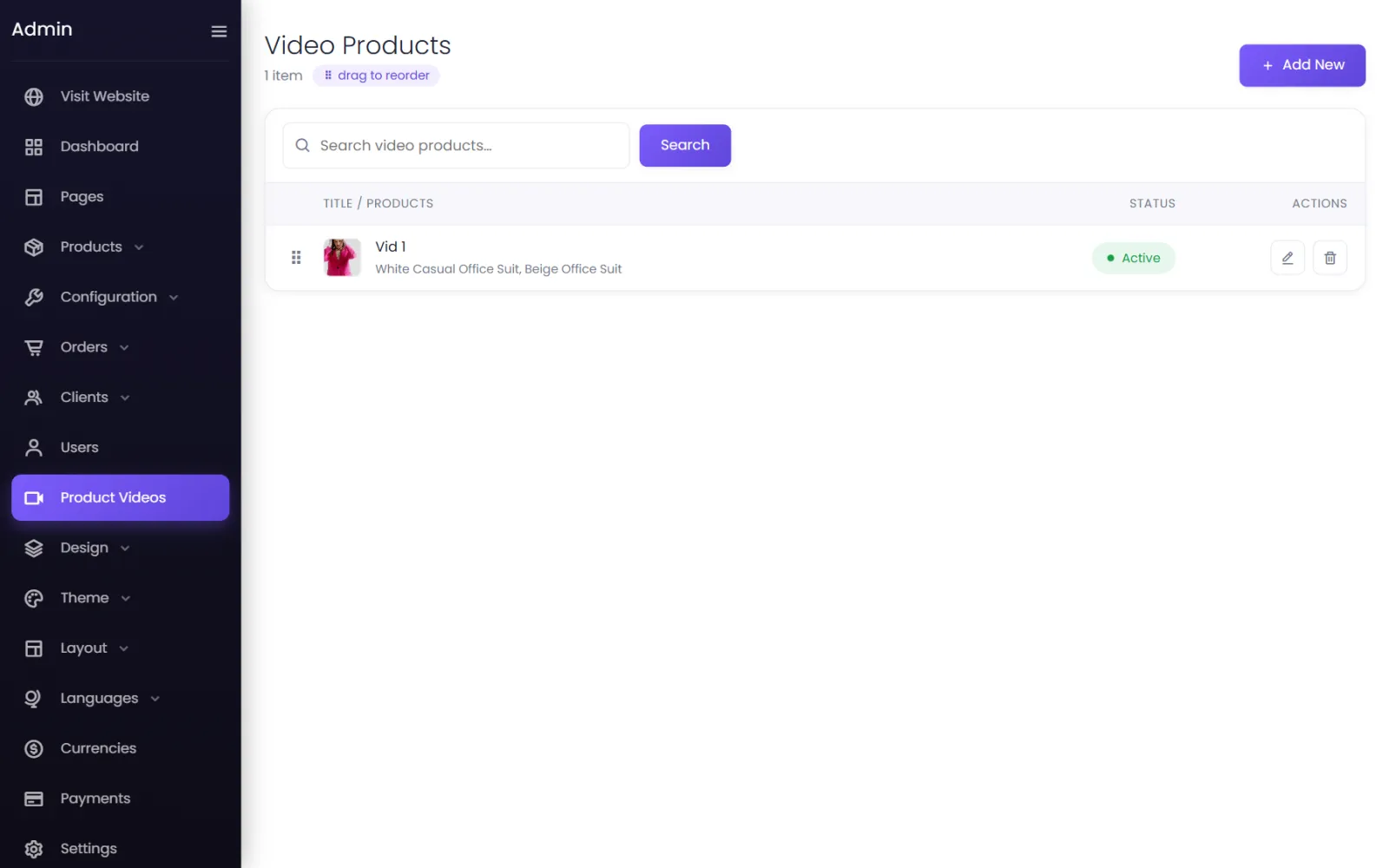
Show them with the Vid And Prod element in the page builder. See Store elements.
Was this page helpful?
Something is missing — tell us