- Online store builder
- Products & catalogue
- Attributes
Attributes
Set up the options your products come in — sizes, colours, fabrics — as attribute categories and attributes, then use them to build variants.
Attributes are the options a product comes in. They are organised in two levels:
- An attribute category is the kind of option — Women's Size, Colour, Fabric.
- An attribute is one value of it — XS, S, M; Red, Blue.
You set them up once and reuse them on every product. The starter store includes Men's Size, Women's Size and Wedding Collection.
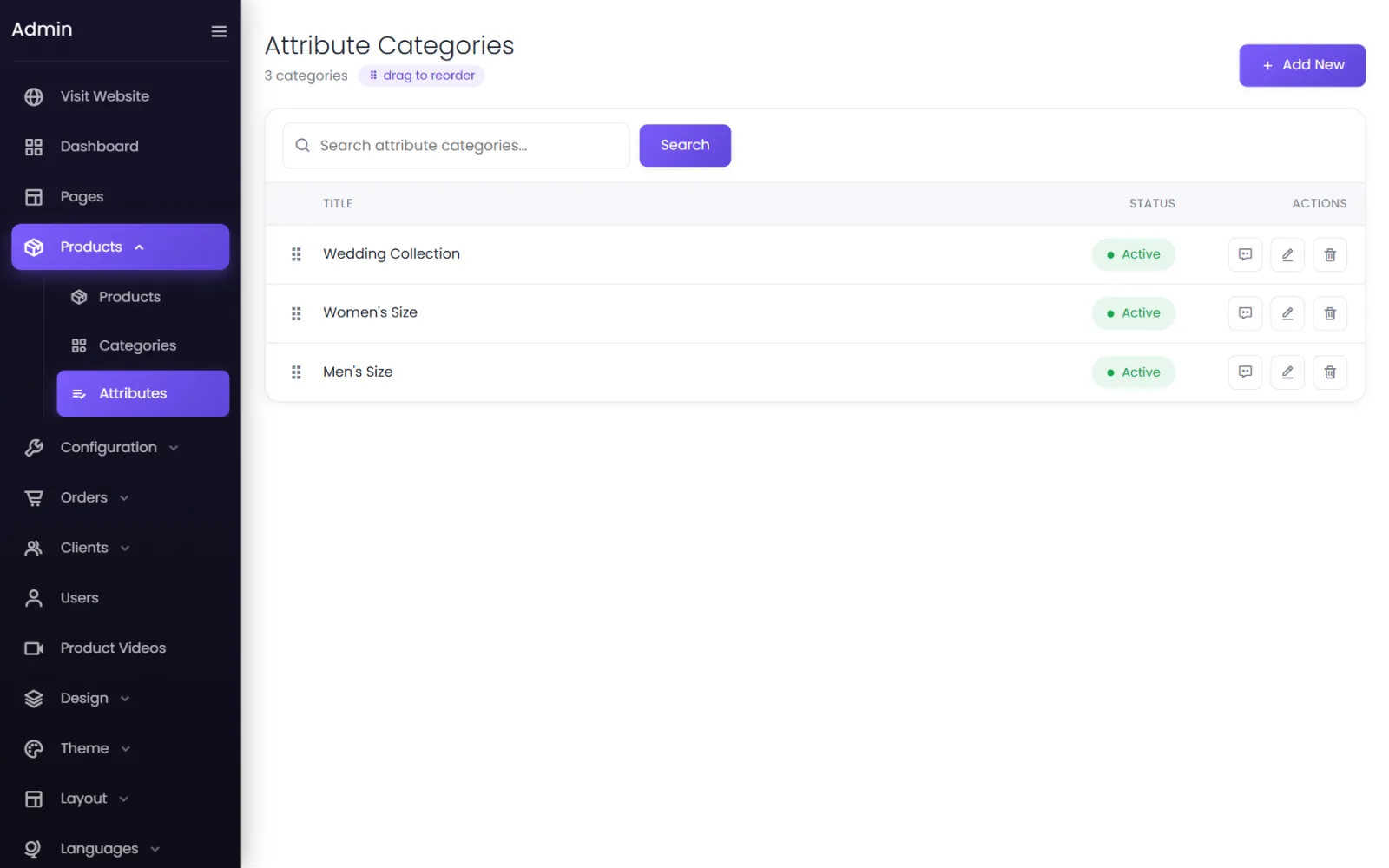
Add an attribute category#
- Go to Products → Attributes. The Attribute Categories list opens.
- Select Add New.
- Enter a Title, such as Shoe Size (UK), leave Status on Active, and select Submit.
Add attributes to it#
- In the attribute categories list, select the list button on the category's row. Its attributes open.
- Select Add New.
- Check Attribute Category, enter a Title such as UK 7, and select Submit.
- Repeat for every value.
- Drag the rows into the order customers should see them — S, M, L, XL, not alphabetical.
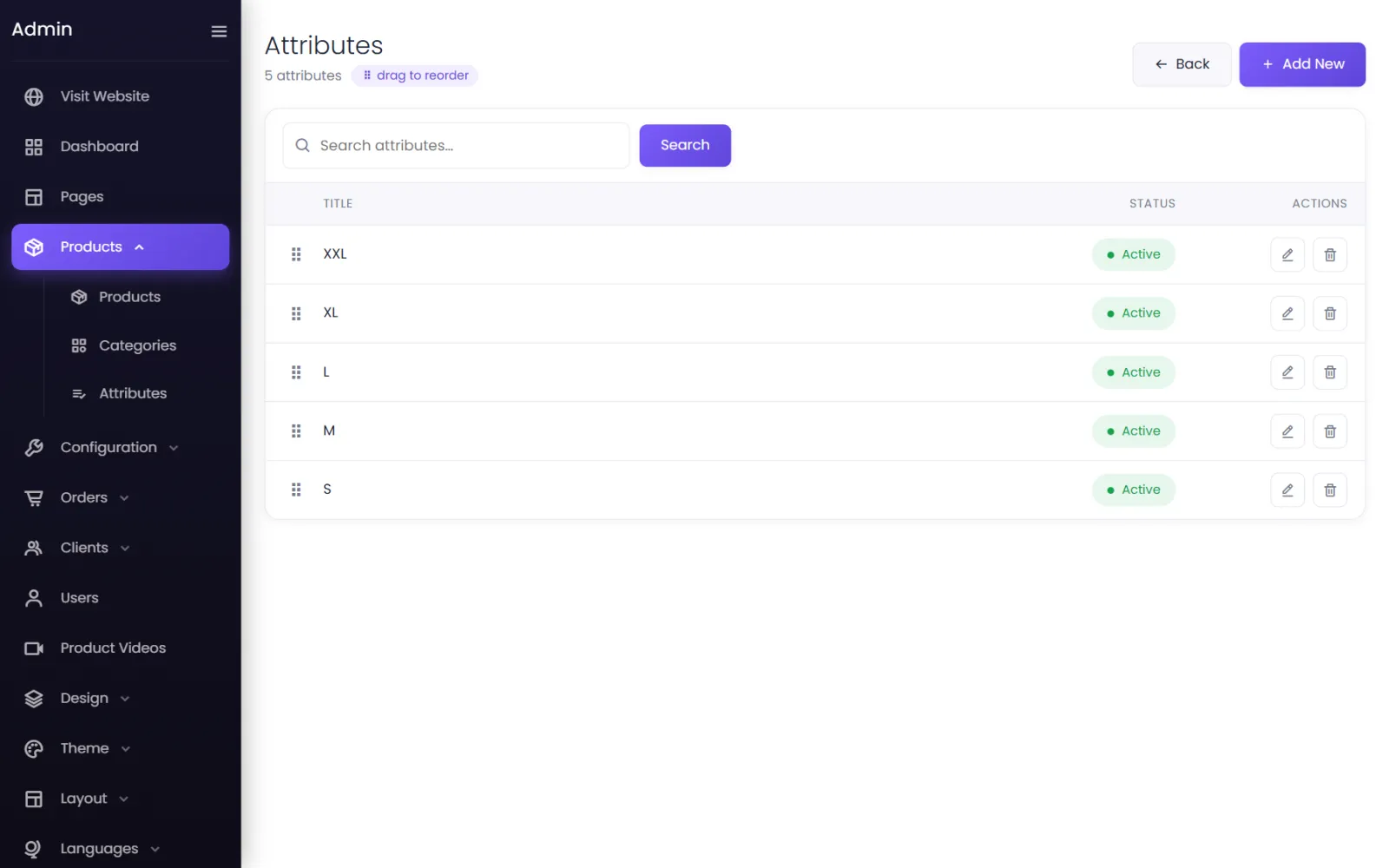
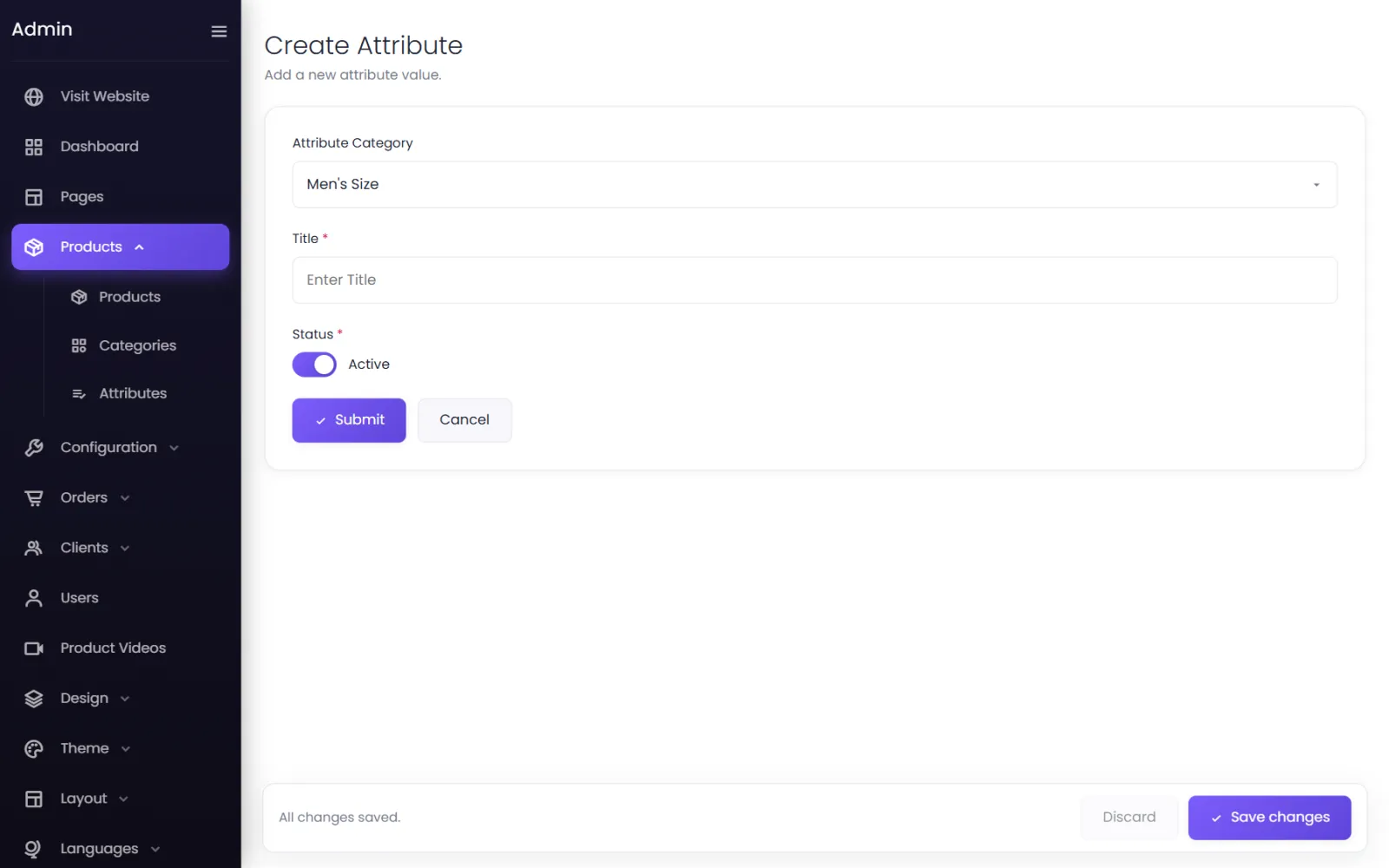
Use them on a product#
On the product form:
- Open Product Attributes and pick the Attribute Categories this product varies by.
- Pick the Attributes it comes in from each category's list.
- Open Product Variants, choose Multiple Variants, and create one variant for each combination you sell.
See Variants and stock.
Common questions#
Can a product vary by two things, like size and colour?#
Yes. Pick both attribute categories, and each variant gets one value from each — Size: M, Colour: Blue.
I renamed an attribute. Do past orders change?#
No. Orders keep the option names as they were when the customer bought.
Can I hide an option for a while?#
Set the attribute to Inactive. To stop selling one size of one product only, set that variant's stock to 0 instead.
Was this page helpful?
Something is missing — tell us