- Online store builder
- Products & catalogue
- Variants and stock
Variants and stock
Sell one product in several sizes or colours — each variant with its own price, stock and weight — and how stock goes down and comes back.
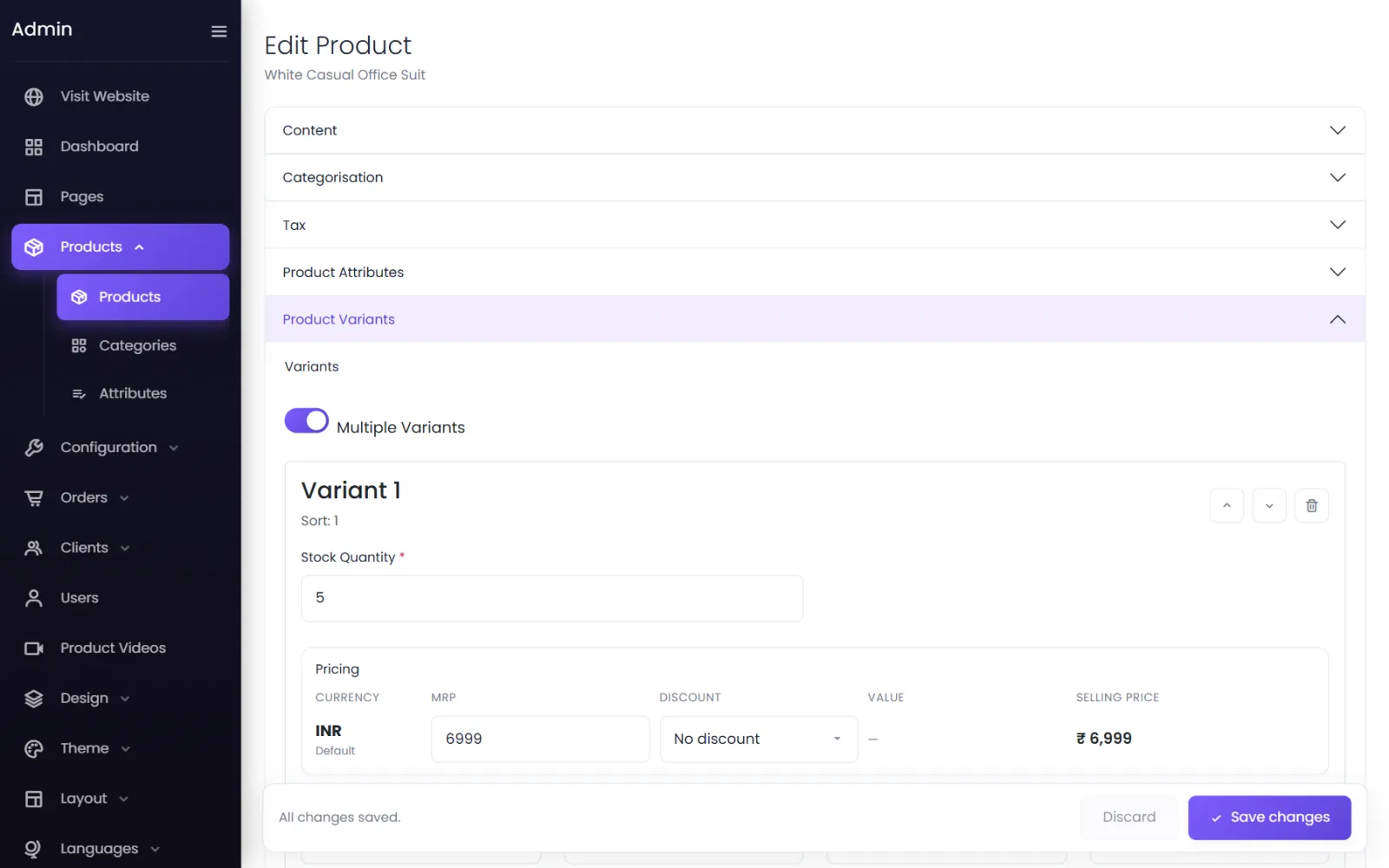
A variant is one version of a product that a customer can buy — White Casual Office Suit, size M. Every product has at least one. Each variant carries its own stock, price, weight and dimensions, so a large size can cost more and weigh more than a small one.
Single item or multiple variants#
Open Product Variants on the product form and choose:
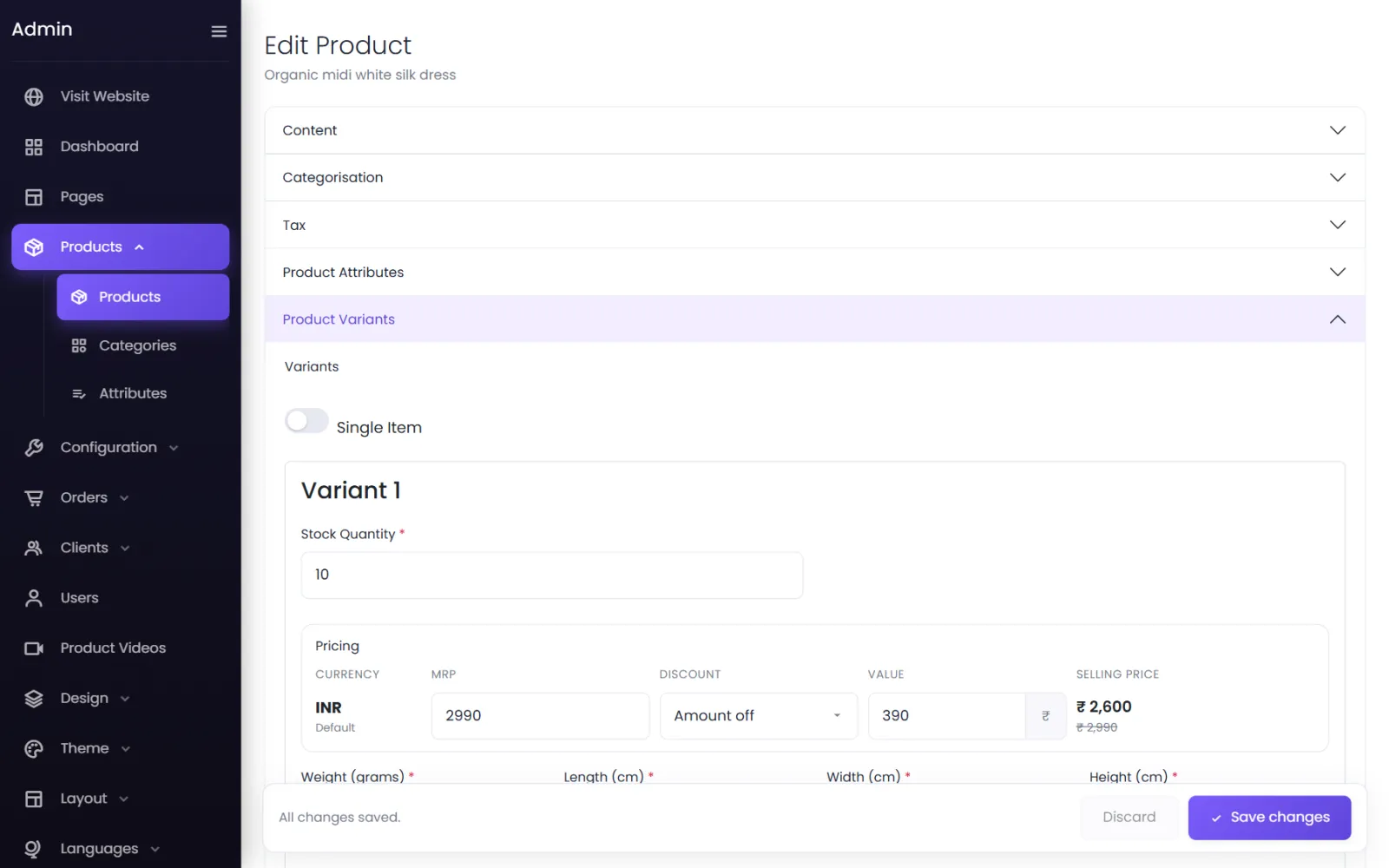
- Single Item — the product comes in one version only. You fill in one set of stock, price and weight.
- Multiple Variants — the product comes in options. Each variant is a combination of attributes, such as Size: M or Size: M, Colour: Blue.
Create variants#
- Under Product Attributes, choose the Attribute Categories the product varies by (for example Women's Size), then the Attributes it comes in (XS, S, L). See Attributes.
- Under Product Variants, choose Multiple Variants.
- For Variant 1, pick its attribute in each category — Women's Size: XS — and fill in its stock, pricing and weight.
- Select Add Variant for the next one, and repeat.
- Use Move Up and Move Down to set the order the options appear in on your store, and the bin to remove a variant.
- Select Submit.
Each variant gets a SKU (stock-keeping unit) automatically, such as P3-412d7dd50c.
Stock#
Stock Quantity is how many of that variant you have.
- When it reaches 0, the variant shows Out of stock and cannot be added to the cart.
- With Settings → Storefront → Stock Visibility set to Show stock, product pages show In stock · 12 available; otherwise just In stock. When few are left, customers see Only 2 left in stock.
When stock goes down#
- Cash on delivery and bank transfer orders take the stock the moment the order is placed.
- Online payments take it when the payment is confirmed — an abandoned payment does not hold stock.
When it comes back#
Cancelled orders and accepted returns can put the items back in stock automatically — you choose this under Orders → Returns Policy (Restock on cancellation and Restock on return). See Returns policy.
Weight and dimensions#
- Weight (grams) — the packed weight of one unit. Shipping is charged on the total weight of the cart, so enter it for every variant: 500 for half a kilo.
- Length, Width and Height (cm) — the packed size. Shiprocket uses these for volumetric weight.
A variant with no weight is counted at the default parcel weight set on the Shiprocket screen (0.5 kg unless you change it), even if you do not use Shiprocket. See Shipping rates.
Limit how many a customer can buy#
Settings → Storefront → Max Quantity Per Product In An Order caps how many of one thing a customer can put in a single order. Leave it blank or 0 for no limit. Apply Max Quantity decides how it counts:
- Per variant — the limit applies to each size or colour separately.
- Per product — the limit applies to the product across all its variants.
Customers who go over see Some items in your cart are out of stock or exceed the allowed quantity.
Changing variants later#
You can add, remove and reorder variants on a live product at any time. Removing a variant does not touch past orders — they keep the size, price and quantity the customer bought.
Was this page helpful?
Something is missing — tell us