- Online store builder
- Orders & returns
- Returns and cancellations
Handle cancellations, returns and exchanges
How customers ask to cancel, return or exchange, and how you approve, collect, inspect and refund — step by step on the Returns screen.
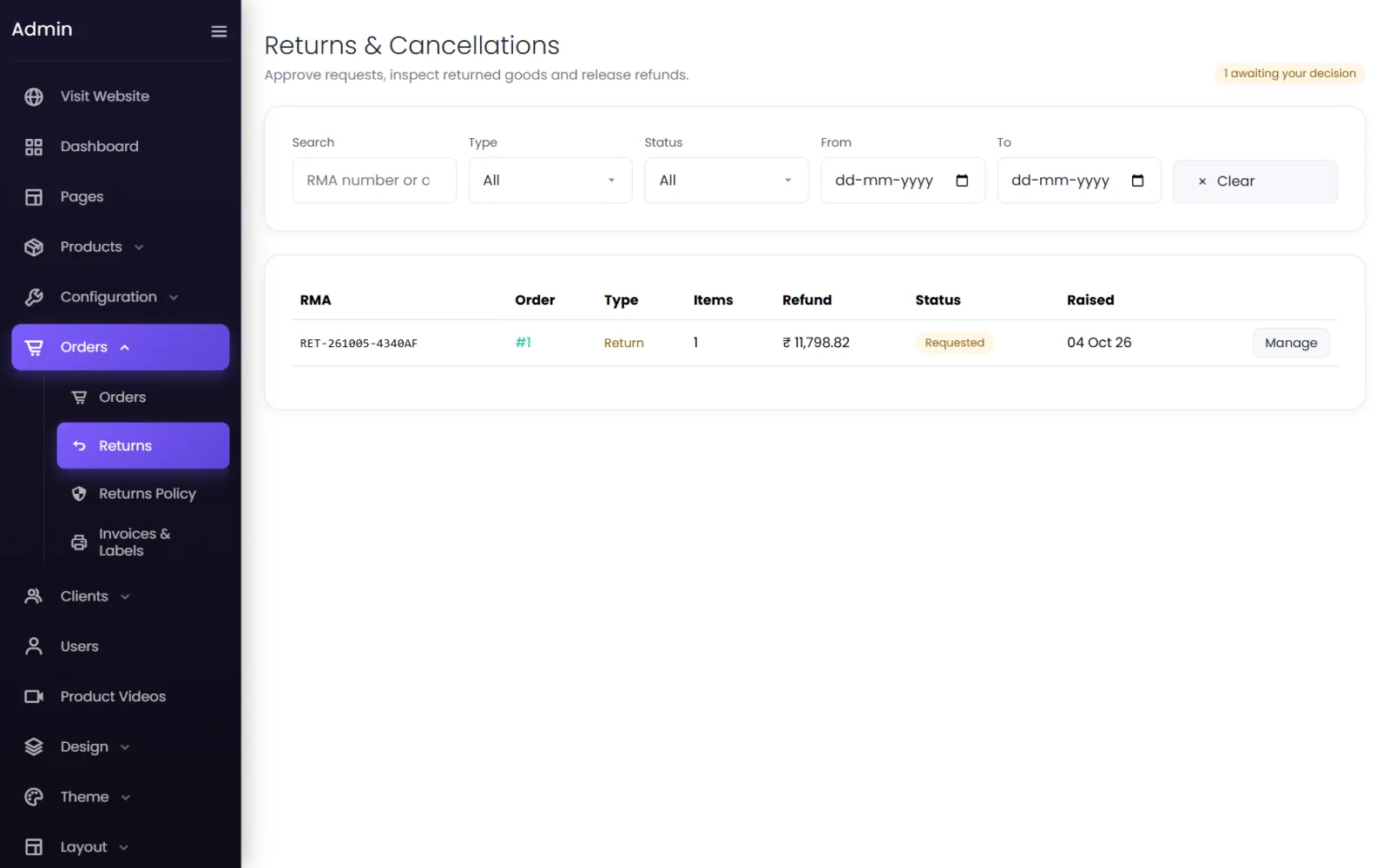
Customers ask to cancel, return or exchange from their order in My Orders. Each request gets an RMA number (such as RET-261005-4340AF) and appears on Orders → Returns, where you take it from request to refund.
What customers can ask for#
Depending on your returns policy and each product's settings, a customer sees:
- Cancel order — before the order has moved past the statuses you allow (by default Pending and Confirmed), and within your cancellation window.
- Return items — after delivery, within the product's return window.
- Exchange items — after delivery, within the exchange window, for products marked exchangeable.
They choose the items and quantities, a reason (Size or fit issue, Item arrived damaged …) and can add a note. For damage, defects and wrong items they must attach a photo.
The Returns screen#
The badge at the top says how many requests are awaiting your decision. Filter by Type (Cancellation, Return, Exchange), Status, date, or search by RMA number or order id. Select Manage to open one.
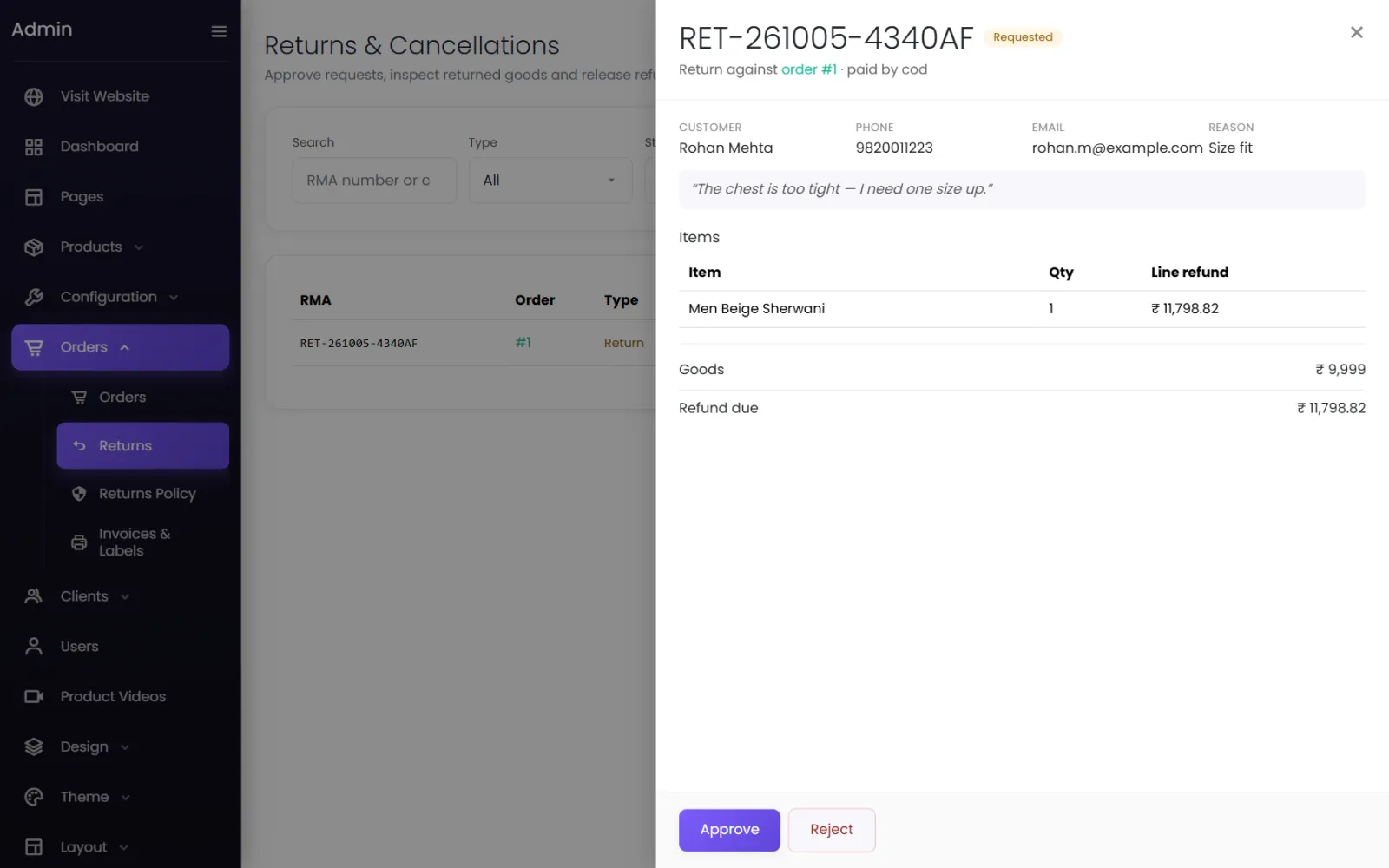
The request shows the customer, phone, email and reason; each item with its quantity and line refund; and the money: Goods, Shipping refunded, Deductions and Refund due.
Cancellations#
- Select Approve — or Reject, typing a reason the customer will see (The order has already been packed).
- Approving cancels the order: the items are put back in stock (if your policy restocks cancellations) and the refund is issued the way your policy says.
If your policy auto-approves requests inside the policy, cancellations happen straight away without you.
Returns#
- Approve (or Reject with a reason).
- Get the parcel back:
- Book reverse pickup — Shiprocket collects it from the customer (when reverse pickup is switched on in your policy); or
- Mark picked up — when you arranged the pickup yourself, or the customer posted it.
- Mark received when it arrives.
- Record quality check & refund — for each item, enter the Accept qty that passed inspection. Accepted units go back into stock if your policy restocks returns, and the refund is released. Or select Complete without QC.
When the refund is released depends on your policy: after inspection, as soon as the courier collects, or on approval.
Exchanges#
Approve the request and collect the item as for a return. The swap is then made according to your policy — a different size of the same product, any product with the price difference settled, or store credit to re-order. A replacement is raised as a new order, shown as Replacement raised as ORD-….
Refunds on a request#
The Refunds part of the request shows each refund and how it was paid. For a manual refund (bank transfer or UPI, and always for cash on delivery), enter the UTR and select Mark paid. For a gateway refund, Sync fetches its latest state. Issue remaining refund pays out anything still due. See Refunds and store credit.
When the request is over#
A completed or rejected request says This request is closed. The customer sees every step on their order.
Was this page helpful?
Something is missing — tell us