- Online store builder
- Orders & returns
- Order details
Work with an order
Everything on the order screen — totals, addresses, items, documents — and how to change the status and add tracking so the customer can follow the parcel.
Open an order from Orders to see everything about it and move it along.
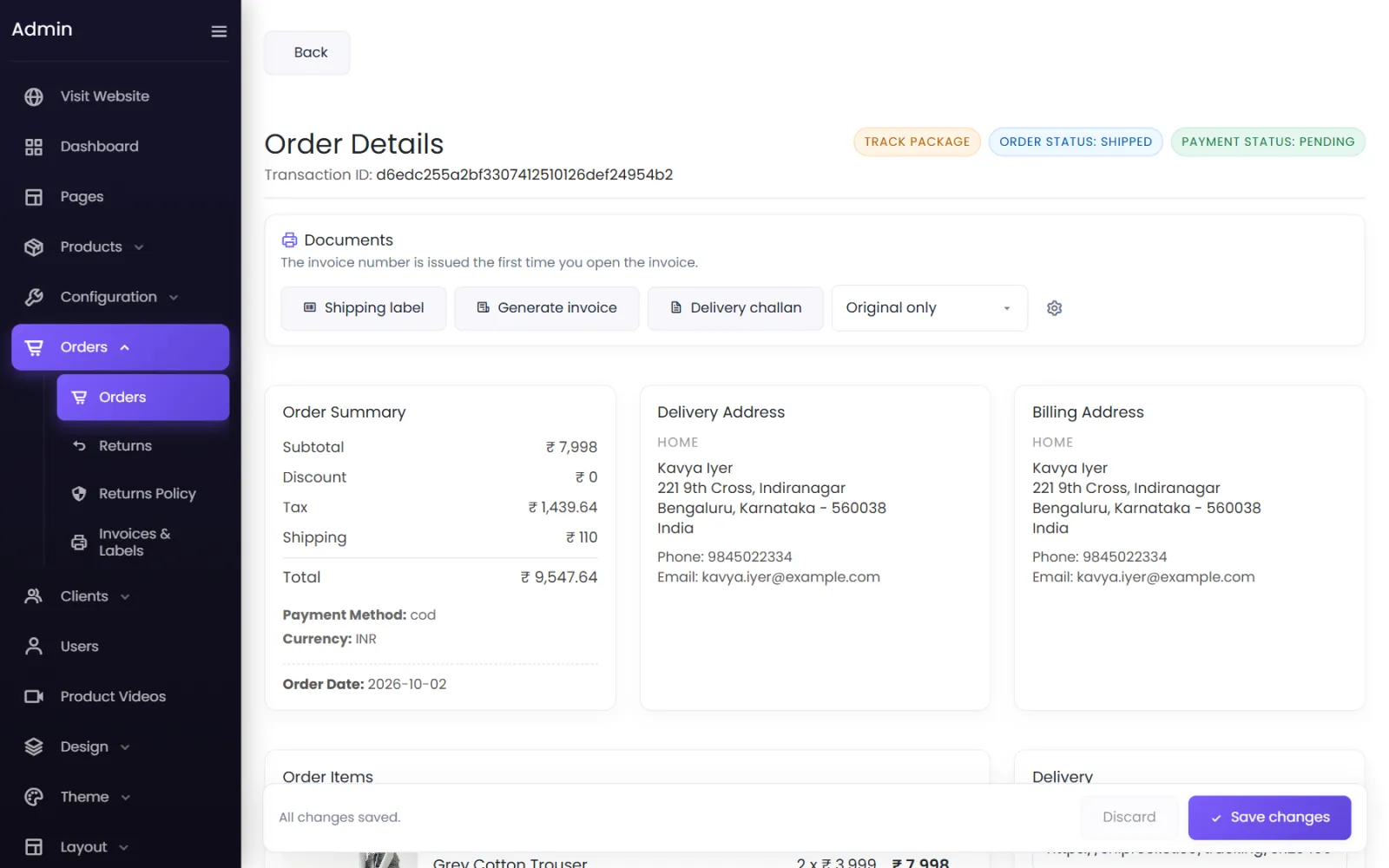
What the screen shows#
- Order Status and Payment Status badges at the top, the Transaction ID, and Track Package when the order has a tracking link.
- Documents — the tax invoice, delivery challan and shipping label. See Invoices and labels.
- Order Summary — Subtotal, Discount, Tax, Shipping and Total; the Payment Method, Currency and Order Date; and, once known, Expected Delivery and Delivered On.
- Delivery Address and Billing Address, with phone and email.
- Order Items — each product, its option (Women's Size: S), quantity and price.
- Delivery — the tracking fields and the status (below).
- Shiprocket — when Shiprocket is connected. See Ship orders with Shiprocket.
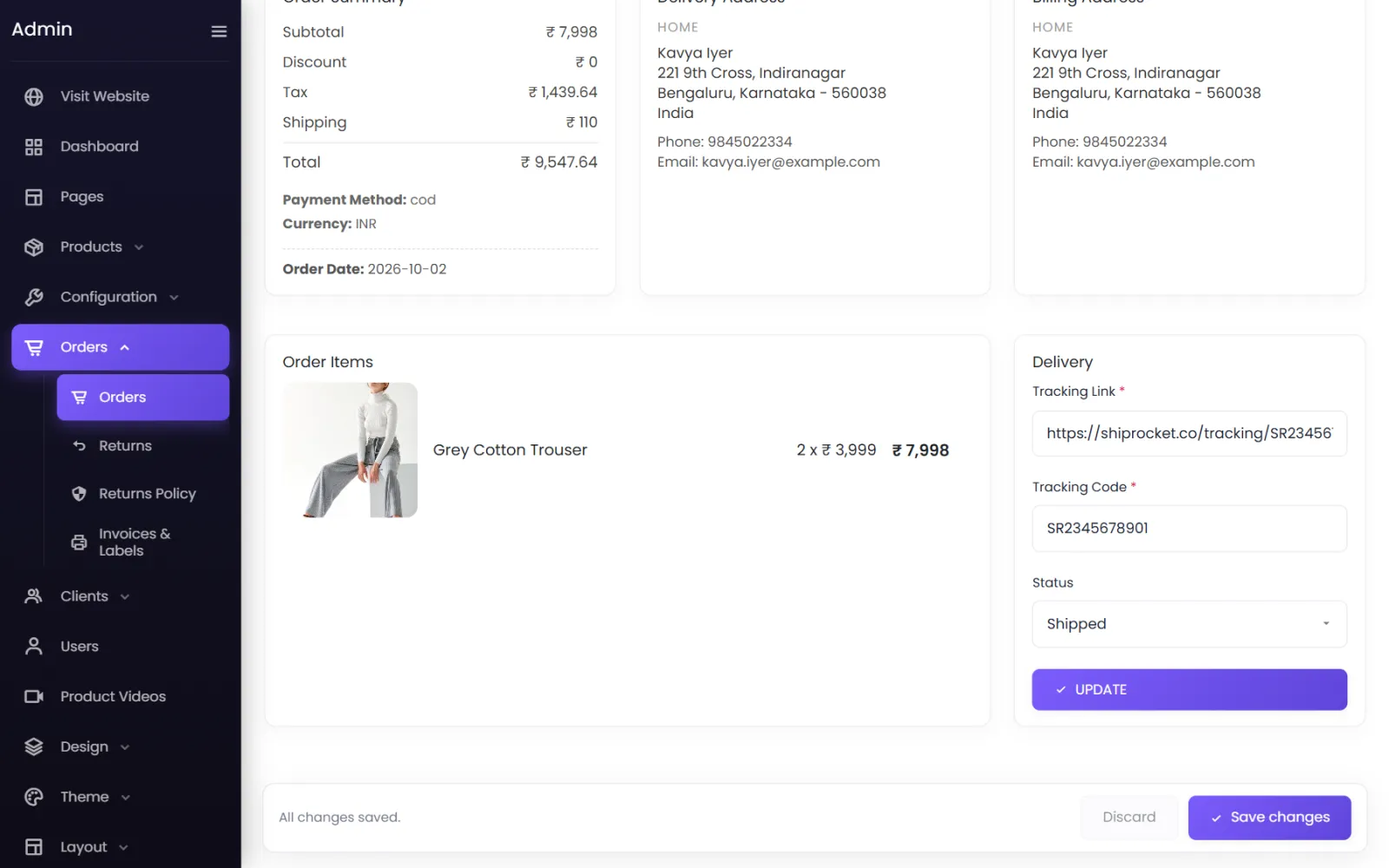
Change the status and add tracking#
In the Delivery panel:
- Tracking Link — the courier's tracking page for this parcel, such as
https://shiprocket.co/tracking/…. - Tracking Code — the AWB or consignment number.
- Status — choose the new status.
- Select UPDATE (or press
Ctrl+S).
The customer sees the new status, the tracking code and a Track package button on their order in My Orders.
The statuses#
| Status | Use it when |
|---|---|
| Pending | Waiting — for an online payment to complete, or a bank transfer to arrive. |
| Confirmed | Paid (or cash on delivery) and ready to pack. |
| Shipped | Handed to the courier. |
| Out for delivery | With the delivery agent today. |
| Delivered | Received by the customer. Return and exchange windows count from delivery. |
| Cancelled | Not going ahead. |
Full definitions are in Order and return statuses.
Payment status#
Paid is set automatically when an online payment is confirmed. Cash on delivery and bank transfer orders show Pending payment: for them, Confirmed and Delivered are your record of payment.
Guest orders#
An order placed without an account shows the customer's name and email from the delivery address, marked GUEST in the list. Guests can see their order and its tracking through a link they verify by email. See Guest checkout.
Changing what was ordered#
Items, prices and addresses cannot be edited after an order is placed. If a customer wants something different, cancel the order and ask them to order again — or arrange an exchange after delivery.
Was this page helpful?
Something is missing — tell us