- Online store builder
- Marketing & content
- Forms and form enquiries
Forms and form enquiries
Build contact, bulk-order and feedback forms, put them on your pages, and read the entries — which are also emailed to you.
Forms collect messages from visitors: Contact us, Ask for a bulk quote, Request a custom size. Every entry is saved in your admin and emailed to you.
Build a form#
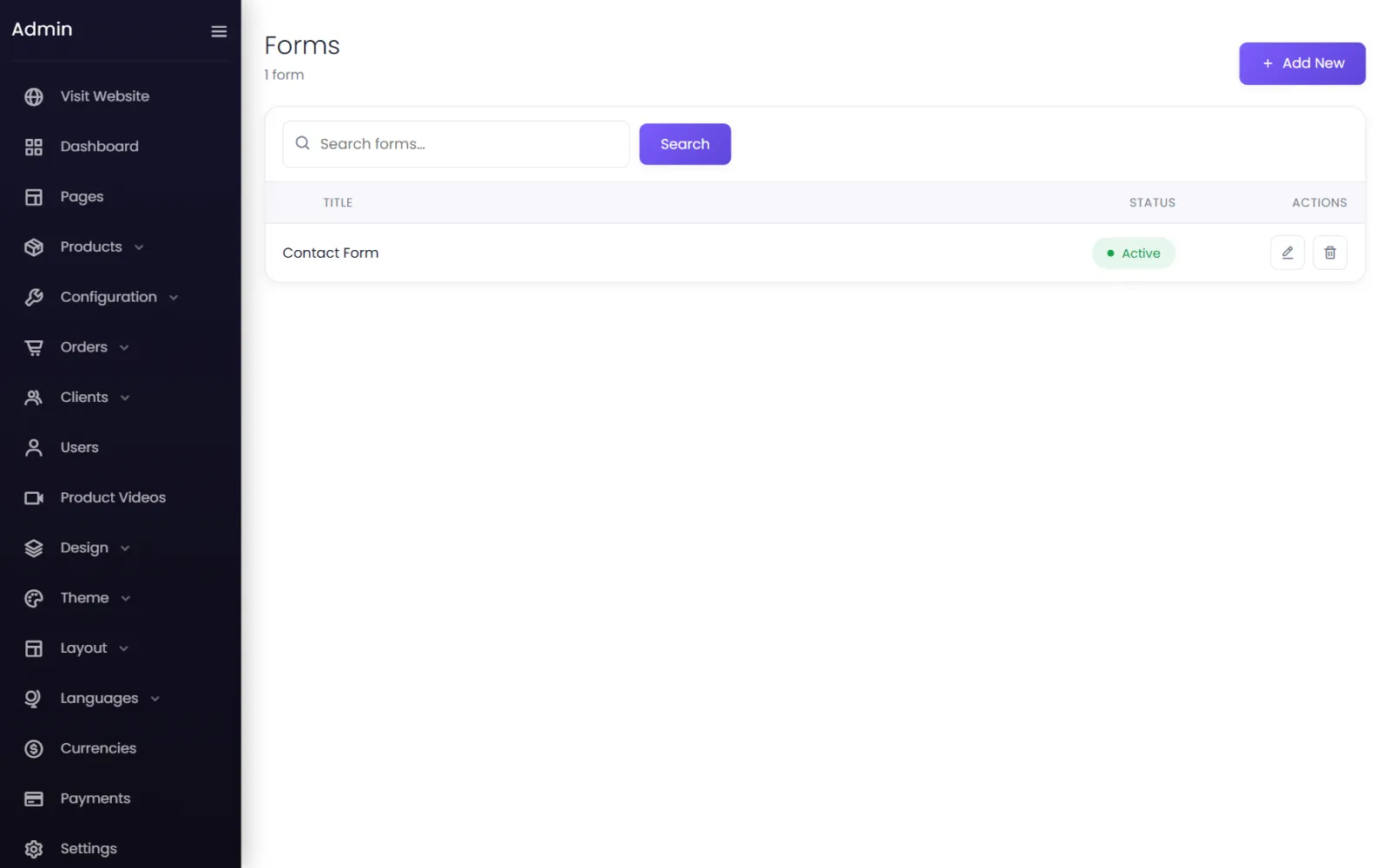
- Go to Forms → Forms and select Add New.
- Give it a Title — Bulk order enquiry.
- Select Add Field for each question. In Field Settings choose:
- Type — Text, Email, Large Text, Number, Checkbox, Select, Radio or Date;
- Placeholder — the hint inside the box (optional);
- Mandatory Field — the visitor must fill it in;
- Options — for Select, Radio and Checkbox, with Add Option.
- Drag fields into order. Leave Status on Active and save.
Put it on a page#
Add the Form element in the page builder and choose the form. Its look comes from Design → Form.
Read the entries#
- By email — each entry is emailed to the Email To Receive Updates set in Settings → Business. See Notifications.
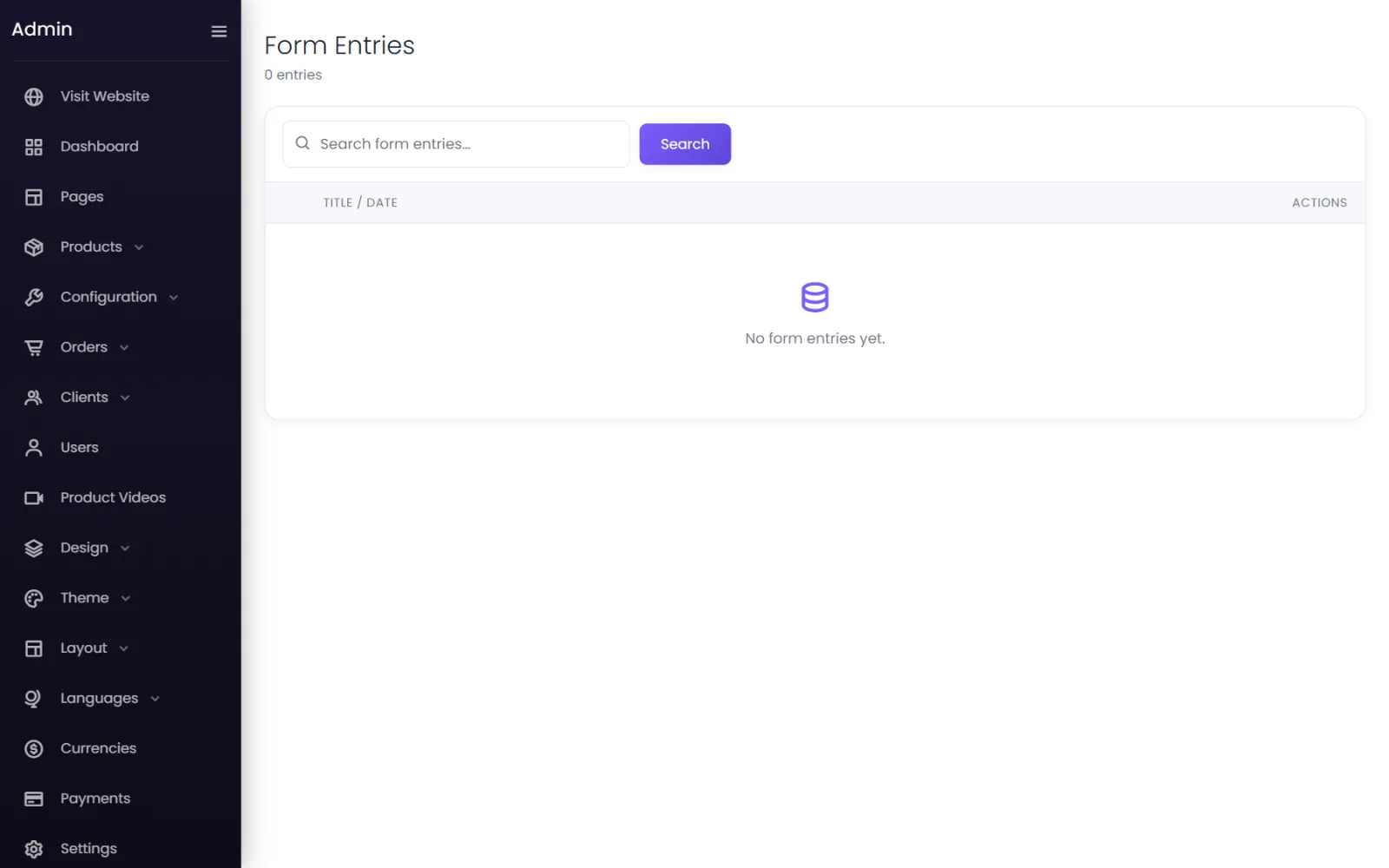
- In the admin — Forms → Form Enquiries lists every entry with its date; open one to read it. If your store is in several languages, an entry also says which language the visitor wrote in.
Keep spam out#
Switch on Google reCAPTCHA for forms in Settings → Spam. See Spam protection.
Common questions#
I am not getting the emails#
Check Email To Receive Updates in Settings → Business, and your spam folder. Entries are always saved under Form Enquiries even if an email does not arrive.
Are orders emailed too?#
No — only form entries are emailed. Orders appear under Orders; enquiries from a catalogue store under Enquiries.
Was this page helpful?
Something is missing — tell us