- Online store builder
- Products & catalogue
- Categories
Categories
Group products into categories and sub-categories, give each a picture, banner and SEO text, and control the order they appear in.
Categories are how customers browse your store — Women, Men, Sarees, Kurtas. A product can be in several categories, and a category can sit inside another one.
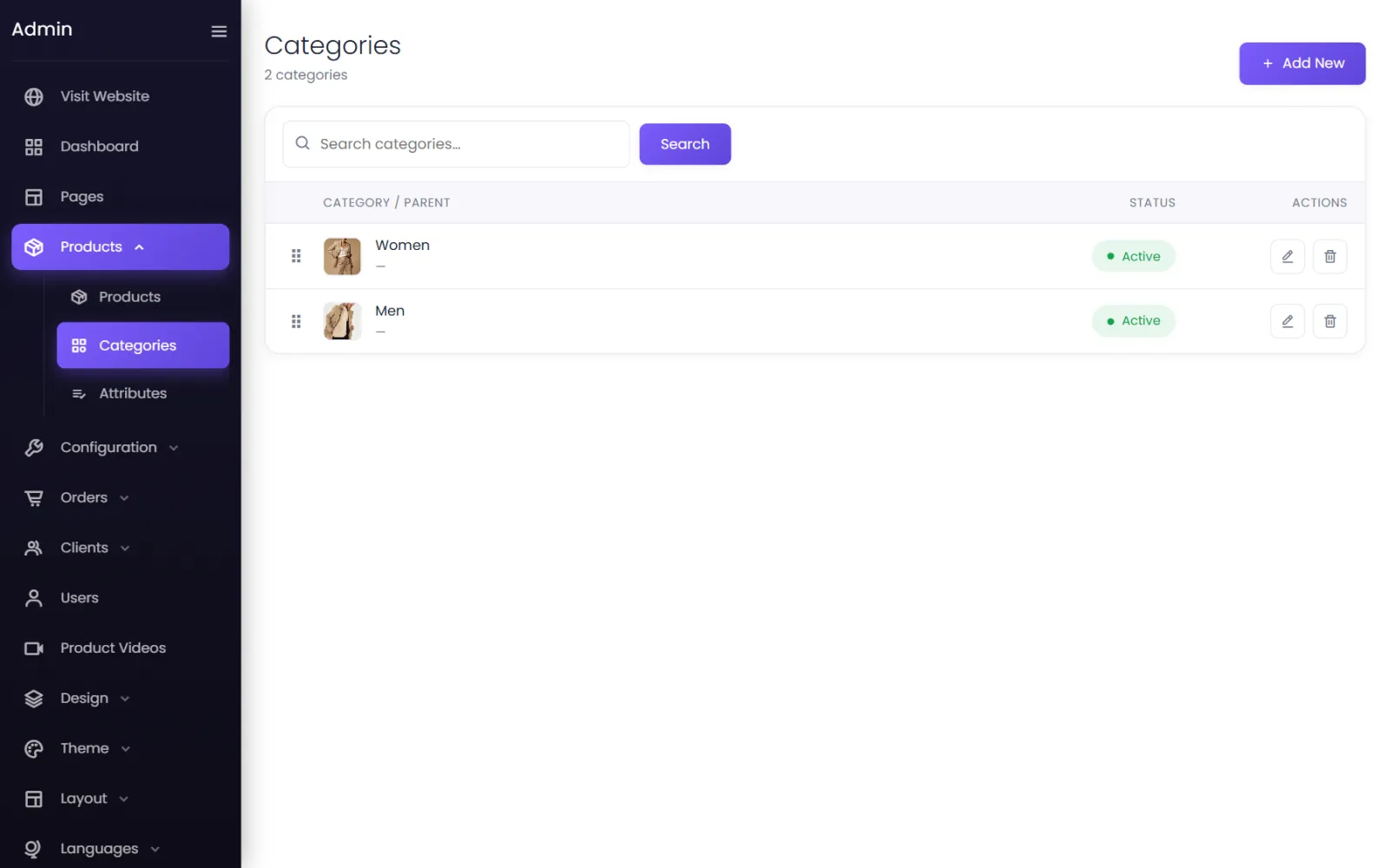
Add a category#
- Go to Products → Categories and select Add New.
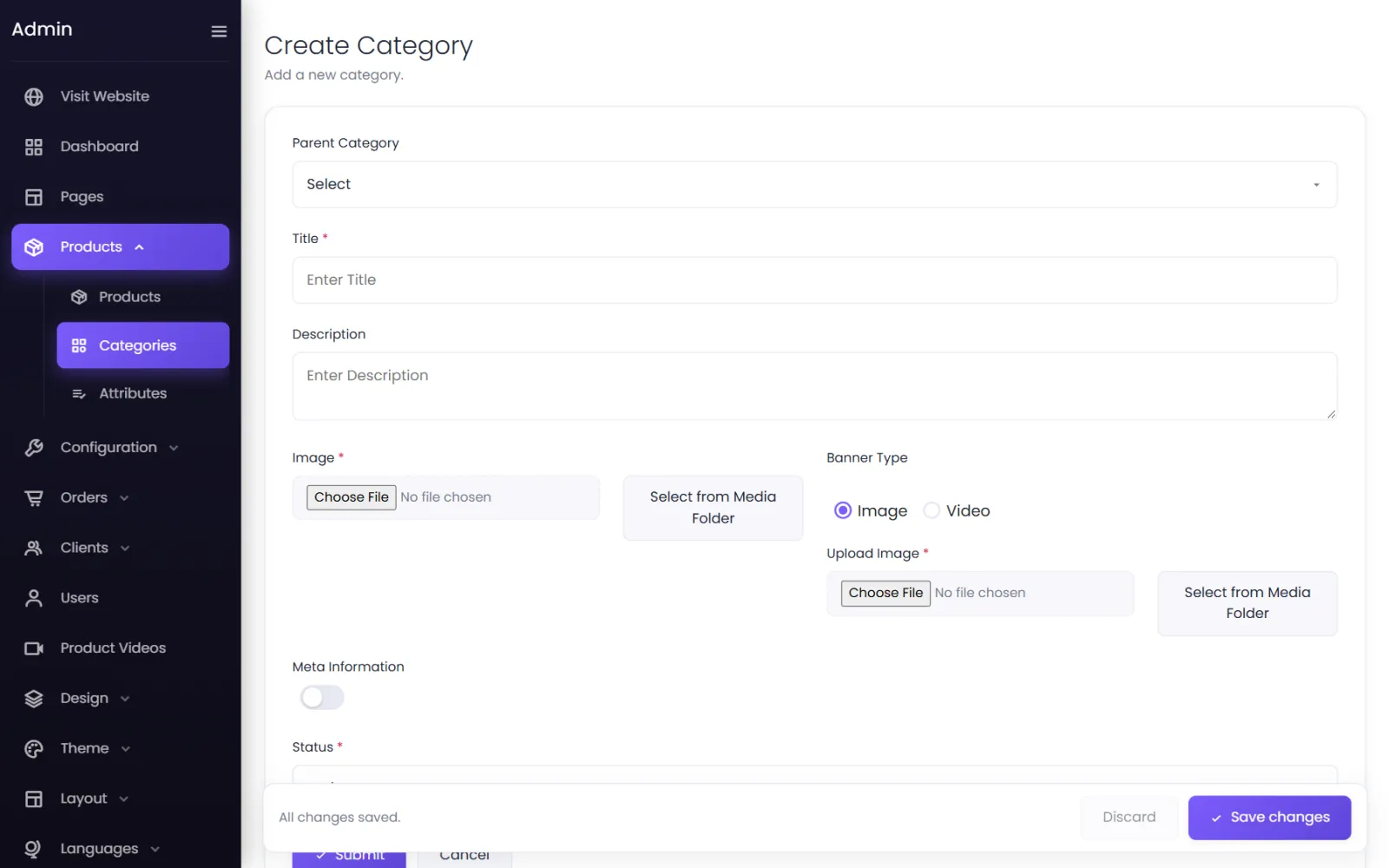
- Fill in:
- Parent Category — leave as Select for a top-level category, or choose one to make this a sub-category (Sarees inside Women).
- Title (required) — the name customers see. It also sets the address: Silk Sarees is shown at
yourdomain/categories/silk-sarees. - Description — a line or two about the category, shown on its page.
- Image (required) — the picture on category cards. Upload one or use Select from Media Folder.
- Banner Type — Image or Video for the wide banner at the top of the category's page, then Upload Image or Upload Video.
- Meta Information — switch on to write the category's own Meta Title, Meta Description, Meta Keywords and Custom Meta Tags for search engines. Fill in all four: they are used only when Custom Meta Tags is filled too (a harmless
<meta name="robots" content="index, follow">will do). - Status — Active to show it.
- Select Submit.
Where categories appear#
yourdomain/categorieslists your top-level categories.yourdomain/categories/your-categoryshows the category's banner, description and products, with filters and sorting.- On any page, the Categories element shows category cards, and the Products element can show one category's products — see Store elements.
- In your menus: add a link to a category under Layout → Menu Links.
Order and visibility#
- Drag the rows to set the order categories are listed in.
- Set a category to Inactive to hide it. Its products stay on the store and remain reachable through other categories and search.
Putting products in a category#
On the product form, open Categorisation and add the category under Category. A product can be in as many categories as you like — a silk saree can be in both Sarees and Wedding Collection.
Common questions#
Can I delete a category that has products?#
Yes, but check those products first: a product whose only category is deleted is no longer listed under any category. Move them to another category before deleting.
How deep can sub-categories go?#
Keep to two levels — Women → Sarees — for menus that are easy to use on a phone.
Was this page helpful?
Something is missing — tell us