- Online store builder
- Getting started
- Admin tour
A tour of the admin panel
What every item in the store admin's menu does, what the dashboard shows, and the save bar and keyboard shortcuts every screen shares.
The admin panel is where you run your store. The menu on the left groups every screen; the Dashboard is your home screen.
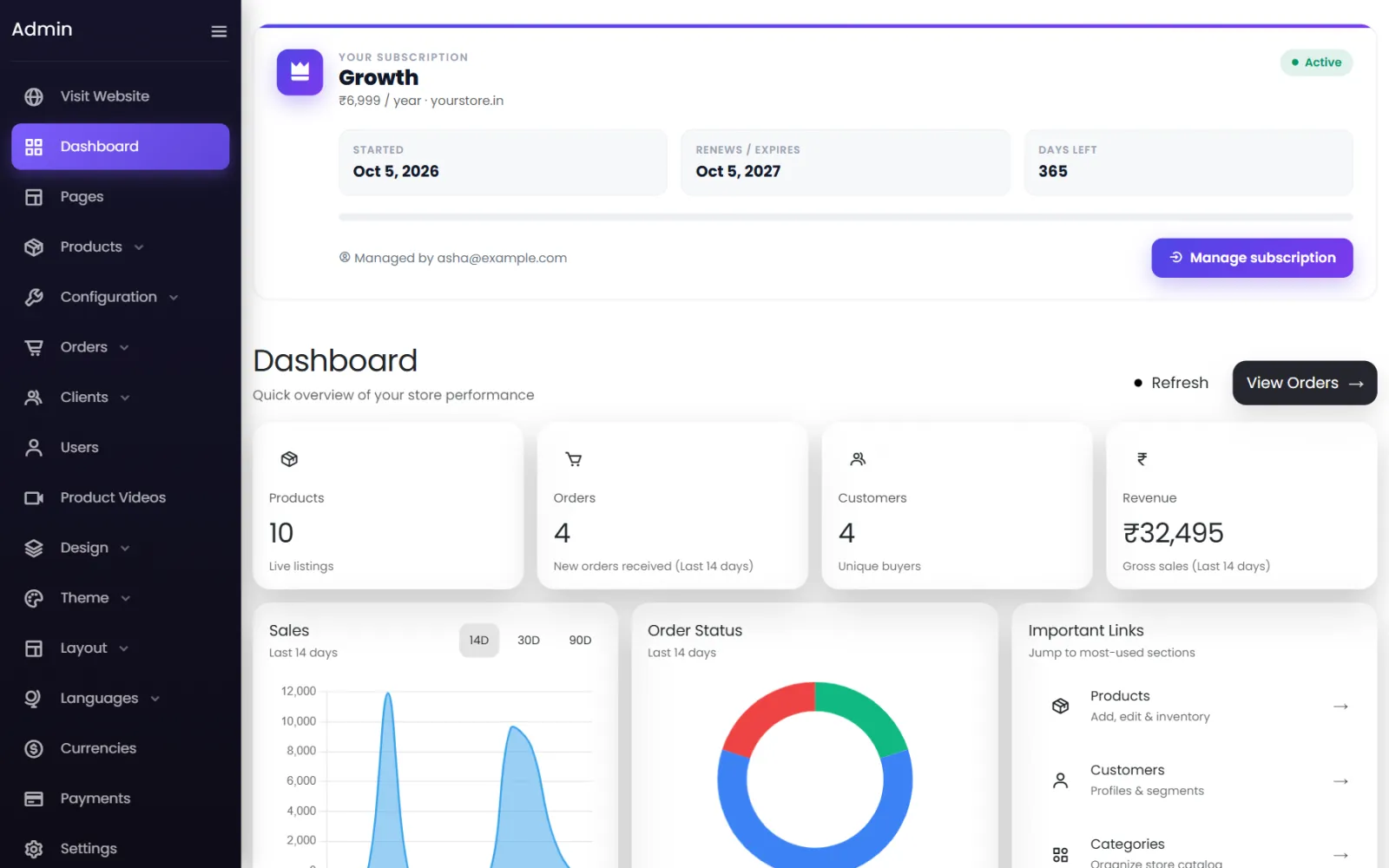
The dashboard#
- Your subscription — your plan, its yearly price, your domain, the start and renewal dates and the days left. Manage subscription opens your store account to renew or upgrade.
- Products — how many products are live.
- Orders — new orders in the last 14 days.
- Customers — how many different people bought.
- Revenue — gross sales in the last 14 days.
- Sales — a chart of sales over 14D, 30D or 90D.
- Order Status — how your recent orders split between pending, confirmed, shipped, delivered and cancelled.
- Important Links and Latest Orders — shortcuts to the screens you use most.
Select Refresh to update the numbers, or View Orders to open the orders list.
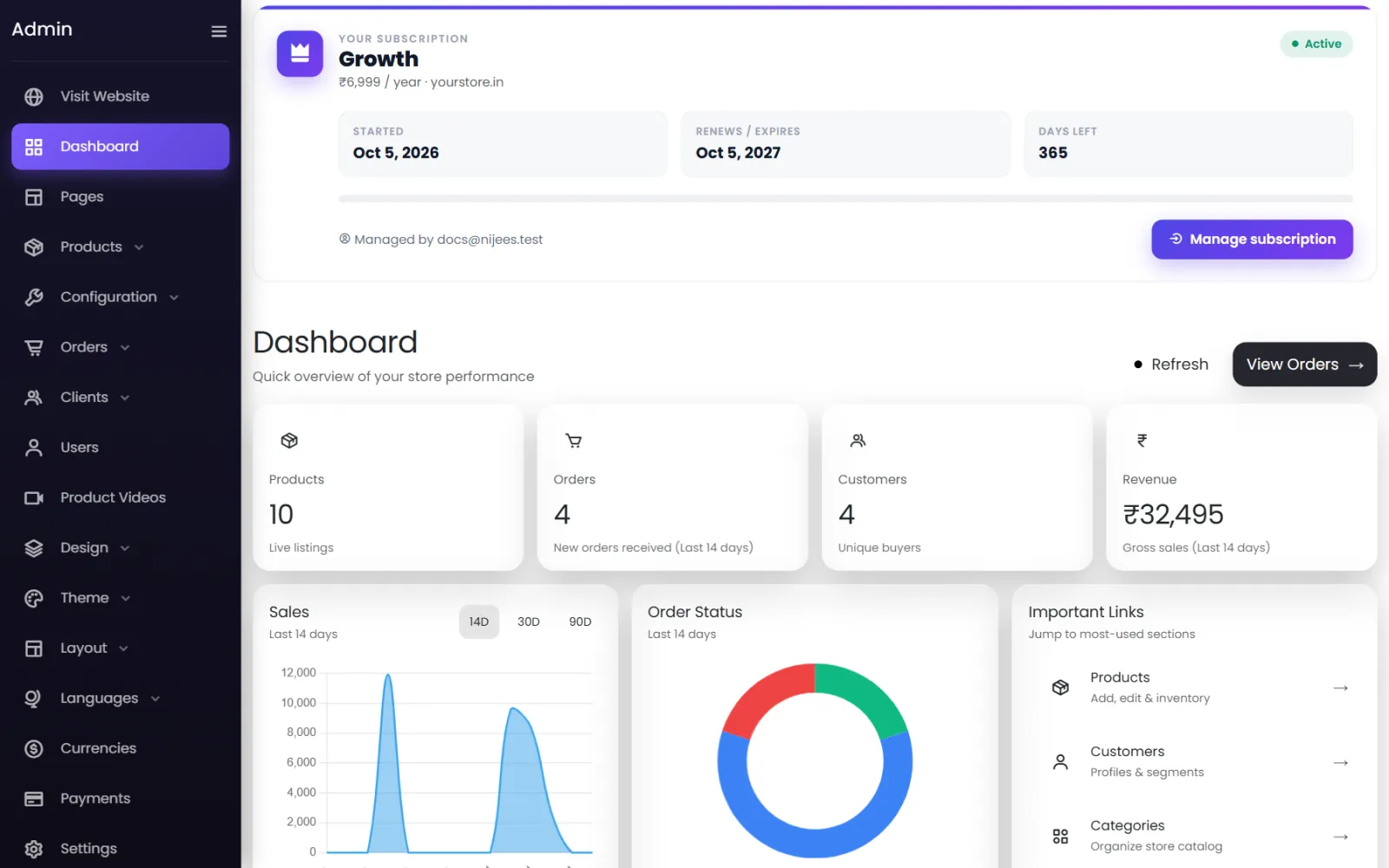
The menu#
| Menu item | What it is for |
|---|---|
| Visit Website | Opens your storefront in a new tab. |
| Dashboard | This overview. |
| Pages | Your storefront pages and the page builder. |
| Products → Products, Categories, Attributes, Brands | Your catalogue. Brands appears once you switch on Sell by brand in Settings. |
| Configuration → Taxes, Coupons, Pincodes, Shipping, Shiprocket | GST rates, discount codes, where you deliver and what delivery costs. |
| Orders → Orders, Returns, Returns Policy, Invoices & Labels | Everything after a customer pays. |
| Clients → Clients, Testimonials | Your registered customers' accounts, and the reviews you show on your pages. |
| Users | Admin logins for people who help run the store. |
| Product Videos | Shoppable videos linked to products. |
| Design | Card and element designs: products, categories, brands, buttons, forms, accordions, galleries, testimonials, blogs; Import Designs; Site CSS & JS. |
| Theme → Theme, Theme Library, Website Themes, My Library | Colours and fonts, ready-made themes, and the sections and pages you have saved. |
| Layout → Header Builder, Footer Builder, Menu Links, Mega Menu, Social Links | The parts of the store shown on every page. |
| Languages → Languages & Detection, Translations | Selling in more than one language. |
| Currencies | Prices, order limits and checkout in more than one currency. |
| Payments | The ways customers can pay. |
| Settings | Business details, logo, storefront options, shipping switches, WhatsApp, cookies, spam protection. |
| Accordions / FAQs, Forms, Blogs, Media | Content: FAQ blocks, contact forms and their entries, blog posts, and your media library with banners and galleries. |
A store set up as a catalogue (enquiry) store shows Enquiries instead of Orders and hides Configuration — see Catalogue mode.
The save bar#
Most editing screens share a bar along the bottom:
- All changes saved. — nothing to save.
- Discard — throw away what you changed since the last save.
- Save changes — save. On forms with their own Submit button, either works.
If you try to leave a screen with unsaved changes, you are asked first.
Keyboard shortcuts#
| Keys | What they do |
|---|---|
Ctrl + S (⌘ + S on a Mac) |
Save the form you are editing. |
Esc |
Cancel — you are asked to confirm if anything changed. |
Y / N |
Answer Yes or No in a confirmation box. |
Lists#
Every list — products, categories, coupons and so on — has a search box, an Add New button, a coloured status (Active or Inactive), and edit and delete buttons on each row. Where you see drag to reorder, drag rows by the handle on the left to change the order they appear in on your store.
Was this page helpful?
Something is missing — tell us