- Online store builder
- Payments
- Currencies
Sell in more than one currency
Add currencies, choose how their prices are worked out, decide whether orders are charged in them, set per-currency limits, and show the right currency to each visitor.
Every store has one default currency — Indian rupees for most — in which you enter every price, shipping charge, coupon and limit. You can add more currencies so visitors from abroad see prices in their own money, and optionally pay in it.
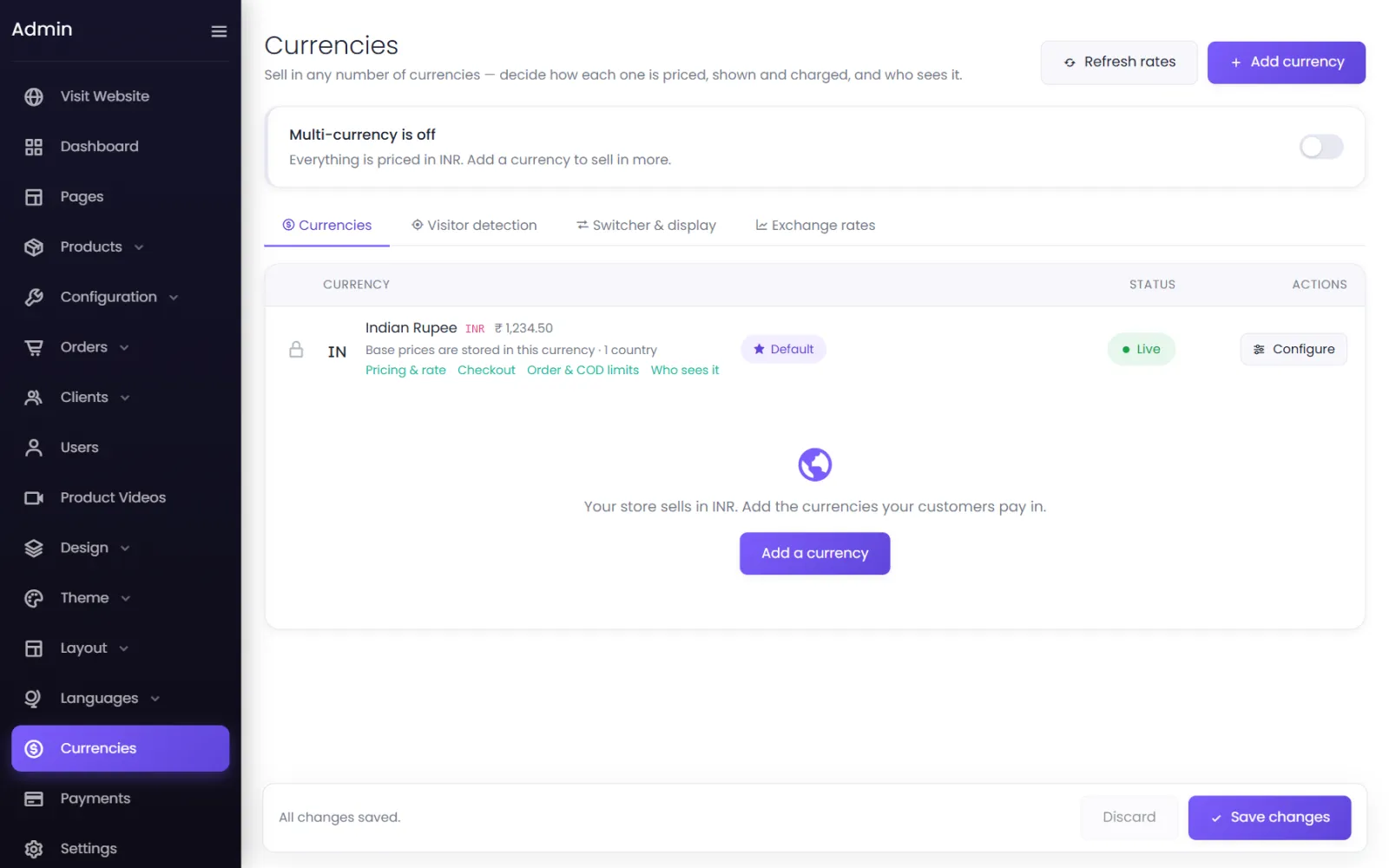
Add a currency#
- Go to Currencies and select Add currency.
- Choose the currency. It starts hidden until it has an exchange rate, and the countries that use it are filled in for you.
- Select Configure on its row and work through the sections below.
- Set its Status to Live.
- Switch on Multi-currency at the top of the Currencies screen. Until then shoppers see only your default currency.
Pricing — how its prices are worked out#
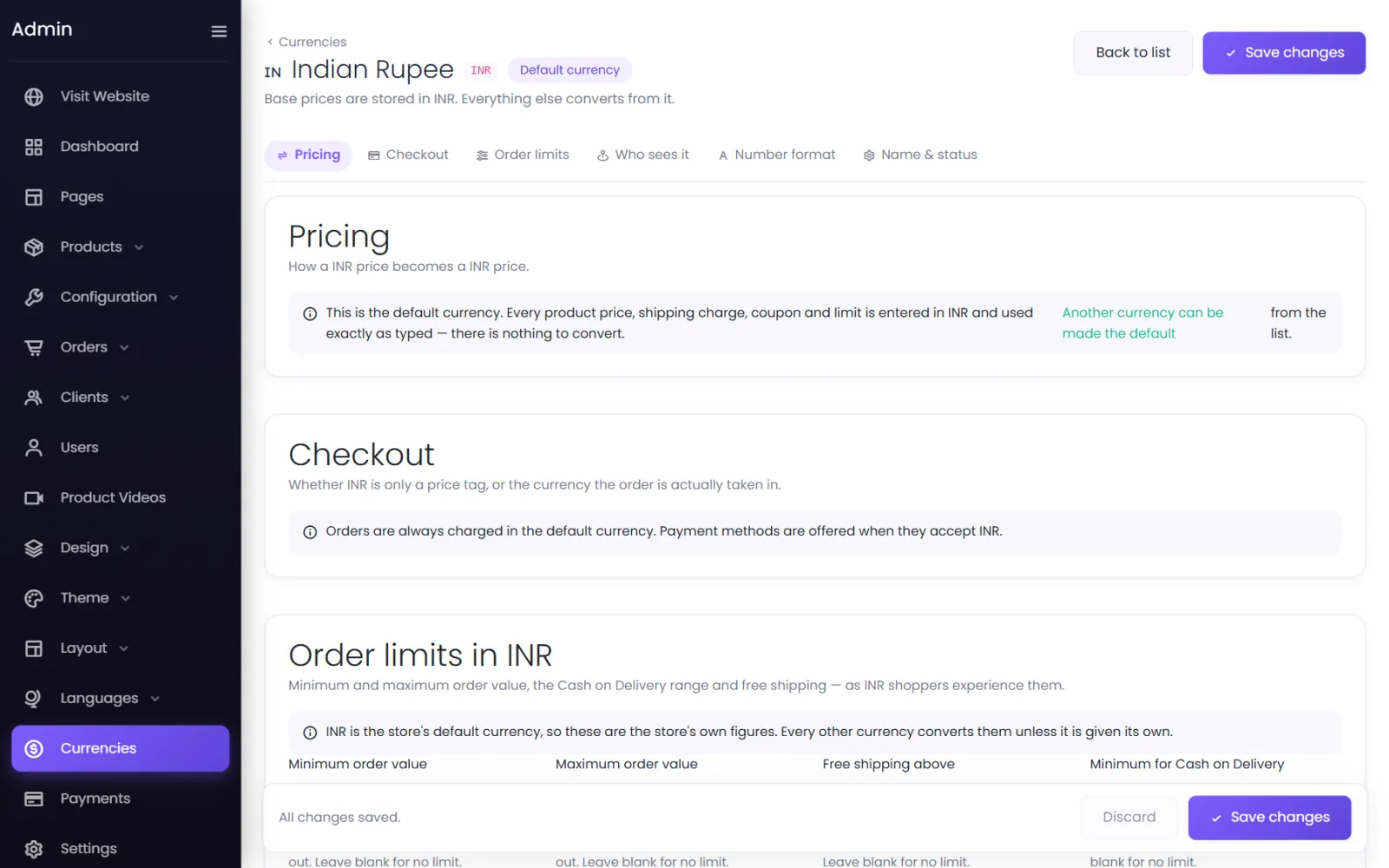
- Convert at the live exchange rate (easiest) — every price is your rupee price × today's rate, refreshed automatically.
- Convert at my own rate — you type the rate, and prices change only when you change it.
- Enter prices per product — type a price on each product's pricing box; products without one are converted, so nothing is ever unpriced.
Then:
- Adjust the rate by a percentage — to cover card and exchange fees, or a regional premium. A negative figure lowers prices.
- Rounding converted prices — Exact, or round to the nearest step, up or down, and End every price in — for example step 1 and ending 0.99 turns 23.40 into 23.99. Rounding applies to converted prices only; prices you type are used exactly.
- Try a price to preview the result.
Checkout — charged in it, or only shown#
- Charge orders in this currency — the cart, checkout, payment and invoice are all in it. You need a payment method that accepts it: Stripe, PayPal, Razorpay or CCAvenue for most foreign currencies. Cash on delivery accepts any currency.
- Show prices in this currency, charge in rupees — display only: shoppers browse in it, then the cart and checkout switch to rupees and they pay in rupees.
The screen warns you if no active payment method accepts the currency: shoppers could not check out.
Order limits#
Order & COD limits sets the Minimum order value, Maximum order value, Free shipping above, and the Minimum and Maximum for Cash on Delivery, as shoppers in this currency experience them. Leave a box blank and the rupee figure is converted; type a figure to fix a round number instead. See Order and COD limits.
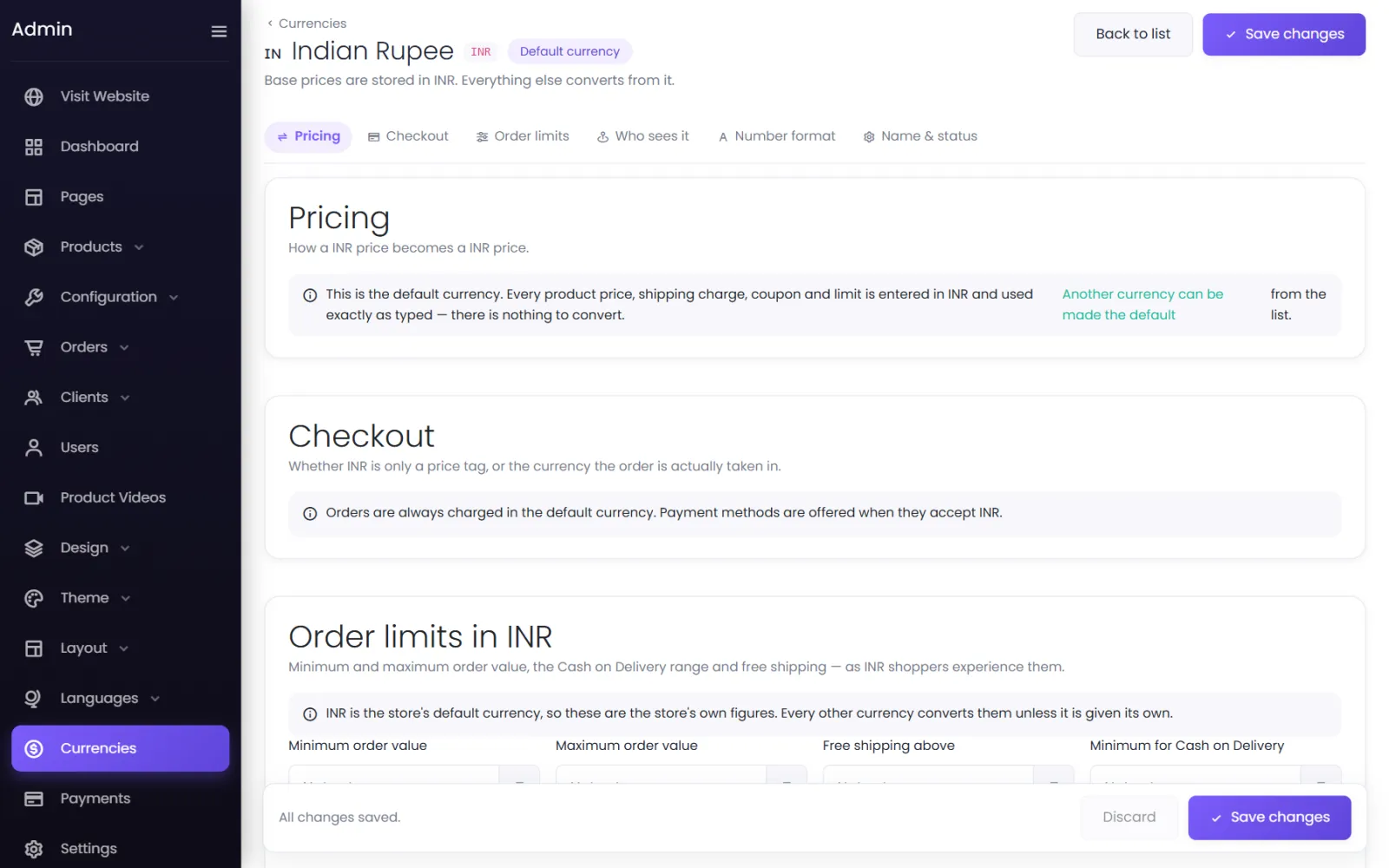
Shipping weight slabs have their own per-currency charges on each slab under Configuration → Shipping.
Who sees which currency#
- Who sees it (on each currency) — the countries whose visitors are put into it, and the store languages that use it (for example
/frpages in euros). - Visitor detection (tab on the Currencies screen) — the order of signals tried for a first-time visitor: Country, Store language, Browser languages, Earlier choice; what to show when nothing matches; and how many days a visitor's own choice is remembered. Use Test detection to see what a visitor like you would get. Search engines always see the default currency.
- Switcher & display — where the currency switcher appears: in the header bar and phone menu, at the bottom of the footer, or as a floating button; how each currency is written (USD, USD · US Dollar, US Dollar); and flags.
Exchange rates#
The Exchange rates tab sets the live-rate provider and its API key, how often rates refresh, and Hold back a change larger than a percentage — protection against a bad feed. Refresh now fetches rates immediately; Rate history shows every change.
How amounts are written#
How amounts are written sets the symbol's position, the thousands and decimal separators, decimal places and whether to hide .00 on whole amounts — so a price reads $1,234.50 or 1.234,50 €.
Common questions#
Can I change my default currency?#
Yes — the make default button on a currency's row. You are asked whether to convert your existing figures at the current rate, or keep the numbers (for a store set up with the wrong default). Shiprocket always quotes in rupees and is converted automatically; existing orders keep their own currency.
Shoppers abroad see "No payment method is available for payments in …"#
The currency is set to be charged in, but no live payment method accepts it. Switch the currency to display only, or add Stripe or PayPal.
Was this page helpful?
Something is missing — tell us