- Online store builder
- Storefront design
- Theme library
Theme library and website themes
Apply a ready-made colour theme in one click, or install a complete website theme — header, footer, cards and pages — or just the pieces you want.
You do not have to design from scratch. Two screens bring in ready-made design, and both depend on your plan.
Theme Library — colours and buttons#
Theme → Theme Library lists the themes included with your plan. Each card shows sample text and a button in the theme's colours.
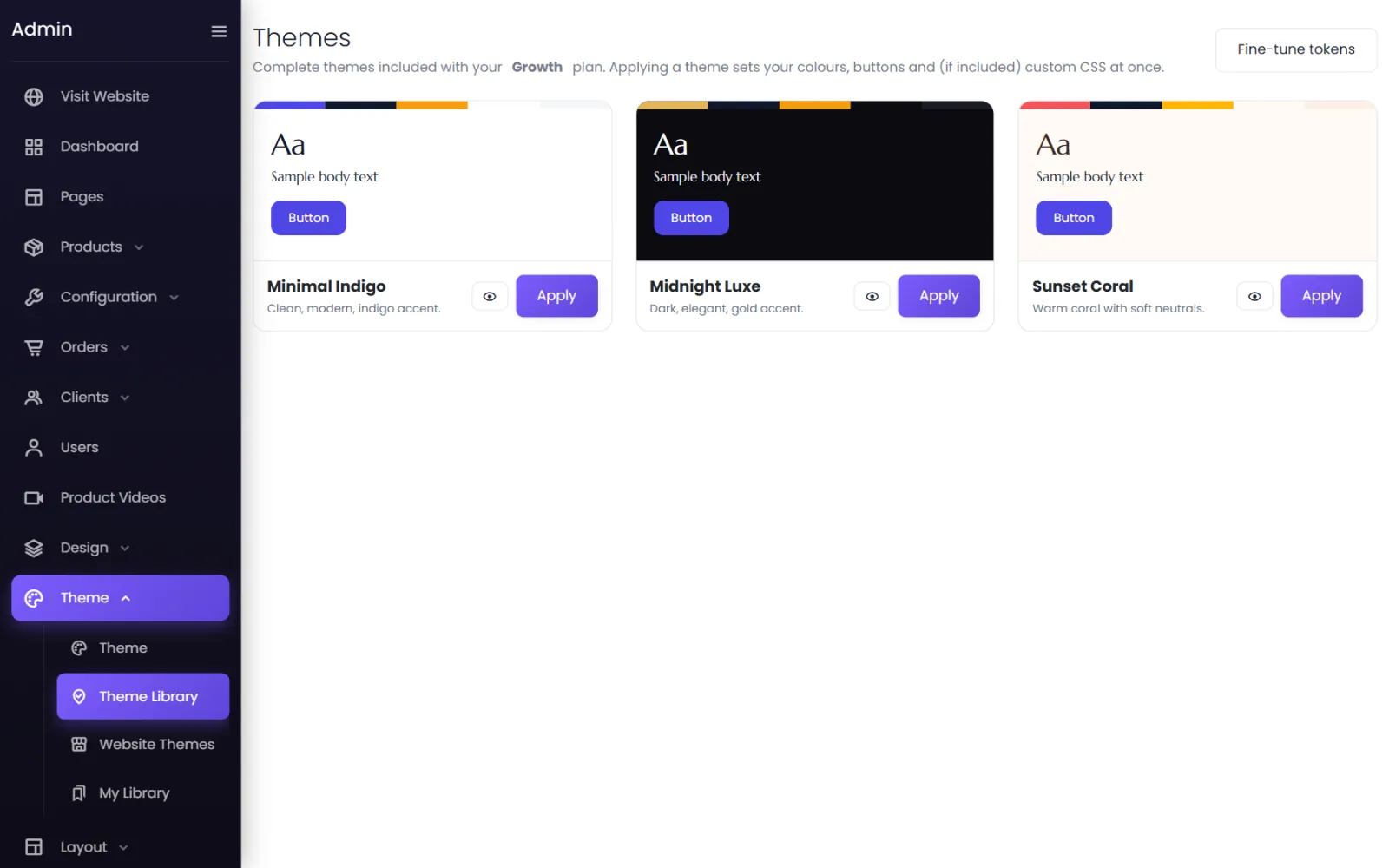
- The eye button previews it.
- Apply sets your colours, buttons and (if the theme includes it) custom CSS at once.
- Fine-tune tokens opens the theme editor to adjust what you applied.
Website Themes — a whole store look#
Theme → Website Themes installs a complete ready-made design in one click, or lets you pick individual pieces:
- Apply the whole theme — its colours, header, footer and card designs — and add its pages. Your existing pages are kept.
- Or import pieces: the colour theme, the header, the footer, a product card, brand card or category card, or Add page for one of its pages.
- Its sections can be added from the page builder with + Add section.
Live demo shows the theme on a real store first.
My Library#
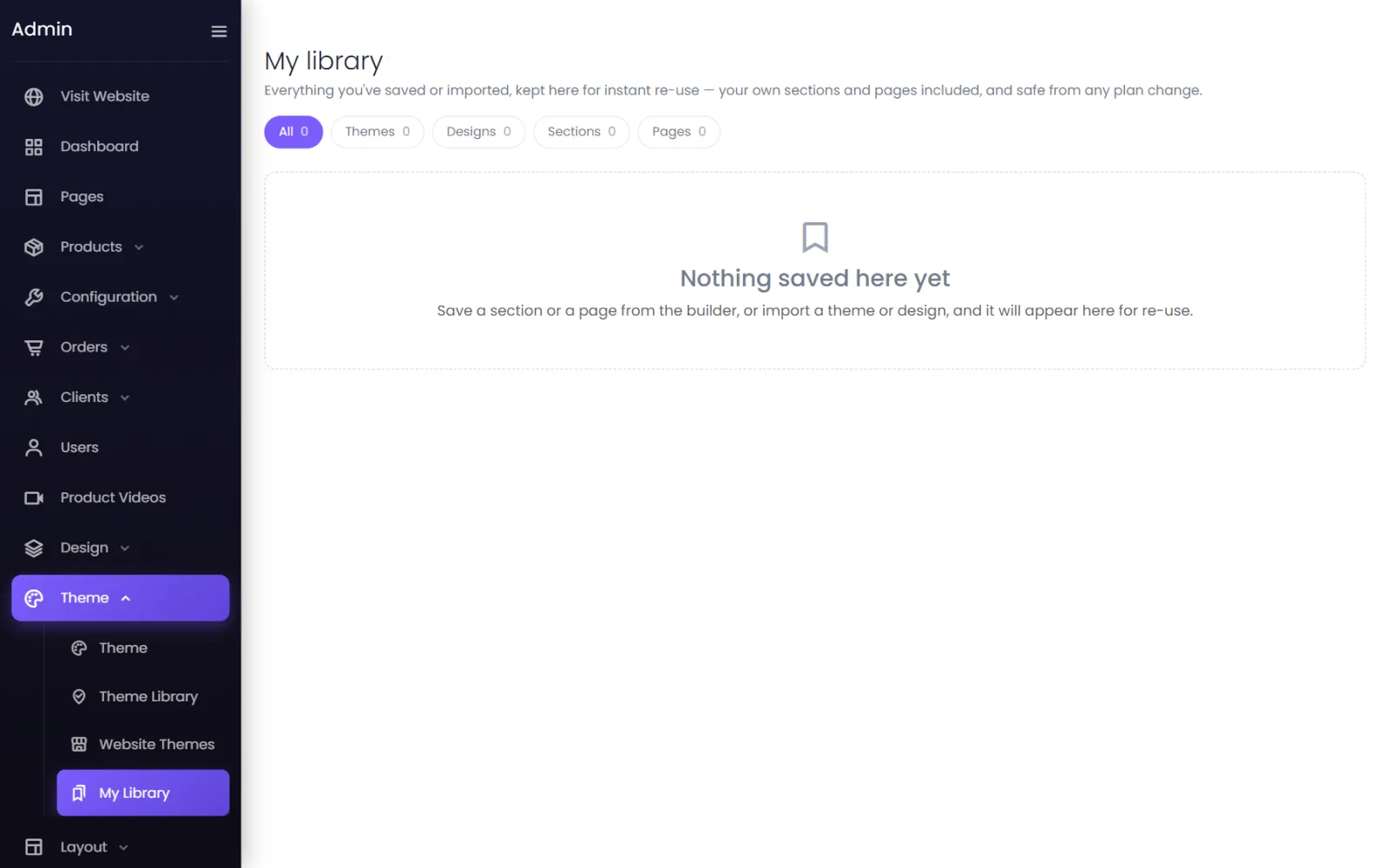
Theme → My Library keeps everything you have saved or imported — themes, designs, sections, pages and mega menus — for re-use, safe from any plan change. Filter by Themes, Designs, Sections or Pages, and use Add to page… to put a saved section on a page.
Plans and the library#
The themes and designs on offer depend on your plan — higher plans include more. If a screen says No website themes are available on your plan yet or There are no themes published for the … plan right now, there is nothing in the library for your plan at the moment; see Upgrade your plan. Anything you already imported stays in My Library either way.
Was this page helpful?
Something is missing — tell us