- Online store builder
- Settings
- Cookies and analytics
Cookie consent, analytics and maps
Add Google Analytics, ask visitors before setting analytics cookies, word your cookie bar, and show your shop on Google Maps.
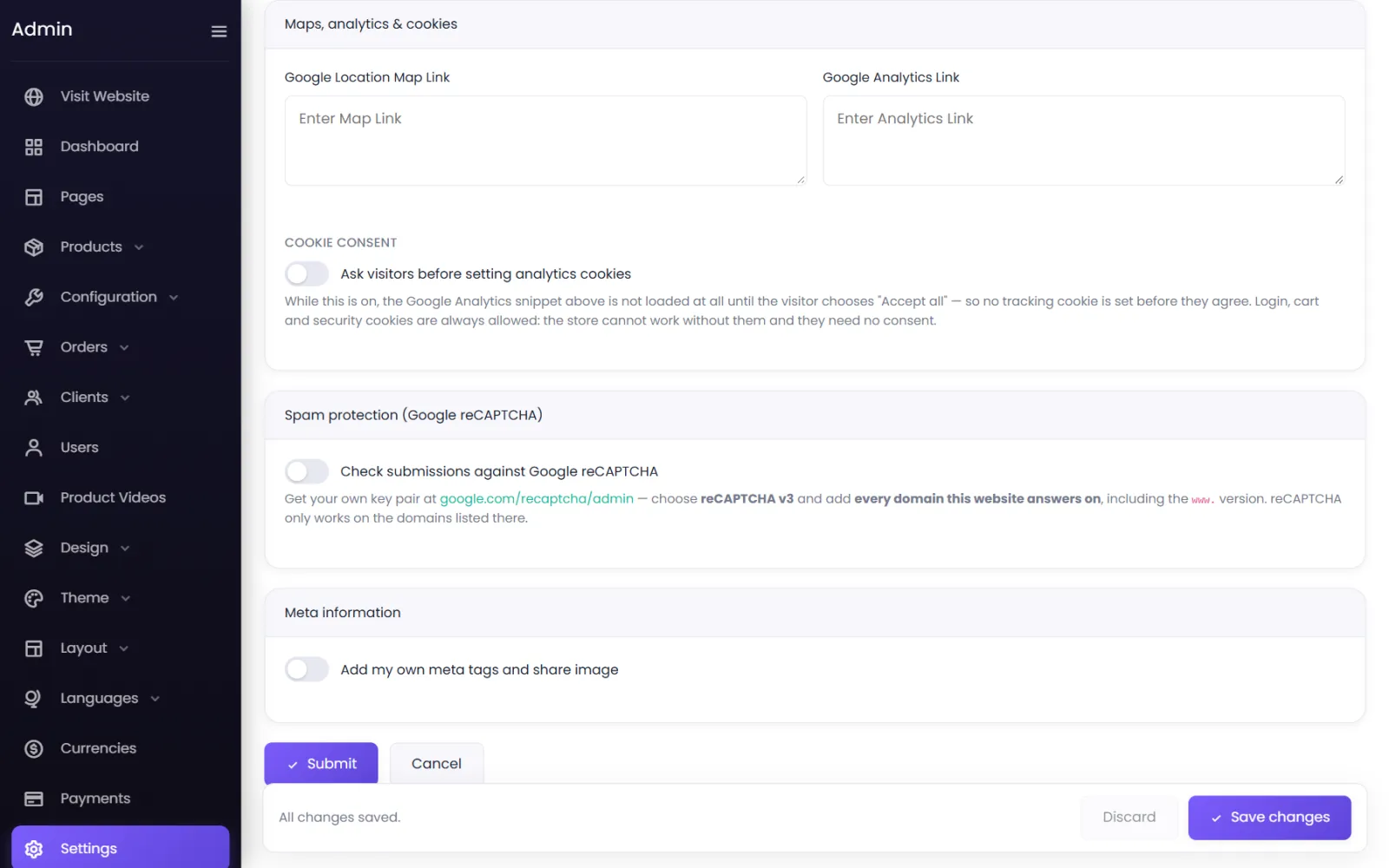
Settings → Maps & cookies holds three things: your Google Maps location, your Google Analytics tag, and the cookie bar that asks visitors' permission.
Google Analytics#
Create a property at analytics.google.com, choose Web, and copy the whole Google tag it gives you — the <script> code. Paste it into Google Analytics Link and save.
Ask before tracking#
Switch on Cookie consent: Ask visitors before setting analytics cookies. While it is on:
- the Google Analytics snippet is not loaded at all until the visitor chooses Accept all, so no tracking cookie is set before they agree;
- sign-in, cart and security cookies are always allowed — the store cannot work without them, and they need no consent.
Visitors choose Accept all or Necessary only on a bar at the bottom of the page.
The bar's wording#
- Banner Title — We use cookies
- Accept Button — Accept all
- Reject Button — Necessary only
- Banner Message — Some cookies are needed to make this site work…
Leave any of them blank for the default English wording.
- Cookie Policy Link — a page on your store (
/cookie-policy) or a fullhttps://address. - Link Text — Cookie policy.
Your shop on a map#
Google Location Map Link keeps your Google Maps link with your settings, but it is not currently shown on your storefront. To help customers find you, add the link (from Share → Copy link in Google Maps) to your footer's contact column or your Contact page.
Other tracking codes#
Analytics added any other way — such as in Site CSS & JS — is not controlled by the cookie bar. See Custom CSS and JavaScript.
Was this page helpful?
Something is missing — tell us