- Online store builder
- Payments
- How payments work
How payments work
Add payment methods, choose where each one is offered, switch them Live, Admins only or Off, and see what customers see at checkout.
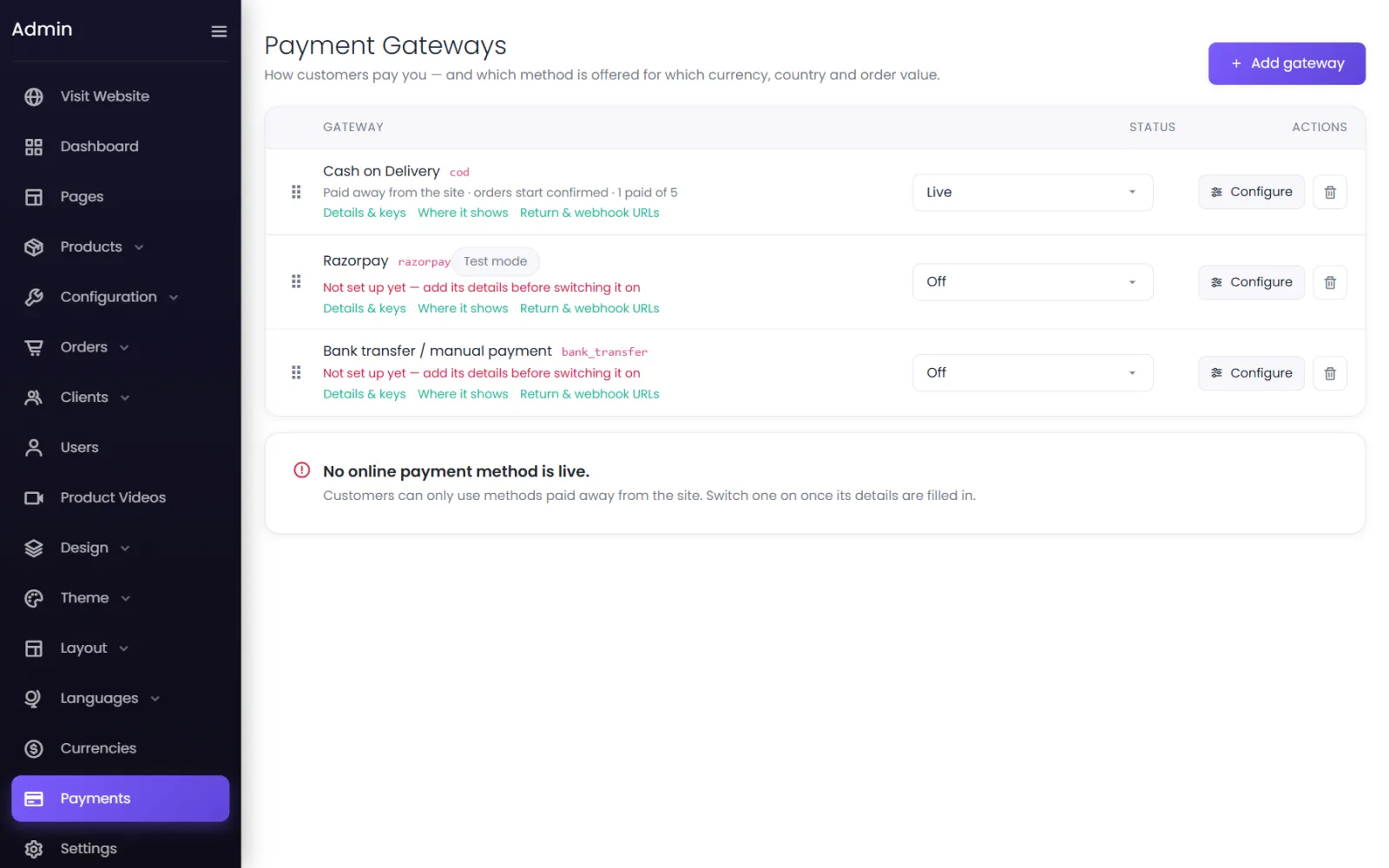
The Payments screen decides how customers can pay you. A new store has no payment methods — add at least one before your first sale.
The methods you can add#
| Method | Paid | What you need |
|---|---|---|
| Cash on Delivery | To the courier, on delivery | Nothing |
| Bank transfer / manual payment | By the customer to your bank or UPI ID | Your bank or UPI details |
| Razorpay | Online: cards, UPI, net banking, wallets | A Razorpay account |
| PhonePe | Online: UPI first, cards, net banking | A PhonePe business account |
| Cashfree Payments | Online: UPI, cards, net banking, pay later | A Cashfree account |
| PayU | Online: cards, UPI, net banking, EMI | A PayU account |
| CCAvenue | Online: cards, net banking, UPI, wallets | A CCAvenue account |
| Paytm | Online: Paytm wallet, UPI, cards | A Paytm business account |
| Stripe | Online: cards, Apple Pay, Google Pay — 135+ currencies | A Stripe account |
| PayPal | Online: PayPal balance and cards — 25 currencies | A PayPal business account |
You can offer several at once — for example Razorpay and Cash on Delivery — and even the same gateway twice with different rules.
Add a method#
- Go to Payments and select Add gateway.
- Choose the method. It is added switched off, and its settings open straight away.
- Work through the sections below. (Later, reach them with Configure on the method's row.)
- Select Save changes.
The sections of a payment method#
Account details (online gateways)#
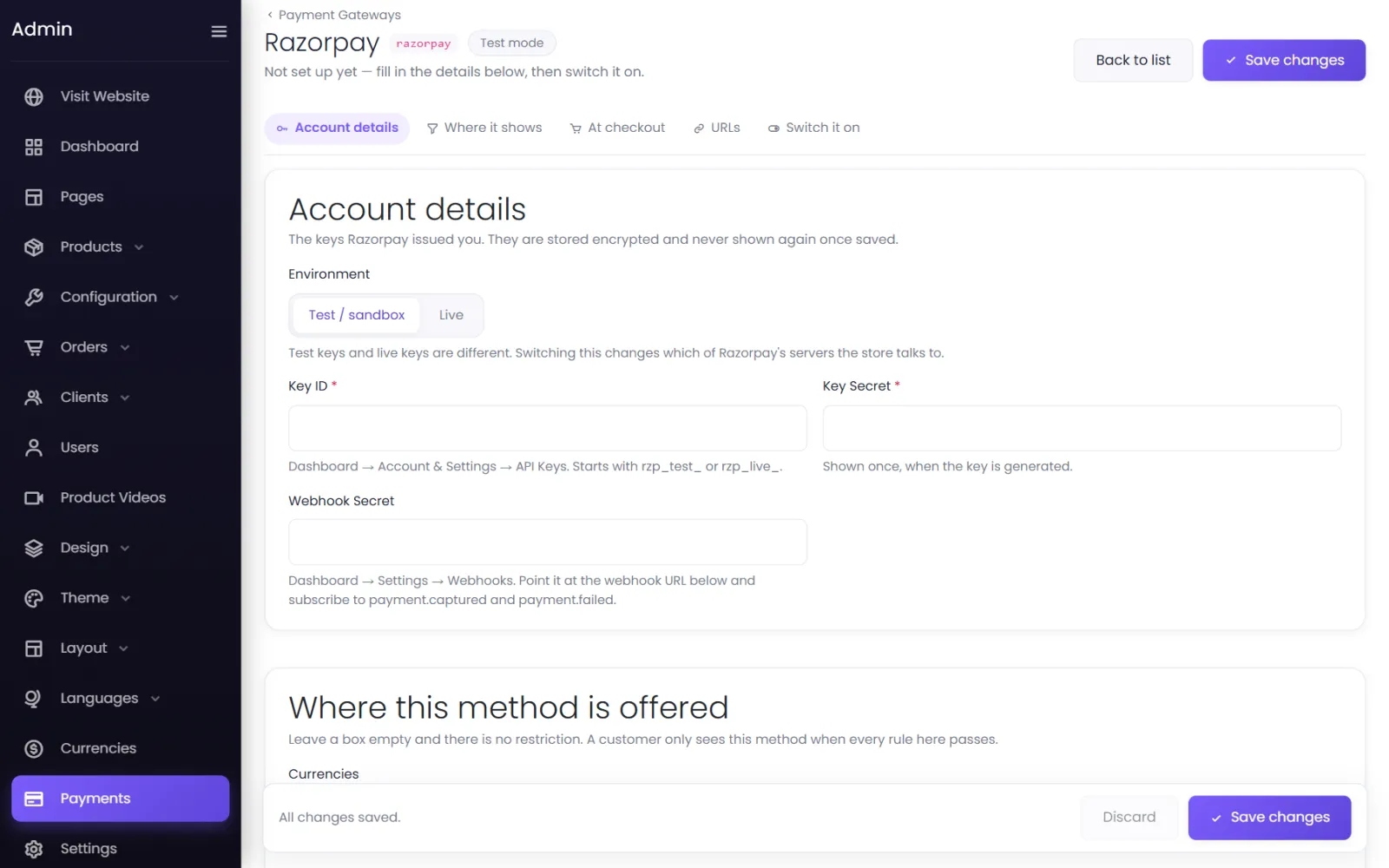
- Environment — Test / sandbox or Live. Test and live keys are different; this decides which of the gateway's servers your store talks to.
- The keys your gateway issued you — each gateway's guide says where to find them. Keys are stored encrypted and never shown again: a saved secret shows as
•••••••• saved — type to replace. Leave it blank to keep the saved value.
How this method works (cash on delivery and bank transfer)#
- Payment instructions (bank transfer) — your bank or UPI details.
- An order paid this way starts as — Confirmed or Pending. See Cash on delivery and Bank transfer.
Where this method is offered#
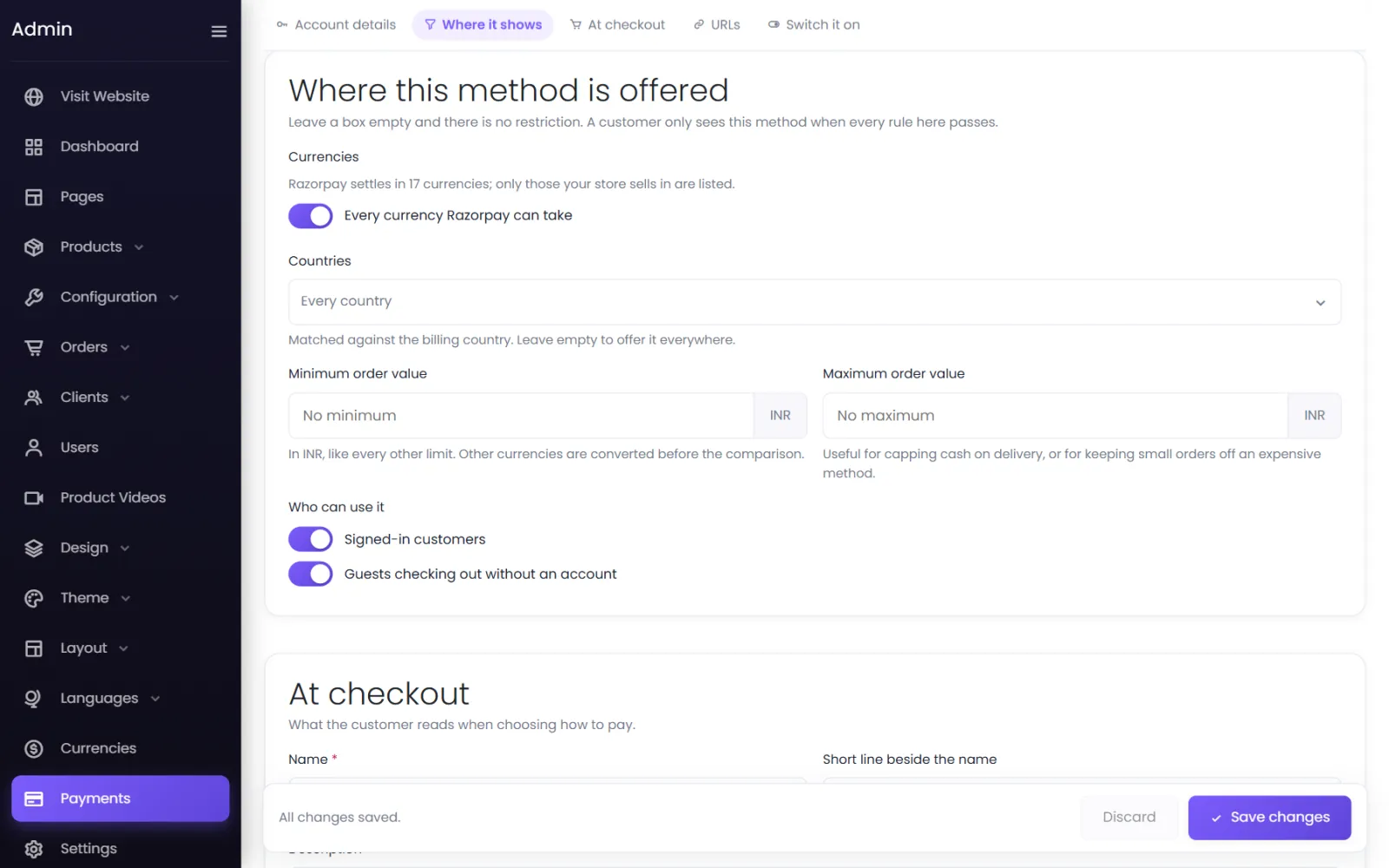
A customer only sees the method when every rule passes. Leave a rule empty for no restriction.
- Currencies — which of your store's currencies it is offered in. Online gateways list only the currencies they settle in.
- Countries — matched against the customer's billing country.
- Minimum order value / Maximum order value — in your default currency. A maximum is the usual way to cap cash on delivery.
- Who can use it — Signed-in customers, Guests checking out without an account, or both.
At checkout#
What the customer reads when choosing how to pay: the Name (Pay online), a Short line beside the name (UPI, cards and netbanking) and a Description. A Preview shows how it looks.
URLs for the gateway's dashboard#
The Webhook / callback URL and Return URL to paste into your gateway's dashboard. They are fixed for this method. Every message arriving at them is checked against the gateway's own signature, so nobody can mark an order paid by guessing a URL.
Switch it on#
| Status | Who sees it |
|---|---|
| Live | Every customer the rules allow. |
| Admins only | Only you, when signed in as an admin — for a real test payment on your live store. |
| Off | Nobody. |
You cannot switch a method on until its required details are filled in: Fill in every required credential before switching this on.
The order customers see#
Drag the rows on the Payments list — this is the order customers see at checkout. Put the method you prefer customers to use first.
What happens when a customer pays online#
- At checkout the customer chooses the method and selects Checkout. The order is created as Pending.
- They are taken to the gateway's page and pay.
- When the gateway confirms the payment, the order becomes Confirmed, its payment status Paid, and the stock is taken.
- If the payment fails or is abandoned, the customer sees a failure page and the order stays Pending with payment Pending — no stock is taken.
Each method's row shows how many payments started through it were completed: … 3 paid of 5.
Messages on this screen#
| Message | Meaning |
|---|---|
| No payment methods yet. Add the ones your customers pay with. | Nothing can be paid yet — add a method. |
| No online payment method is live. | Customers can only use cash on delivery or bank transfer. |
| Not set up yet — add its details before switching it on | Required keys are missing. |
| … is not set up yet — open it and fill in its details first. | You tried to switch on a method with missing keys. |
| The maximum must be more than the minimum. | Fix the order value range. |
| Give this method a name (up to 120 characters) — customers see it at checkout. | The checkout name is empty or too long. |
Was this page helpful?
Something is missing — tell us