- Online store builder
- Marketing & content
- Media library
Media library
Upload images, videos and PDFs once and use them anywhere — products, banners, galleries, pages and the blog.
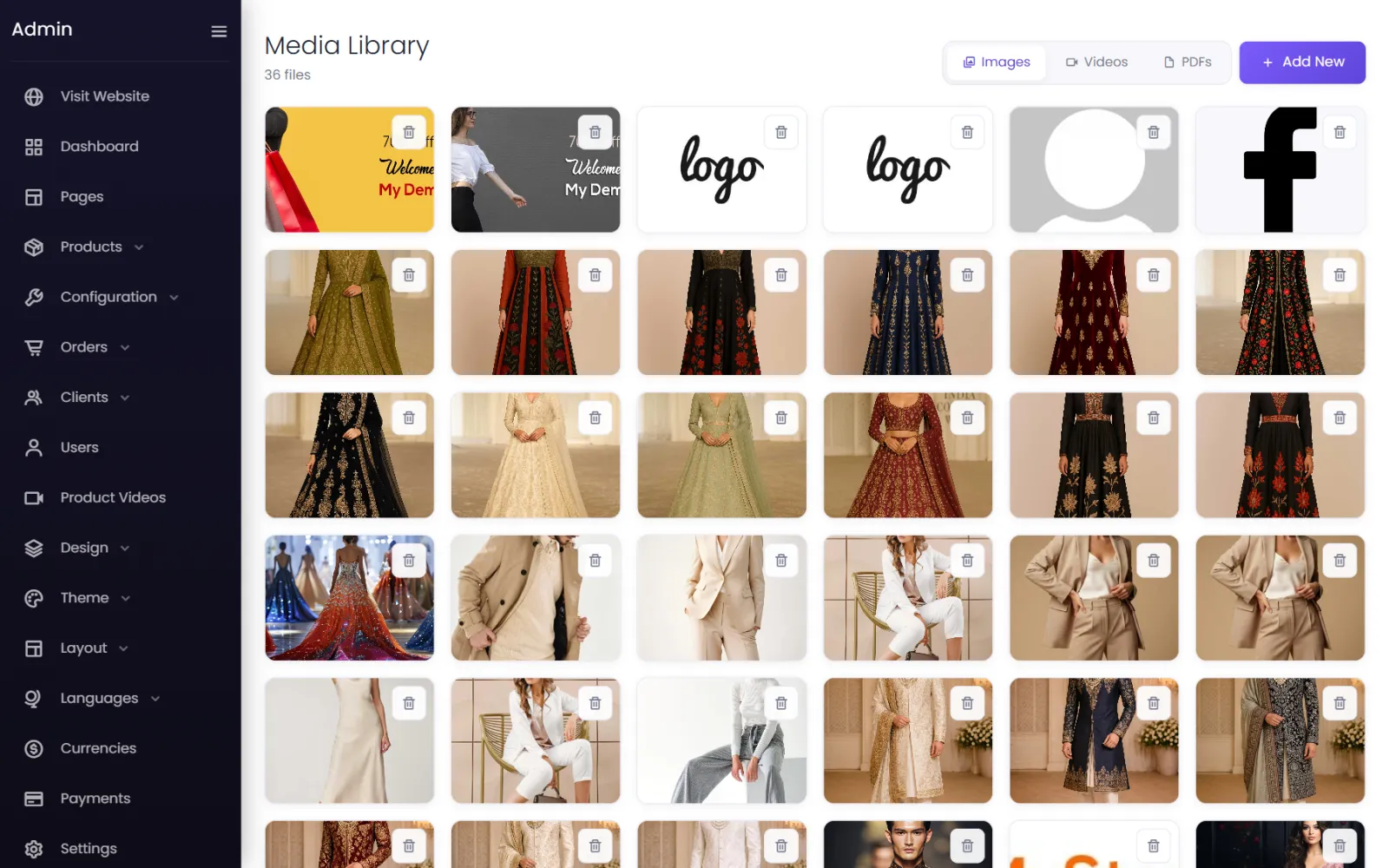
The media library holds every image, video and PDF on your store. Wherever a screen offers Select from Media Folder, you can pick from it instead of uploading again.
Upload#
- Go to Media → Media and select Add New.
- Choose what to upload:
- Images — several at a time;
- Video — one at a time;
- PDF — one at a time.
- Upload. Images are converted to WebP automatically, which keeps them sharp and quick to load.
Switch between the Images, Videos and PDFs tabs to browse. The bin on a file deletes it.
Use a file#
On any form with Select from Media Folder (or Select Multiple from Media Folder), the library opens: pick the file and select Add Selected Files (or the file itself).
Link to a PDF#
Upload a PDF — a size chart, a catalogue, a care guide — and link to it from a page, a menu or a product description.
Good files#
- Photos — JPG or PNG, around 1000–2000 pixels wide, under about 2 MB each.
- Videos — MP4, short clips, as small as you can make them. Embed long videos from YouTube instead.
- File names —
blue-silk-saree.jpgrather thanIMG_2047.jpg; the name is part of the file's address.
Allowed types are listed in Limits and file types.
Was this page helpful?
Something is missing — tell us